AI Services / LLM
Overview
Atolio makes it easy to securely configure and manage access to commercial LLMs of your choice.
High-level configuration workflow
With a healthy Atolio deployment running, an administrator may hit the root URL of the
deployment (eg. https://search.example.com), visit the administration panel (/admin)
and click LLM Provider to jump into the configuration.
Atolio uses a range of models dependent on the use case. Per provider, the following models are currently supported:
| Provider | Models |
|---|---|
| Anthropic | Sonnet 4.6, Haiku 4.5 |
| AWS Bedrock | Ask Atolio Support for recommended models |
| Google Gemini | Gemini Flash 3 |
| OpenAI / Azure OpenAI | GPT-5.2, GPT-5 Mini |
Configuration through API Key
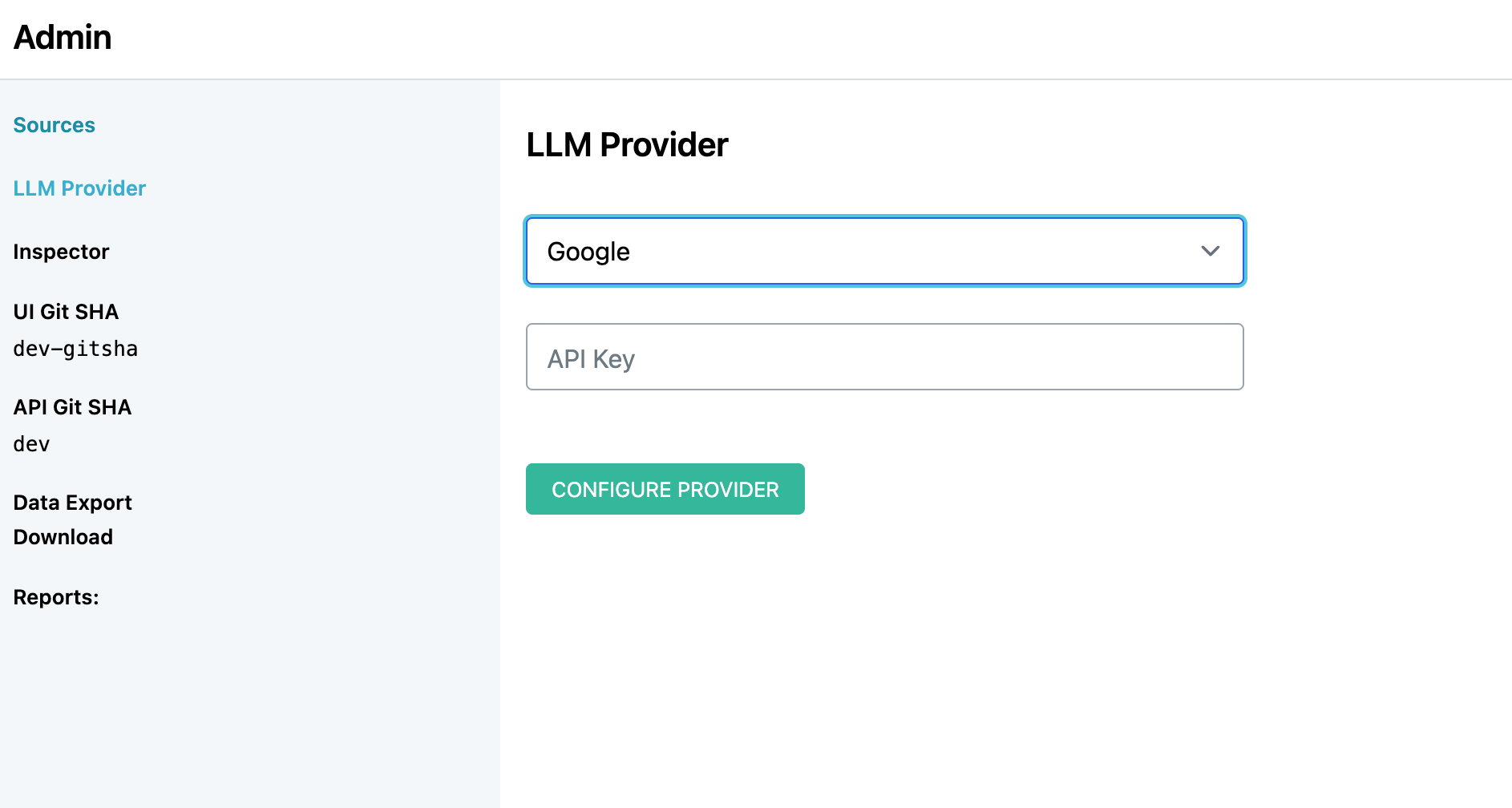
For the majority of providers, an access token is required. To enable the provider:
Open Atolio and head to the
AdminpanelSelect
LLM Providerfrom the left-pane menuSelect the LLM Provider and follow the specific configuration steps:
Azure OpenAI
- Navigate to the Azure AI Foundry Portal at https://ai.azure.com/ and create a new Azure AI Foundry resource.
- Choose subscription, resource group, region, and resource name. Create the resource.
- From the service home page, open
Deploymentsfrom the left-hand menu - Create a new base model deployment for
gpt-5.5 - Create an additional base model deployment for
gpt-5-mini - On the model deployment page, under
Endpoint Settings, copy the API key and base Endpoint URL. - Back within Atolio, enter the copied Endpoint URL and API Key.
OpenAI
- Navigate to https://platform.openai.com/api-keys
- Create a new secret key and copy it.
- Specify the API key within Atolio.
Anthropic
- Navigate to https://platform.claude.com/
- Create a new API key and copy it.
- Specify the API key within Atolio.
AWS Bedrock
- Ensure Atolio is deployed on an AWS instance and with the ability to edit certain IAM roles.
- Model access has changed in AWS recently and requires IAM editing with permissions to the AWS Marketplace depending on selected LLM.
- Append (DO NOT REMOVE) the following policy document to the existing Marvin service role
marvin_svc_act, making sure to replace<MODEL_NAME>:
{
    {
        "Version": "2012-10-17",
        "Statement": [
            {
            "Effect": "Allow",
            "Action": [
                "bedrock:InvokeModel",
                "bedrock:InvokeModelWithResponseStream",
                "bedrock:Converse",
                "bedrock:ConverseStream"
            ],
            "Resource": "arn:aws:bedrock:*:*:foundation-model/<MODEL_NAME>"
            }
        ]
    }
}
Depending on the selected model, there may be third-party billing. Amazon treats external or third-party tools and billing as AWS Marketplace entities. Depending on the selected LLM, it may require extending the previous IAM role with:
{ { "Statement": [ ..., { "Effect": "Allow", "Action": [ "aws-marketplace:ViewSubscriptions", "aws-marketplace:Subscribe" ], "Resource": "*" } ] } }- Select AWS Bedrock as the provider within Atolio. The region is automatically selected based on the deployed region. For more details, see Amazon Bedrock User Guide.
- Ensure Atolio is deployed on an AWS instance and with the ability to edit certain IAM roles.
Google
- Navigate to https://aistudio.google.com
- Create a new project and API key and copy it.
- Specify the API key within Atolio.
Changing Providers
Upon configuring and validating the provider, Atolio will lock the configuration to ensure the system is stable. For switching providers, please contact your Atolio admin at this time.