Zendesk Connector
Zendesk connector enables the indexing of tickets, and help center articles.
Prerequisites
The following configuration should be set on your Zendesk instance, by the account owner or an admin user, before configuring the Zendesk connector.
- Go to Zendesk admin panel
https://{your-zendesk-subdomain}.zendesk.com/admin/apps-integrations/apis/zendesk-api/settings
- Enable “API access”
- If you don’t see such an option, it means it’s already enabled.
- Enable “Token access”
- Create a new API token
- If you already have an API token other integrations, it’s still advised to create a new one for the Zendesk connector, and provide a descriptive name such as
atolio-connector-token. Note the token value since you cannot retrieve it after its creation. You’ll provide it as described in Required Configuration Values.
- If you already have an API token other integrations, it’s still advised to create a new one for the Zendesk connector, and provide a descriptive name such as
- Create a new admin user
- If you already have an admin user for other integrations, it’s still advised to create a new admin user for the Zendesk connector, and provide a descriptive username such as
atolio-connector-admin-user@<your-org-domain>. You’ll provide the username as described in Required Configuration Values.
- If you already have an admin user for other integrations, it’s still advised to create a new admin user for the Zendesk connector, and provide a descriptive username such as
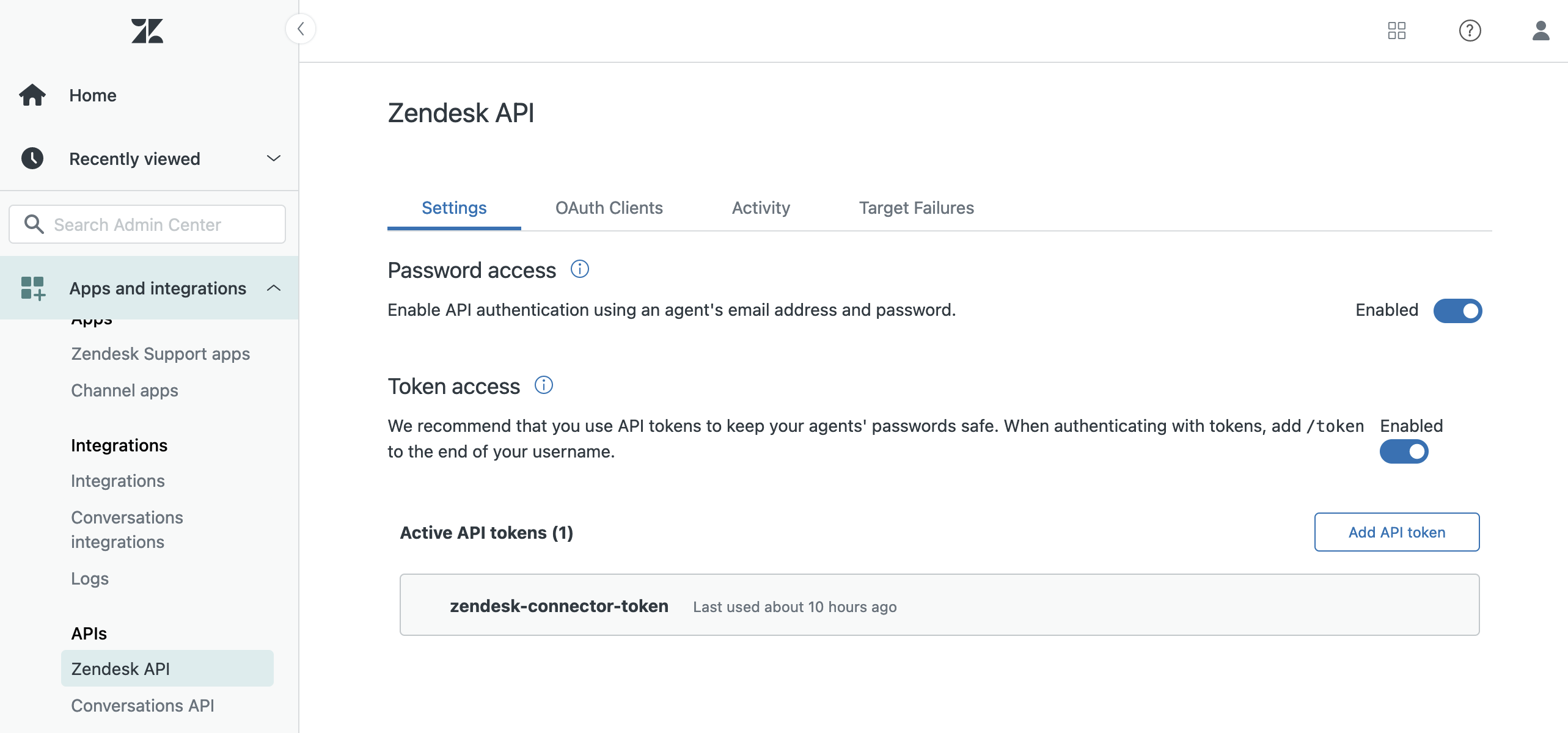
After the configuration, your API settings page should look like the following:
Required Configuration Values
Enter these values in the Atolio Admin console (v4.24 and later), or send them to Atolio Support (your Deployment Engineer).
| Value | Where to find it | Example / format | Secret |
|---|---|---|---|
| Zendesk subdomain | The first part of your Zendesk URL, https://{your-zendesk-subdomain}.zendesk.com | example | No |
| Admin user email | Prerequisites, the email address of the admin user created for the connector | atolio-connector-admin-user@example.com | No |
| API token | Prerequisites, the API token created for the connector | Long random string | Yes |
| Index Help Center content? | Whether your organization uses Zendesk “Help Center” (hosted articles) and wants it indexed. If you’re not sure, visit https://{your-zendesk-subdomain}.zendesk.com/knowledge: a 404 error means your organization doesn’t use it | Yes / No | No |
Provided by Atolio: the webhook token (webhook_token), which your Deployment Engineer generates and the connector uses to verify Zendesk webhook signatures.
Do not change any Zendesk “webhook” or “trigger” whose name starts with lumen. The connector creates these automatically to index content changes as they happen.
Keep secrets secure: Share values marked “Yes” in the Secret column only through a password-manager share (e.g. 1Password) or another secure channel agreed with Atolio Support. Never send them in plain email, chat, or support tickets.
Configuration Example
Add this block to connector-values.yaml. Replace each <PLACEHOLDER> with the matching value from the table above, and remove any line marked “Only if” that doesn’t apply.
connectors:
  zendesk:
    default:
      zendesk:
        connector: zendesk
        instance: default
        source: zendesk
        common:
          enabled: true
          identity-provider: false
        secrets:
          token:
            value: "<API_TOKEN>"
          webhook_token:  # Only if verifying webhook signatures
            value: "<WEBHOOK_TOKEN>"
        configuration:
          subdomain: "<ZENDESK_SUBDOMAIN>"
          email: "<ADMIN_USER_EMAIL>"
          help-center-enabled: false  # Set to true to index Help Center content
Content Filtering
Atolio supports the ability to avoid certain content from being indexed at all. You can provide inclusions or exclusions with respect to each resource type.
- Users can be filtered w.r.t. their emails.
- Groups can be filtered w.r.t. their names.
- Organizations can be filtered w.r.t. their names.
- Tickets can be filtered w.r.t. their statuses (e.g., “open”, “closed”)
For Help center content:
- User Segments can be filtered w.r.t. their names.
- Articles can be filtered w.r.t. their section IDs.
- Section ID is a number that can be identified by executing the following command:
curl -L -u "{admin-user}/token:{admin-token}" https://{zendesk-subdomain}.zendesk.com/api/v2/help_center/articles/{article-id}.json | jq ".article.section_id"- Replace
{admin-user},{admin-token},{zendesk-subdomain}, and{article-id}values appropriately.
- Section ID is a number that can be identified by executing the following command:
An example of inclusions/exclusions file would be as follows:
resources:
    user:
        excluded:
            - super_secret_user@example.com
    group:
        included:
            - A group name
            - Another group name
    organization:
        included:
            - An organization name
    user_segment:
        included:
            - A segment name
    ticket:
        excluded:
            - closed  # ticket status
    article:
        excluded:
            - "12345" # section id
If you need content filtering, provide the inclusions & exclusions similar to the file above to your Deployment Engineer.