SolarWinds Service Desk Connector
SolarWinds Service Desk (SWSD) connector enables the indexing of Incidents, Service Catalog, Problems, Solutions, Releases and Changes on your SWSD instance.
Prerequisites
The following configuration should be set on your SWSD instance, by an admin user, before configuring the SWSD connector.
- Create a new admin user:
- Go to Setup -> Users & Groups -> Users.
- Create a new user with a descriptive name, such as “Atolio Admin User”. Make sure the user is given “Admin” role.
- Activate the newly created user through the link sent via email.
- Altough you can use an existing admin user, creating a new user solely for the purpose of Atolio integration is a best practice.
- Generate JWT:
- Login as “Atolio Admin User”.
- Go to Setup -> Users & Groups -> Users. From the user table, click on “Atolio Admin User” to open the details page.
- From the “Actions” menu, select “Generate JSON Web Token” item to generate an API token. You’ll provide the token value as described in Required Configuration Values.
Required Configuration Values
Enter these values in the Atolio Admin console (v4.24 and later), or send them to Atolio Support (your Deployment Engineer).
| Value | Where to find it | Example / format | Secret |
|---|---|---|---|
| SWSD domain | Your SolarWinds Service Desk address | company.samanage.com | No |
| JWT of “Atolio Admin User” | Prerequisites, “Generate JWT” | Long encoded string | Yes |
| Roles & Permissions screenshot | A full screenshot of Setup -> Account -> Roles & Permissions, used to configure the connector to match your permission settings (shown below). Share it privately, as it describes your permission setup | Image file | No |
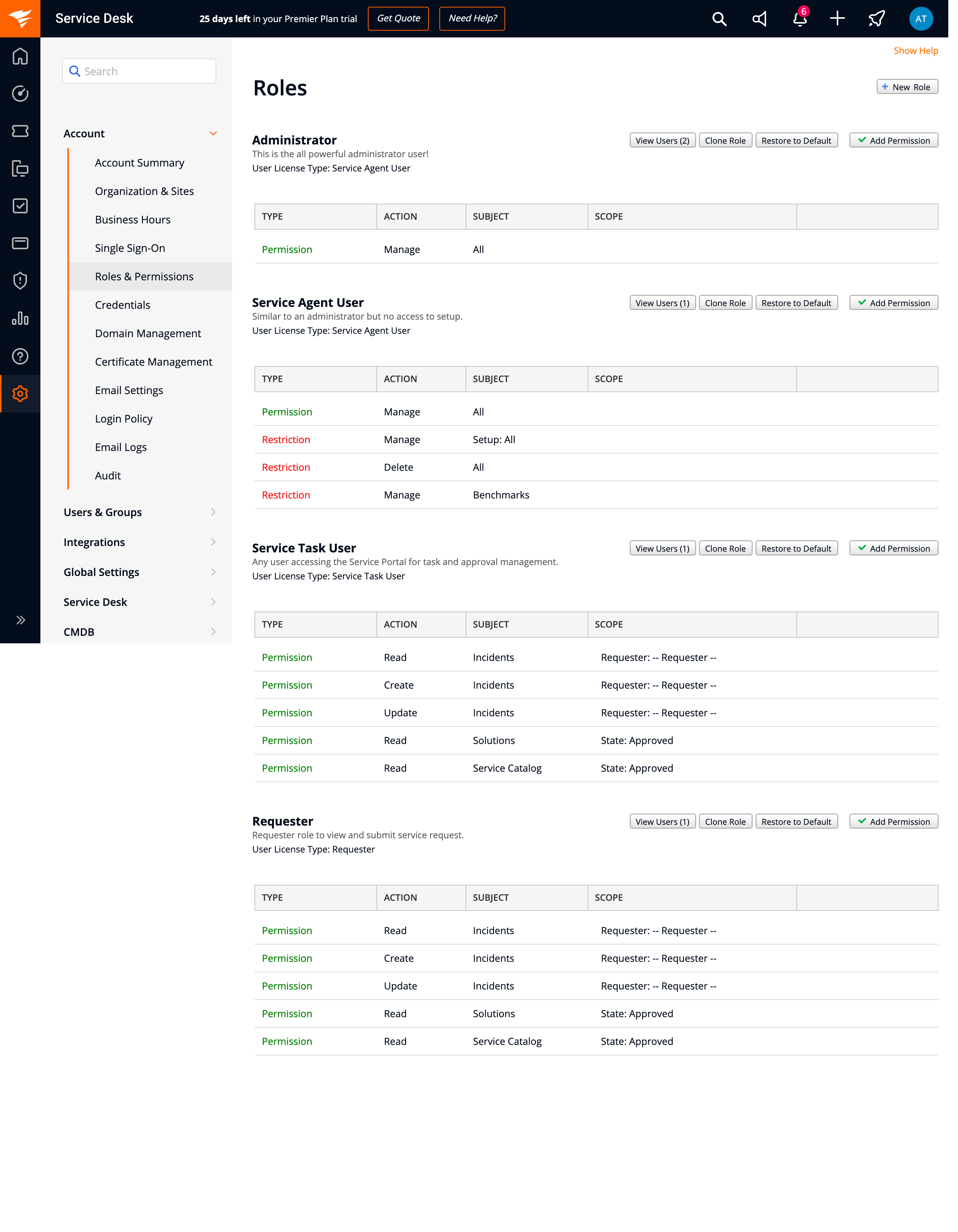
Keep secrets secure: Share values marked “Yes” in the Secret column only through a password-manager share (e.g. 1Password) or another secure channel agreed with Atolio Support. Never send them in plain email, chat, or support tickets.
Configuration Example
Add this block to connector-values.yaml. Replace each <PLACEHOLDER> with the matching value from the table above, and remove any line marked “Only if” that doesn’t apply.
connectors:
  solarwinds:
    default:
      servicedesk:
        connector: solarwinds
        instance: default
        source: servicedesk
        common:
          enabled: true
          identity-provider: false
        secrets:
          token:
            value: "<JWT>"
        configuration:
          domain: "<SWSD_DOMAIN>"
Optional Settings
Optionally, you can provide a backfill configuration, as follows:
# Filter data to be backfilled.
# If not provided, defaults to 1 year.
backfill-start-time: "2024-01-01T00:00:00Z" # Filter out data not updated since 2023.

# Specify when to create "checkpoints".
# If not provided, defaults to 1 year.
backfill-step-duration: 30 # Create a checkpoint after 30 days of data is backfilled.