Slack Connector
The Slack connector indexes messages across public channels, private channels, and threads. It will only index messages where the Atolio bot has been invited.
Choose a Change Notification Mechanism
For Atolio to get notified of changes happening on Slack in real-time, there are 2 options: “HTTP mode”, and “socket mode”. A detailed comparison of these options is available here.
If having a webhook is not ideal for your organization, you can opt in for socket mode.
Create Slack App
In order to target your specific Atolio deployment, the Slack connector for Atolio requires a custom Slack app created from a manifest.
First, create the Slack app according the following instructions:
- In the Slack app dashboard (https://api.slack.com/apps), click on “Create New App”.
- Select “From an app manifest” when prompted.
- Select the workspace where the app should be installed.
- Select the “YAML” option, and provide the app manifest based on your preferred change notification mechanism:
- Manifest w/ “HTTP mode”:
https://relay.search.example.com/connectors/slack/default/install/manifest.yml?socketMode=false - Manifest w/ “socket mode”:
https://relay.search.example.com/connectors/slack/default/install/manifest.yml?socketMode=true
- Click on “Create”. Once the app is created, open the “Basic Information” page of your new app - it can be accessed from the Slack app dashboard (https://api.slack.com/apps).
- Locate the “App Credentials” heading and copy the client ID, client secret, and signing secret. You’ll provide them as described in Required Configuration Values.
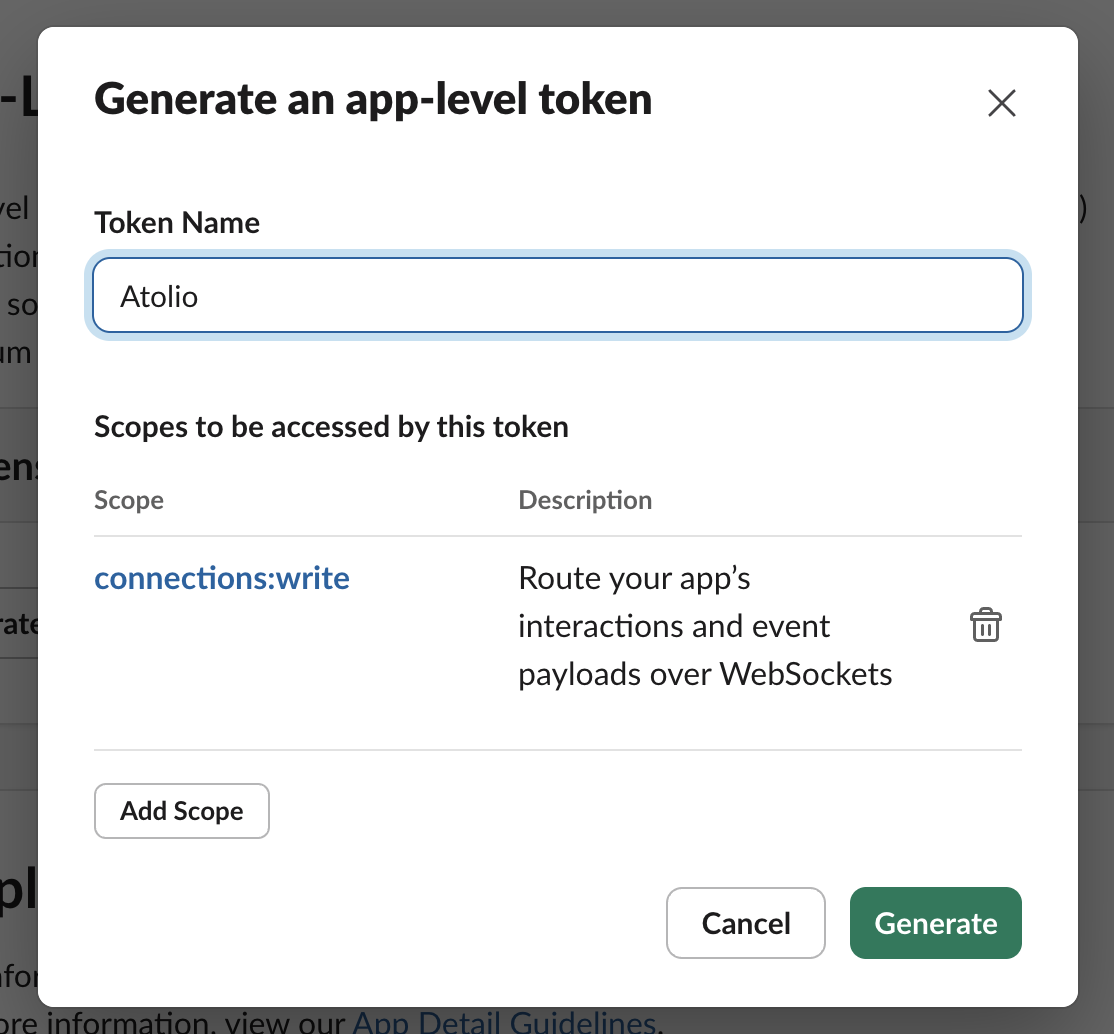
- (For “socket mode” only) Generate an “app-level token” w/
connections:writescope (screenshot below) and copy the value for Required Configuration Values. - (Optional) To provide an app icon, locate the “Display Information” heading and upload the app icon provided here.

Note: it may be required to distribute the app. This can be done by clicking
Manage Distributionin the Slack app dashboard.
Required Configuration Values
Enter these values in the Atolio Admin console (v4.24 and later), or send them to Atolio Support (your Deployment Engineer).
| Value | Where to find it | Example / format | Secret |
|---|---|---|---|
Default team ID (team-id) | Log in to https://app.slack.com/ and copy the team ID from the URL you’re redirected to (e.g. T012ABCDEG3 in https://app.slack.com/client/T012ABCDEG3/.../...) | T012ABCDEG3 | No |
Client ID (client_id) | Create Slack App step 6, “App Credentials” | Numeric string with a dot, e.g. 1234567890.1234567890 | No |
Client secret (client_secret) | Create Slack App step 6, “App Credentials” | Long random string | Yes |
Signing secret (signing_secret) | Create Slack App step 6, “App Credentials” | Long random string | Yes |
App-level token (app_level_token) (only for socket mode) | Create Slack App step 7 | Long random string | Yes |
Conversation types (conversation-types) (optional) | The types of conversations the Atolio Slack Bot indexes; leave empty for the default | public_channel, private_channel, mpim, im (default) | No |
The bot token is filled in automatically when you finish the installation, so you don’t need to provide it.
Provided by Atolio: the app manifest URLs used in Create Slack App step 4, the setup URL used in Finish Installation, and the OAuth redirect URL listed in the app manifest.
Keep secrets secure: Share values marked “Yes” in the Secret column only through a password-manager share (e.g. 1Password) or another secure channel agreed with Atolio Support. Never send them in plain email, chat, or support tickets.
Configuration Example
Add this block to connector-values.yaml. Replace each <PLACEHOLDER> with the matching value from the table above, and remove any line marked “Only if” that doesn’t apply.
connectors:
  slack:
    default:
      slack:
        connector: slack
        instance: default
        source: slack
        common:
          enabled: true
          identity-provider: false
        secrets:
          client_id:
            value: "<CLIENT_ID>"
          client_secret:
            value: "<CLIENT_SECRET>"
          signing_secret:
            value: "<SIGNING_SECRET>"
          app_level_token:  # Only if using socket mode
            value: "<APP_LEVEL_TOKEN>"
        configuration:
          team-id: "<DEFAULT_TEAM_ID>"
          enable-socket-mode: true  # Only if using socket mode
Leave out the token secret. It is written when you finish the installation.
Finish Installation
Once configured, you will finalize the installation of the Slack connector by visiting the following URL (make sure to use your own DNS name for the host part of the URL and include the correct instance name): https://relay.search.example.com/connectors/slack/default/install/setup. Also make sure the Atolio Web application is authenticated (using your SSO provider) before navigating to this URL to avoid an authentication error. The URL https://relay.search.example.com/install/connectors/slack/default/install/oauth/callback must be listed as a Redirect URLin the Slack app manifest. For example, with Okta this was done as part of Okta - Create OAuth Client.
In order for Slack conversations to be indexed by the Atolio Slack Bot, the bot needs to be added to the conversation. By default, this is done manually, but the bot can also be configured to auto-join public channels through configuration. If the bot is added to a channel which is later filtered out by configuration, auto-leave can be configured similarly.
Index Private Content
To enable the indexing of private content such as direct messages (DMs) and private channels, without manually adding the bot to the respective conversation, the following steps must be taken:
- Set
slack-authfeature flag on your Atolio deployment - Set
enable-private-content: truein the Slack connector configuration
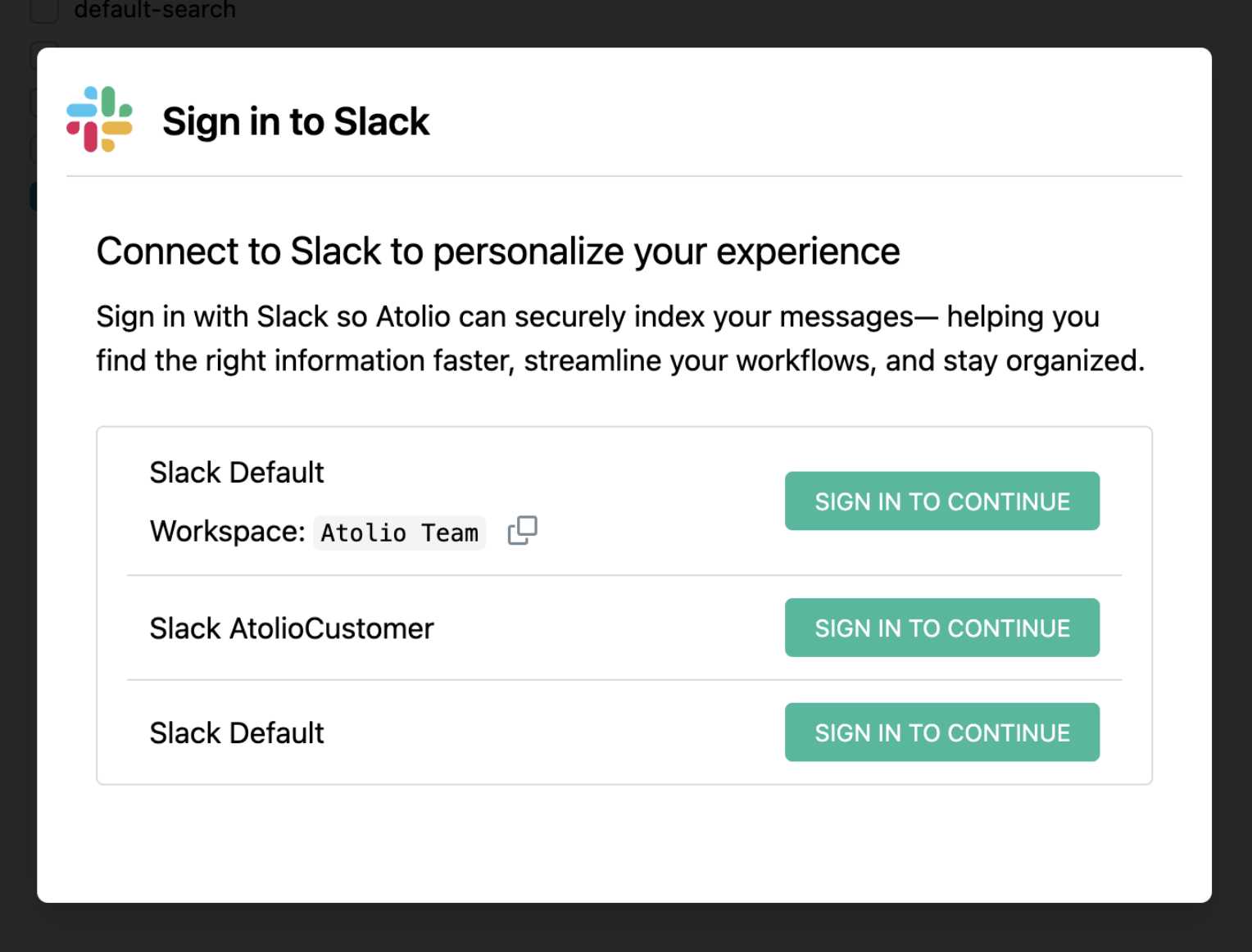
Afterwards, each Atolio user will be prompted with further instructions when they login to Atolio.