ServiceNow Connector
The ServiceNow connector will index:
- IT Service Management (ITSM) tasks - such as incidents, service requests, problems - including work notes and comments.
- Knowledge bases (KBs) and KB articles.
The ServiceNow connector supports all releases from ServiceNow San Diego to the latest.
Note: If you need support for additional modules (e.g. Security Operations) with fields that aren’t indexed in the base tasks, contact your Atolio support team.
Install ServiceNow Update Set
The Atolio ServiceNow plug-in is available as an update set (XML file). The update set will be provided by your Deployment Engineer (from the Atolio GitHub repository) or your Atolio support team. From ServiceNow documentation, follow the steps below to Commit an update set.
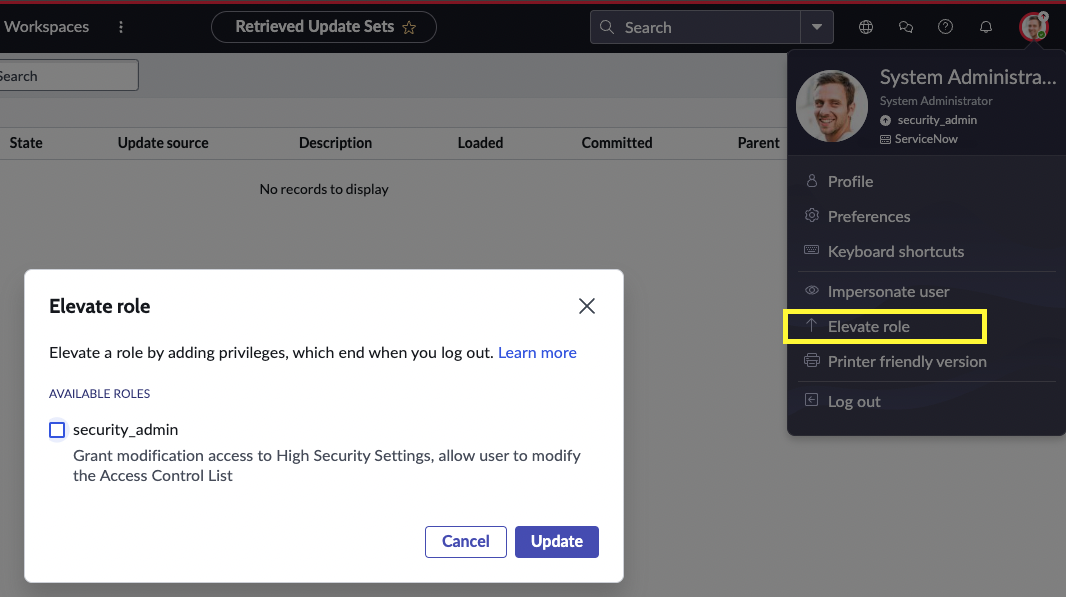
- Elevate privileges to the
security_adminrole:
- Navigate to
System Update Sets>Retrieved Update Sets. - Click the link to
Import Update Set from XML. Upload the XML file provided previously. - The application is now available as a retrieved update set with state Loaded. Click on
Atolio Connectorto open the update set. - If necessary, skip or accept updates to resolve any problems.
- Click
Commit Update Setto install the application.
Note: You can view the Commit log by navigating to
System Update Sets>Update logand filtering to theAtolio ConnectorUpdate set.
Setup Application Credentials
First, create an application user by:
- Navigating to
System Security>Users and Groups>Users. - For
User ID, choose an appropriate name, e.g.atolio_connector. ClickSubmit. - In the new user record that you just created:
- Under
Roles, clickEdit...and addx_penti_atolio.atolio_connectorto the Roles List before clickingSave. - Click
Set Passwordto generate a password for this application user.
Next, enable the connector API by:
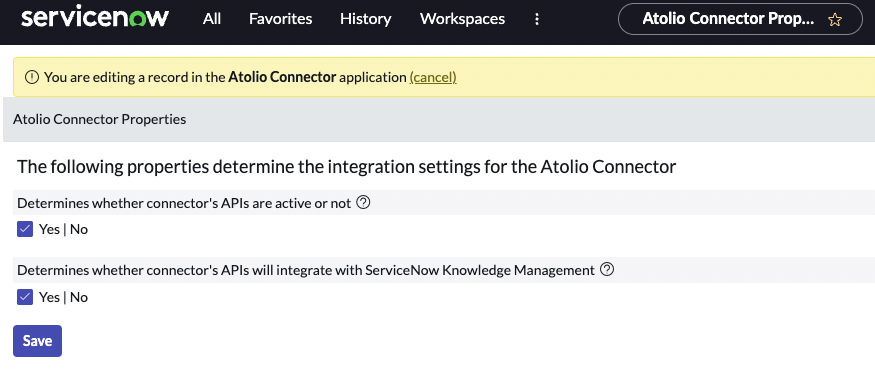
- Under the
Atolio Connectorapplication, navigate toIntegration - Atolio Connector>Administration>Properties. - If necessary, enable the connector’s API and integration with ServiceNow Knowledge Management.
Required Configuration Values
Enter these values in the Atolio Admin console (v4.24 and later), or send them to Atolio Support (your Deployment Engineer).
| Value | Where to find it | Example / format | Secret |
|---|---|---|---|
| Instance URL | The URL of your ServiceNow tenant | https://example.service-now.com | No |
| Username | Setup Application Credentials, the User ID of the application user you created | atolio_connector | No |
| Password | Setup Application Credentials, the password generated with Set Password | Long random string | Yes |
Provided by Atolio: the Atolio Connector update set (XML file), used to install the plug-in in Install ServiceNow Update Set.
Keep secrets secure: Share values marked “Yes” in the Secret column only through a password-manager share (e.g. 1Password) or another secure channel agreed with Atolio Support. Never send them in plain email, chat, or support tickets.
Configuration Example
Add this block to connector-values.yaml. Replace each <PLACEHOLDER> with the matching value from the table above, and remove any line marked “Only if” that doesn’t apply.
connectors:
  servicenow:
    default:
      servicenow:
        connector: servicenow
        instance: default
        source: servicenow
        common:
          enabled: true
          identity-provider: false
          cron-spec: "0 7 * * *"  # ServiceNow is only synced on this schedule
        secrets:
          password:
            value: "<PASSWORD>"
        configuration:
          base_url: "<INSTANCE_URL>"
          username: "<USERNAME>"