SharePoint Connector Setup
Index SharePoint sites, pages, and files by creating a dedicated App Registration with the appropriate permissions.
Setup Checklist
Before starting, ensure you have:
- Azure Global Administrator or Cloud Application Administrator role
- Microsoft 365 E1+ licensing for SharePoint content
- Certificate generated (see Certificate Generation Guide)
- Active Atolio deployment
Required API Permissions
Step 1: Create App Registration
- Navigate to Azure Portal > App Registrations
- Click “New registration”
- Enter name:
Atolio SharePoint - Select “Accounts in this organizational directory only”
- Click “Register”
Step 2: Add API Permissions
⚠️ Important: Only add Application permissions, not Delegated permissions
- In your App Registration, click “API permissions” in the left menu
- Click “Add a permission”
- Select “Microsoft Graph”
- Click “Application permissions” (not Delegated permissions)
Add these Microsoft Graph permissions:
Identity & Directory Permissions (Required for ACL mapping)
Application.Read.AllGroup.Read.AllGroupMember.Read.AllUser.Read.AllDirectory.Read.All(optional)
SharePoint Content Permissions
Files.Read.AllSites.Read.All
Step 3: Grant Admin Consent
- After adding all permissions, click “Grant admin consent for [your tenant name]” at the top of the API permissions page
- Confirm by clicking “Yes”
- Verify all permissions show “Granted for [your tenant name]” with green checkmarks
Step 4: Upload Certificate
- Click “Certificates & secrets” in the left menu
- Click “Upload certificate”
- Select your
.cerfile (not the.pfxfile) - Add description:
Atolio SharePoint Authentication - Click “Add”
Step 5: Collect Configuration Values
From the “Overview” page, copy:
- Application (client) ID
- Directory (tenant) ID
You’ll provide these, along with your base64-encoded .pfx certificate and its password, as listed in Required Configuration Values.
SharePoint Site Groups & Associated Permissions
Many SharePoint sites are deployed without connecting to Microsoft Office 365 groups. Microsoft treats certain SharePoint configurations as unsupported unless managed through Office 365 groups. For Atolio to index correct permissions on non-O365 managed sites, the Sites.FullControl.All permission is required. Communication Sites commonly fall into this category. For more information on connecting sites to O365 groups, see Microsoft’s documentation.
Atolio can index these sites if Sites.FullControl.All permission is set on your App Registration. This is the least privileged permission available for read access to the SharePoint API. Atolio never writes back to the SharePoint API.
When configuring the connector for non-O365 group sites:
- Set
Sites.FullControl.Allpermissions on the App Registration, specifically within the SharePoint API. (see below screenshot) - Set
IndexSharePointPermissionsconfiguration to true
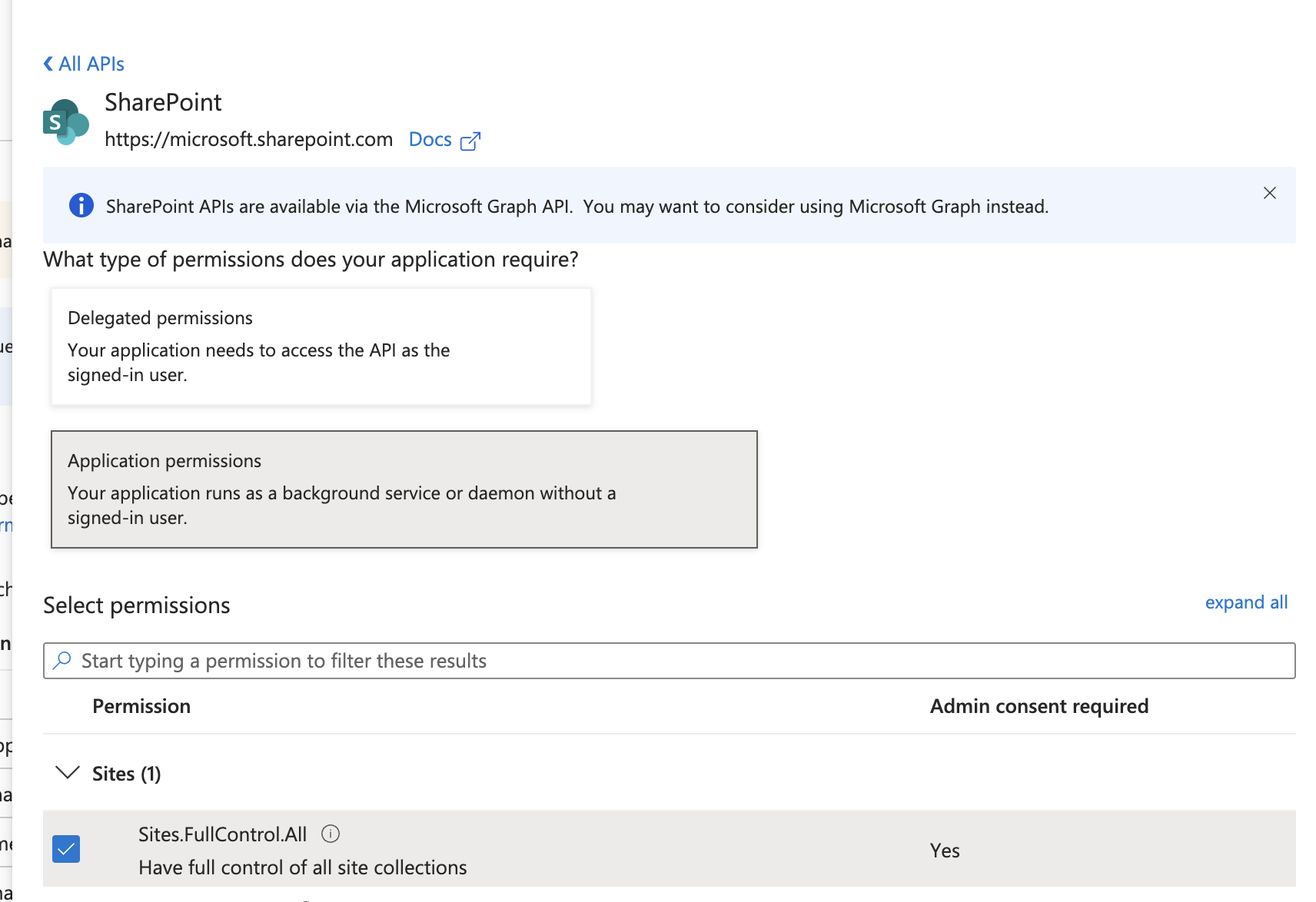
All other configuration and certificates remain the same.
Required Configuration Values
Enter these values in the Atolio Admin console (v4.24 and later), or send them to Atolio Support (your Deployment Engineer).
| Value | Where to find it | Example / format | Secret |
|---|---|---|---|
| Directory (tenant) ID | Step 5, App Registration Overview page | GUID, e.g. 00000000-0000-0000-0000-000000000000 | No |
| Application (client) ID | Step 5, App Registration Overview page | GUID, e.g. 00000000-0000-0000-0000-000000000000 | No |
Certificate (base64-encoded .PFX) | Certificate Generation, the base64 output of the .PFX file whose .cer you uploaded in Step 4 | Long base64 string | Yes |
| Certificate password | Certificate Generation, the password set on the .PFX file | Your chosen password | Yes |
| Index SharePoint site permissions? (only for sites not connected to Microsoft 365 groups) | SharePoint Site Groups & Associated Permissions, requires Sites.FullControl.All on the SharePoint API | Yes / No | No |
Keep secrets secure: Share values marked “Yes” in the Secret column only through a password-manager share (e.g. 1Password) or another secure channel agreed with Atolio Support. Never send them in plain email, chat, or support tickets.
Configuration Example
Add this block to connector-values.yaml. Replace each <PLACEHOLDER> with the matching value from the table above, and remove any line marked “Only if” that doesn’t apply.
connectors:
  microsoft:
    default:
      sharepoint:
        connector: microsoft
        instance: default
        source: sharepoint
        common:
          enabled: true
          identity-provider: false
        secrets:
          client_cert:
            value: "<BASE64_PFX_CERTIFICATE>"
          client_cert_password:
            value: "<PFX_PASSWORD>"
        configuration:
          tenant-id: "<DIRECTORY_TENANT_ID>"
          client-id: "<APPLICATION_CLIENT_ID>"
          index_sharepoint_permissions: true  # Only if you index sites not connected to Microsoft 365 groups
Resource Filtering
Limit indexing scope using resource filters. SharePoint supports site-specific filtering:
Site Filtering
Index specific SharePoint sites by URL:
resources:
  site:
    included:
      - https://contoso.sharepoint.com/sites/Engineering
      - https://contoso.sharepoint.com/sites/Marketing
    excluded:
      - https://contoso.sharepoint.com/sites/Confidential
Optional Settings Example
These optional settings go in the same block as the Configuration Example, under common: and configuration:. This example shows optional settings for SharePoint, including a sync schedule and resource filters:
common:
  cron-spec: "30 */1 * * *"
configuration:
  resources:
    site:
      included:
        - https://contoso.sharepoint.com/sites/Engineering
        - https://contoso.sharepoint.com/sites/Marketing
Troubleshooting
| Error | Cause | Solution |
|---|---|---|
401 Unauthorized | Missing admin consent | Click “Grant admin consent” in API permissions |
403 Forbidden | Wrong permission type | Ensure you added Application permissions, not Delegated |
invalid_client | Certificate not found/expired | Verify certificate is uploaded and valid |
| Sites not appearing | Missing Sites.FullControl.All | Add SharePoint API permission for non-O365 group sites |
| Permission errors on specific sites | Site not connected to O365 group | Set index_sharepoint_permissions: true |