GitHub Connector
The GitHub connector enables the indexing of pull requests, commits, comments, and markdown in your GitHub repositories.
Create Access Token
To install the GitHub connector, use a GitHub account with admin access to the organization (requires read access to teams). Using this account, create a personal access token (currently Classic only) according to these instructions. You will need to ensure repo and user scopes are set (as shown below):
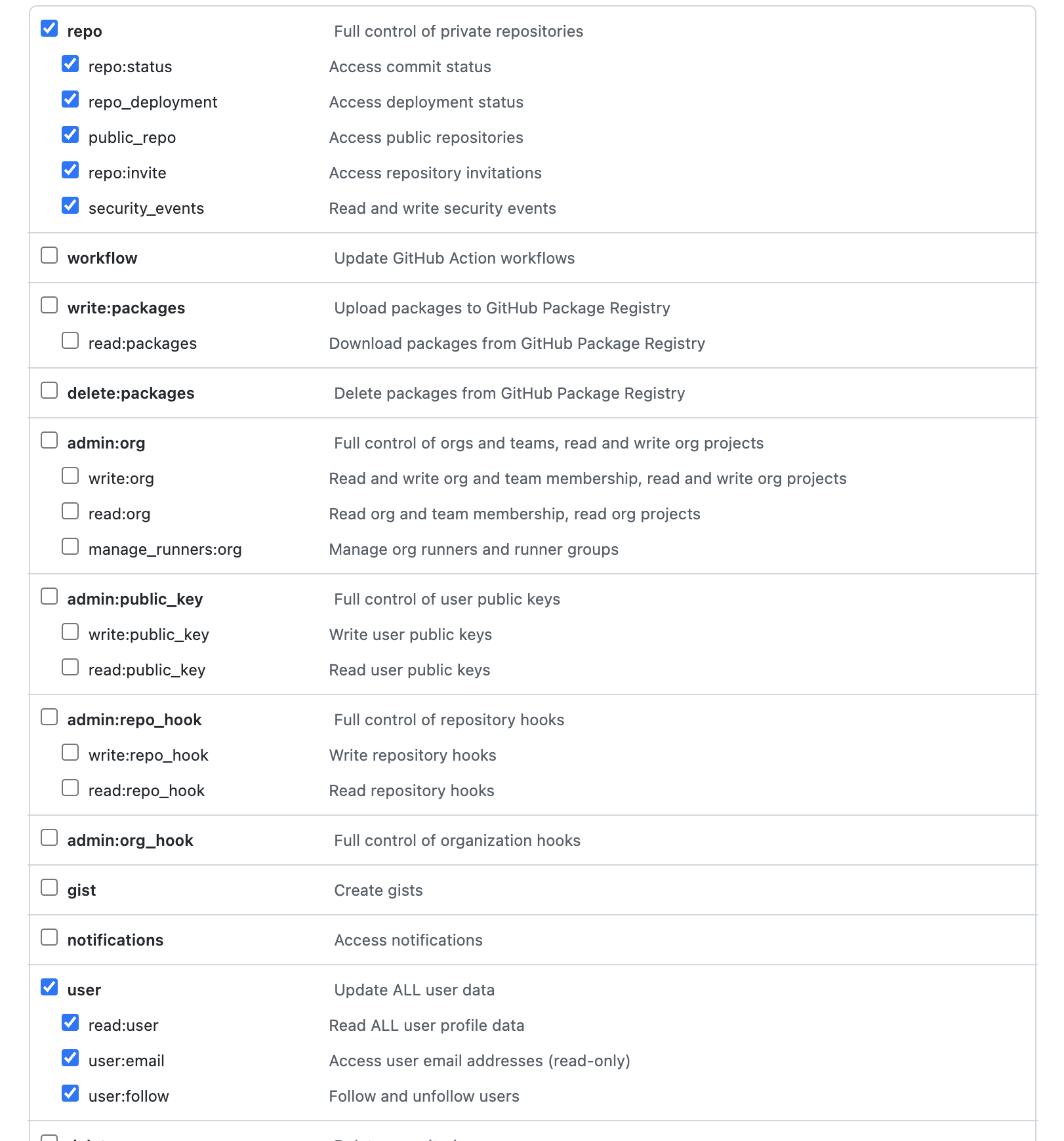
Note: for GitHub Enterprise Server installations, you would need to enable the site_admin scope too.
(Optional) Create GitHub App
Note: GitHub App flow does not work with GitHub Enterprise Server installations. You would need to use a personal access token like above
Instead of using a personal access token, a GitHub app can be created to install the GitHub connector. This provide better rate limits, especially if your org is on Enterprise Cloud. You can create a GitHub app according to these instructions.
You will need to ensure the following app permissions are set:
Repository Permissions:
| Permissions | Value |
|---|---|
| Administration | Read-only |
| Contents | Read-only |
| Issues | Read-only |
| Metadata | Read-only |
| Pull Requests | Read-only |
Organization Permissions:
| Permissions | Value |
|---|---|
| Administration | Read-only |
| Members | Read-only |
Setup Webhooks
If live indexing of GitHub content is desired, you will want to setup Webhooks. Go to Settings->Webhooks->Add Webhook. After authentication, you can now setup the webhook with the following configs:
| Config | Value |
|---|---|
| Payload URL | https://search.example.com/callback/github/ |
| Content type | application/json |
| Secret | Generated value (e.g. openssl rand -base64 32) |
| SSL verification | Enable SSL verification |
| Active | ✅ |
| Which events would you like to trigger this webhook? | Let me select individual events |
The following events are indexed at the repository level:
- Collaborator add, remove, or changed
- Commit comments
- Issues
- Issue comments
- Pull requests
- Pull requests reviews
- Pull requests reviews comments
- Pushes
- Repositories
The following events are indexed at the organization level:
- Team
Please manually check the boxes for each of the events above.
Warning: Setting up webhooks at the organization level will send webhook events for all repositories within the organization. If this is not desireable, please make changes to the configuration to only process and index specific repositories.
Required Configuration Values
Enter these values in the Atolio Admin console (v4.24 and later), or send them to Atolio Support (your Deployment Engineer).
Use either a personal access token or a GitHub App. GitHub Enterprise Server supports only the personal access token.
| Value | Where to find it | Example / format | Secret |
|---|---|---|---|
Organization name (org-name) | The identifier for your org, as it appears in https://github.com/{ORG} | atolio | No |
Personal access token (token) (for the personal access token setup, including GitHub Enterprise Server; the connector requires this field with a GitHub App setup too, so ask Atolio Support what to enter there) | Create Access Token | Long random string | Yes |
GitHub App ID (application-id) (only for the GitHub App setup) | Your GitHub App’s settings page, from (Optional) Create GitHub App | Numeric ID, e.g. 123456 | No |
Installation ID (installation-id) (only for the GitHub App setup) | Created on the first installation of the GitHub App on your org; the end of the installation URL https://github.com/organizations/{ORG}/settings/installations/{INSTALLATION_ID} | Numeric ID, e.g. 12345678 | No |
GitHub App private key (app_private_key) (only for the GitHub App setup) | Your GitHub App’s settings page, from (Optional) Create GitHub App | PEM-formatted private key | Yes |
Webhook secret (webhook_secret) (only if using webhooks) | The “Secret” you generated in Setup Webhooks | Generated value, e.g. from openssl rand -base64 32 | Yes |
SAML authentication level (saml-authentication-level) (only if SAML SSO is enabled) | Where you enabled SAML authentication | enterprise or org | No |
Enterprise base URL (enterprise-base-url) (only for GitHub Enterprise Server) | The URL of your GitHub Enterprise Server instance | https://github.example.com | No |
Enterprise slug (enterprise-slug) (only if the SAML authentication level is enterprise) | Your GitHub Enterprise name | example | No |
Username map (username-map) (only on github.com without SAML) | GitHub user IDs mapped to company emails; see (Optional) Configure GitHub user mappings | 12345678: user1@example.com | No |
Provided by Atolio: the webhook Payload URL (https://search.example.com/callback/github/, with your own DNS name), used for Setup Webhooks.
Keep secrets secure: Share values marked “Yes” in the Secret column only through a password-manager share (e.g. 1Password) or another secure channel agreed with Atolio Support. Never send them in plain email, chat, or support tickets.
Configuration Example
Add this block to connector-values.yaml. Replace each <PLACEHOLDER> with the matching value from the table above, and remove any line marked “Only if” that doesn’t apply.
connectors:
  github:
    default:
      github:
        connector: github
        instance: default
        source: github
        common:
          enabled: true
          identity-provider: false
        secrets:
          token:  # Required field; with a GitHub App setup, ask Atolio Support what to enter
            value: "<PERSONAL_ACCESS_TOKEN>"
          app_private_key:  # Only if using a GitHub App
            value: "<GITHUB_APP_PRIVATE_KEY>"
          webhook_secret:  # Only if using webhooks
            value: "<WEBHOOK_SECRET>"
        configuration:
          org-name: "<ORGANIZATION_NAME>"
          application-id: <GITHUB_APP_ID>  # Only if using a GitHub App
          installation-id: <INSTALLATION_ID>  # Only if using a GitHub App
          saml-authentication-level: "<SAML_AUTHENTICATION_LEVEL>"  # Only if SAML SSO is enabled
          enterprise-slug: "<ENTERPRISE_SLUG>"  # Only if the SAML authentication level is enterprise
          enterprise-base-url: "<ENTERPRISE_BASE_URL>"  # Only for GitHub Enterprise Server
          username-map:  # Only on github.com without SAML
            "<GITHUB_USER_ID>": "<USER_EMAIL>"
application-id and installation-id are numbers, so enter them without quotes.
(Optional) Filter Repositories and Files
Note: If you have many GitHub repositories, it may be worth using the
includesorexcludesfeature in Atolio configuration to control the relevant repositories that should be indexed.
The GitHub connector provides two types of inclusion/exclusions in the resources field of the configuration as illustrated in the example below:
resources:
    repository:
        included:
            - lumen-infra
    file:
        included:
            - .md
The repository name lumen-infra in this example is the repo part in the repository’s URL (which has the following generic format: https://github.com/repos/{owner}/{repo}). The example above will only index the lumen-infra repository.
File filtering is done of the basis of file extension names (including the preceding dot .). The example above will configure the connector to index all markdown files. Note that by default file filtering is completely disabled as it is a relatively time consuming process.
(Optional) Configure GitHub user mappings
If employees have brought pre-existing GitHub accounts to their company’s GitHub organization, the identity resolver cannot automatically map them to company user identities. For this reason, the GitHub configuration contains a user mapping table. For example, the entries below map two GitHub user IDs to the user’s username (i.e. email address) in the organization:
12345678:  user1@example.com # "user1"
87654321:  user2@example.com # "user2"
The numerical GitHub ID can easily be obtained using the following: https://api.github.com/users/{USERNAME} in a browser where {USERNAME} is replaced with the GitHub username which can be found in the user’s profile (under the full name printed below the user’s avatar). The ID is in the id field of the JSON response. Adding an entry like this for every user will allow Atolio to link the GitHub user IDs to other sources.