Admin
Overview
The Atolio Administrator role gives users the ability to configure and monitor certain aspects of the Atolio stack. This page covers administrator configuration and the features supported by this role.
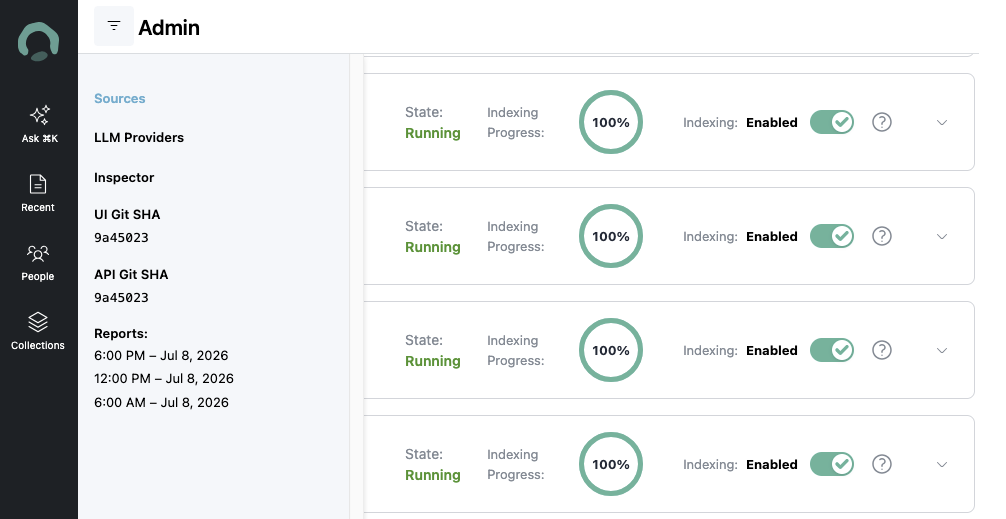
Admin Capabilities
Administrators have access to the following features and capabilities:
- LLM Provider Configuration: Configure and manage multiple LLM providers, set defaults, and switch between different LLM services. See AI Services / LLM Configuration for details.
- Connector Configuration: Configure, manage, and monitor data source connectors across your organization. See Configuring Sources for setup instructions.
- Build Version Information: Access the current build version and release information of your Atolio instance.
- Reports & Analytics: Generate and view reports on search activity, connector performance, and system usage.
- User Role Management: Assign and manage admin roles for other users who need administrative access.
- Connector Configuration: Configure and manage service providers / sources and identity provider (IDP) settings. See Configuring Authentication and Connectors for more information.
Managing Connector Configurations
The Admin console provides flexible YAML configuration management for all connector settings. You can edit, upload, and download configurations directly from the browser.
Buttons can be found in the Sources section which is the main page of /admin
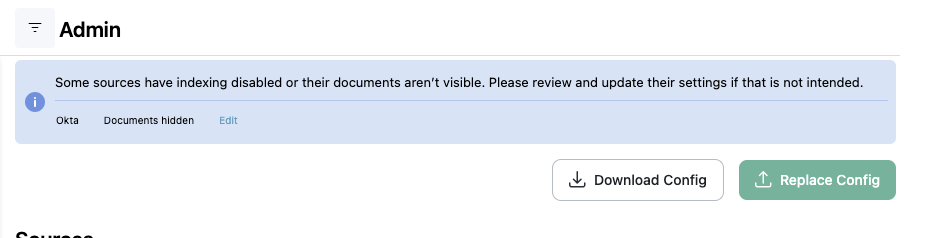
Edit Configurations
Warning: Changes made in the YAML editor are applied immediately to your deployment when you click “Upload Config”. Unlike file uploads where you can review before committing, direct edits take effect right away. Always verify your changes are correct before saving, as incorrect configurations may impact your connectors.
To edit connector configurations directly in the Admin console:
- Navigate to the Admin panel and select the “Replace Config” button
- Edit the configuration directly in the YAML editor
- Review your changes carefully before proceeding
- Click “Upload Config” to apply changes immediately
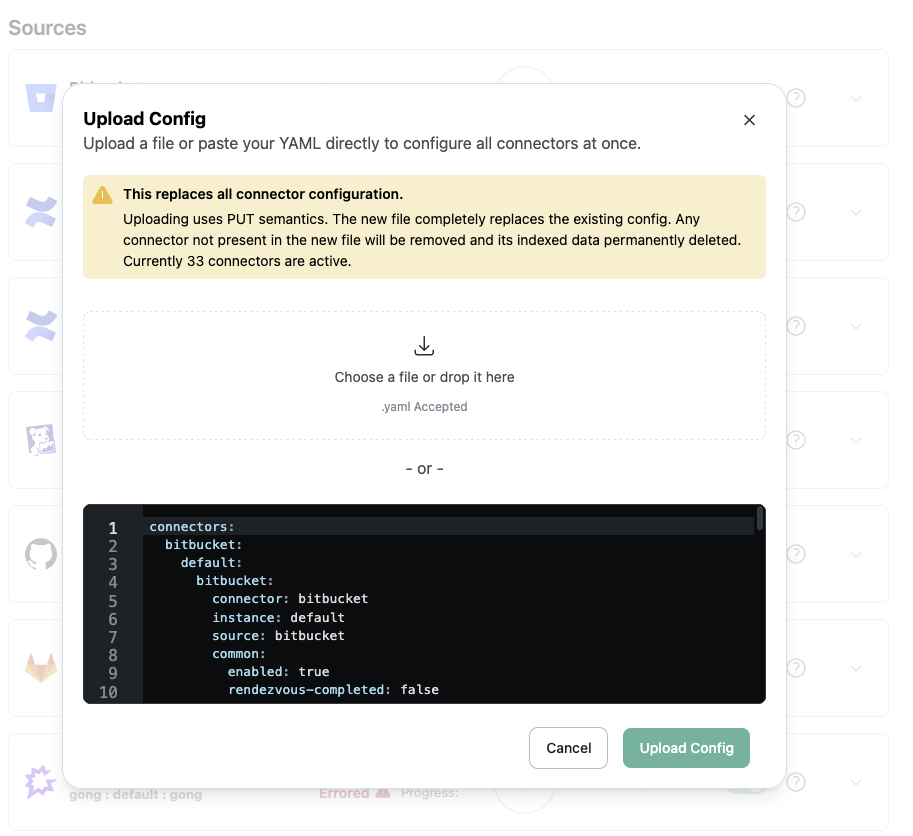
Upload Configurations
To import connector configurations from a YAML file:
- Navigate to the Admin panel and select the “Replace Config” button
- Use the “Choose a file or drop it here” to upload or drag a file in.
- Click “Upload Config” to save
This is useful for:
- Migrating configurations from another Atolio instance
- Restoring a previously downloaded backup
- Applying configurations exported from
atolioctl
Download Configurations
To export your current connector configurations as a YAML file:
- Navigate to the Admin panel and select the “Download Config” button
- Save to a relevant place to edit
This is useful for:
- Creating backups of your current configuration
- Editing without having to rely on K8s access
The downloaded YAML file uses the same format as atolioctl, so you can also manually edit and re-upload it, or use it with atolioctl if needed.
Configuration
Atolio Managed
The Admin role is restricted and should only be assigned to users who need to configure connectors or modify LLM settings. Gather the appropriate user IDs to send to your Atolio Support contact, as they are configured at the Helm values level and managed by our Deployment Engineers. See the How to Gather User IDs section for details.
Self-Maintained Cluster
Air-gapped or other self-maintained clusters require applying this configuration to the Helm values of the Atolio stack. Use the How to Gather User IDs section before proceeding.
- Edit the Lumen Helm values file for your deployment and append
adminUserIdsor create the fullmarvinblock. The value file location varies depending on whether you are using the legacy or newer version of the Atolio stack deployment. Values are comma-separated.
marvin:
  adminUserIds: atu_1...,atu_2...,atu_3...
- Redeploy
lumencharts to apply the Admin role to Atolio. - Have users log out and log back in if they were previously authenticated to pick up the new role.
How to Gather User IDs
Gathering user IDs is straightforward after an appropriate Authentication or IDP connector is configured.
- Click the profile icon in the bottom left of the Atolio UI and select “Your Profile”.
- You will be taken to a URL like
search.company.com/people/atu_abcdefghijkl... - Copy the full
atu...string from the URL, as this is your unique user ID. - Send this ID to your administrator or apply it via your Helm configuration if you have a self-maintained cluster.
- Additional users that are not you can be find in the “People” tab of Atolio in the same manner of using the
atu...value of their name.