How Atolio helps IT and ops teams find runbooks, incidents, asset docs, and vendor records.
IT & Operations · Lesson 1 of 5 · 3 min
Atolio Works with Every Part of the IT Workflow
Ask one question and Atolio searches your tickets, runbooks, policies and chat together, with answers that link to their sources. Your admin picks which tools are connected. These are just a few of the most common applications.
Select a logo to see what Atolio can search there.
Go from Searching to Knowing
The answers your team needs already exist, scattered across tickets, wikis, file shares and chat. Atolio brings them together in one answer, so you spend less time digging and more time resolving.
Old way
The answers exist. Finding them is the problem.
New way
Unlock institutional knowledge, unlock potential.
Built for Everyone on the IT Team
From the service desk answering the first ticket to the analyst running a security review, everyone gets answers from the same tools. Open a role to see the questions it asks most.
IT Support Specialist
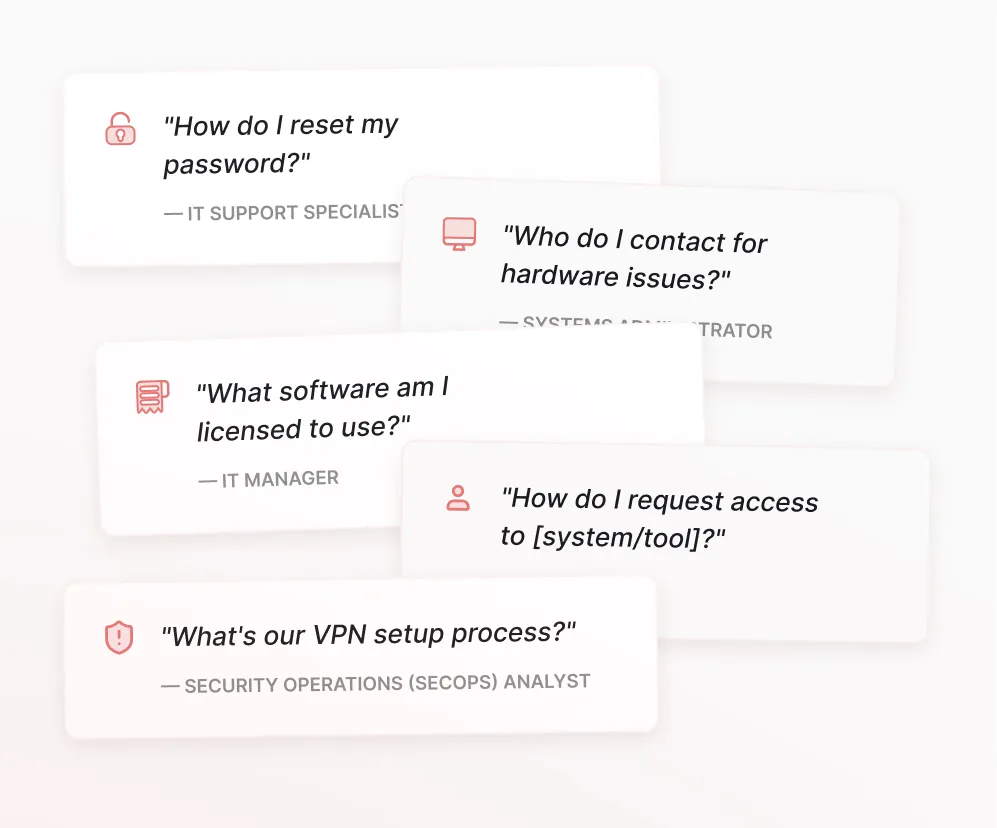
Find troubleshooting guides and IT policies, so you can resolve employee requests without escalating to senior teammates.
See how Atolio can help
“How do I reset [application] access for an employee?”
“Show me the setup guide for new hire laptop provisioning”
“What's the process for granting [system or tool] permissions?”
“Find troubleshooting steps for [common error or connectivity issue]”
“Pull password reset procedures and security protocols”
Systems Administrator
Find system docs, configuration guides and past incident fixes, so you can keep infrastructure running and limit downtime.
See how Atolio can help
“Show me configuration standards and best practices for [system or application]”
“Find documentation on [server or network] architecture and dependencies”
“What were the root causes and fixes for similar outages in the past?”
“Pull access control policies and provisioning workflows for [tool or system]”
“Show me backup and disaster recovery procedures for [critical system]”
IT Manager
Find vendor contracts, IT policies and team processes, so you can run operations and make informed technology decisions.
See how Atolio can help
“Show me active vendor contracts, renewal dates and license counts”
“Find IT security policies and compliance requirements we need to maintain”
“What onboarding documentation exists for new IT team members?”
“Pull service level agreements (SLAs) and uptime metrics for [critical systems]”
“Show me budget allocation and cost savings opportunities across tools”
Security Operations (SecOps) Analyst
Find security playbooks, threat intelligence and compliance docs, so you can respond to incidents and keep your security posture strong.
See how Atolio can help
“Show me incident response playbooks for [threat type or security event]”
“Find the security policies and compliance frameworks we're certified against”
“What similar security incidents happened before, and how were they fixed?”
“Pull access logs and audit trails for [user or system] during [time frame]”
“Show me vulnerability assessments and remediation status for [application or system]”
Up NextPoint new hires to answers before they file a ticket.
2 - Access Management & Onboarding
Point new hires to access guides, setup docs and policies before they file a ticket.
IT & Operations · Lesson 2 of 5 · 3 min
Every new hire starts with the same requests, like app access, a working laptop and a way onto the VPN.
How Do I Get Access to This?
It’s Monday, three people just started, and your queue is filling up with the same handful of questions. Each one is small, but together they add up. And every ticket starts the same way.
How do I get access to this?
The answer usually exists. The access policy is on the wiki, the setup guide sits in a file share and the request form is linked from an old thread. New hires just don’t know where to look.
Think of Atolio as your IT front desk. New hires ask in plain language, and it brings back the right policy, guide or form, with a link to each source. If it can’t help, they can still open a ticket.
Example: AWS Access
Example
Use CaseHelp New Hires Find Answers Before They File a Ticket
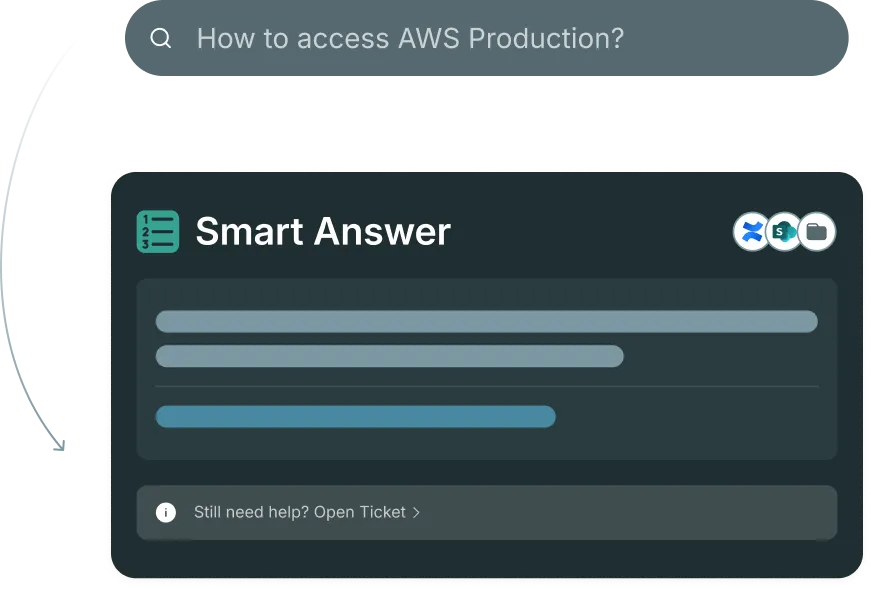
How to access AWS Production?
Connectors in This Example
Select a connector to see what Atolio looks for there.
In Confluence, Atolio looks for Access guides and IT how-to pages.
In SharePoint, Atolio looks for Access policies and request forms.
What to Expect
How Atolio Found It
A new hire asked in plain language. Atolio searched your wiki and file shares, found the access guide and the policy behind it, and put the steps into one answer.
Every step links back to its source, so they can open the full guide. And if the answer isn’t enough, the next step is still a ticket.
Avoid These Traps
Asking about access in general. “How do I get access?” could mean any app you own. Name the system, like “AWS Production,” and the answer points to the right guide.
Trusting an outdated guide. Atolio finds what your team wrote, including older pages. If a step looks off, check the date on the source and flag it for an update.
Skipping the ticket when it’s needed. Atolio shows how to request access, but it doesn’t grant it. Once you know the steps, follow them or open the ticket.
What Atolio Does (and Doesn’t)
It will
Find access guides and request forms
Link every step to its source
Answer your follow-up questions
It won't
Approve access without your input
Show you anything you can’t access
Replace your ticketing process
Try It: A New Hire’s Question
Try It NowCopy this into Atolio and swap the [brackets] for your own details.
How do I get access to [system or tool]?
Key Takeaways
Key Takeaways
Point new hires to Atolio first
Encourage them to ask questions
Make sure documents are up to date
Up NextSee how Atolio shows each person only what they’re allowed to see.
3 - Permission-Aware Search
See how Atolio shows each person only what they’re allowed to see.
IT & Operations · Lesson 3 of 5 · 3 min
Every security review comes down to trust and whether people only see what they’re allowed to see.
Who Can See What?
Security is running an access review, and Atolio is on the list. They want to know whether a search tool could put the exec comp file in front of the wrong person. Before the meeting, you need a clear answer to one question.
Who can see what?
The same people who could see it before. Atolio checks each person’s access in the source app on every search, so a file you can’t open there never shows up in your results.
Think of Atolio as a librarian who checks your badge for every book. When access changes at the source, Atolio follows it, and there’s no separate permission list to maintain. For the full story, see Permission-Aware Search Explained.
Example: The Exec Comp File
Example
Use CaseSee Only What You're Allowed to See, in Every Answer
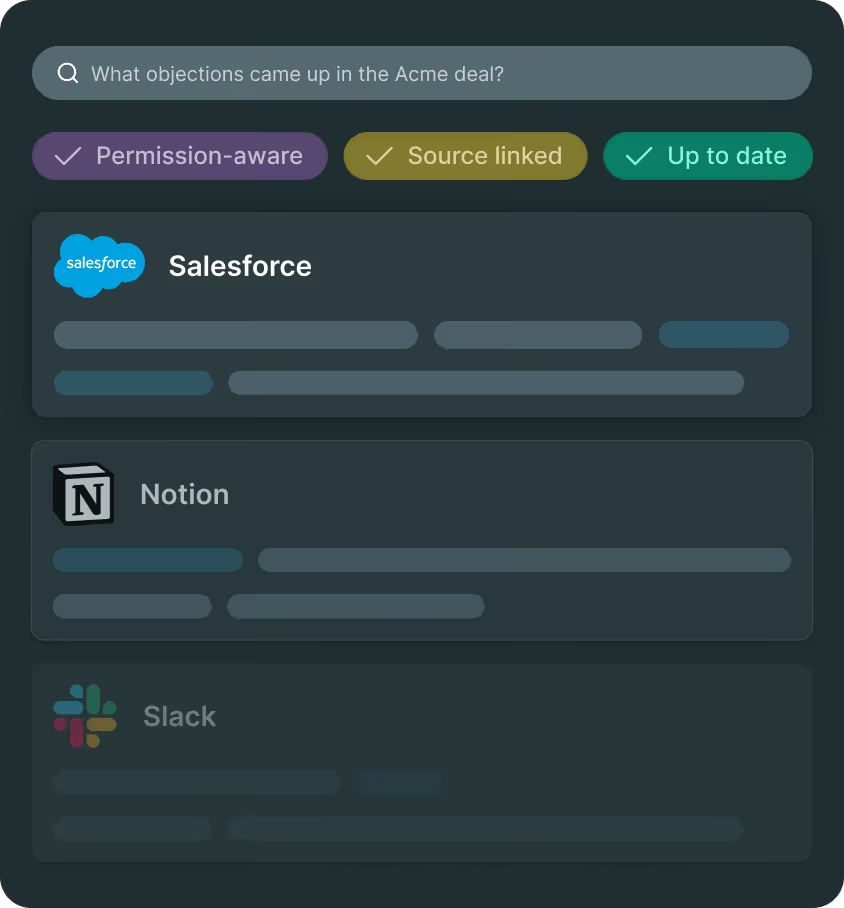
What's in the exec comp review?
Connectors in This Example
Select a connector to see what Atolio looks for there.
In Salesforce, Atolio looks for Only the records you can open in Salesforce.
In Notion, Atolio looks for Only the pages shared with you.
In Slack, Atolio looks for Only the channels you can see.
What to Expect
How Atolio Found It
Someone asked about a sensitive file. Atolio checked their access in each source app before anything came back, and only showed what they could already open.
A junior analyst asking the same question gets nothing back, while a senior HR leader sees the file. Same question, different answers, because their access is different.
Avoid These Traps
Fixing access in Atolio. There’s no separate permission list to change. Fix an over-shared doc in the app where it lives, and Atolio picks up the change.
Forgetting the identity provider. When someone leaves, remove their access in your identity provider. Atolio follows it, so their content disappears from search too.
Testing with your own account. You may see more than most people do. Ask a teammate with less access to try the same search, so you see what they see.
What Atolio Does (and Doesn’t)
It will
Check access on every search
Follow changes at the source
Show private content only to you
It won't
Show anything you can’t open
Keep its own permission list
Fix over-sharing in the source app
Try It: Your Next Access Review
Try It Now
Find our past access reviews and offboarding SOP.
Key Takeaways
Key Takeaways
Atolio follows each app’s permissions
Fix sharing problems at the source
Remove access in your identity provider
Up NextFind everything about a device, a user or an asset in one search.
4 - IT Asset & Documentation Search
Find a user’s devices, access and past tickets, plus the docs behind them.
IT & Operations · Lesson 4 of 5 · 3 min
Every IT request has a backstory, like the person’s device, what they can access and what’s gone wrong before.
Where’s Everything About This?
A ticket lands. Someone’s laptop can’t reach a core app, and they need it working today. Before you can help, you need their device, their access and whether this has happened before, and each answer lives in a different tool. So you ask yourself one thing.
Where’s everything about this?
Spread across your ticketing tool, your identity provider and a few file shares. Pulling it together by hand means a tab for every system.
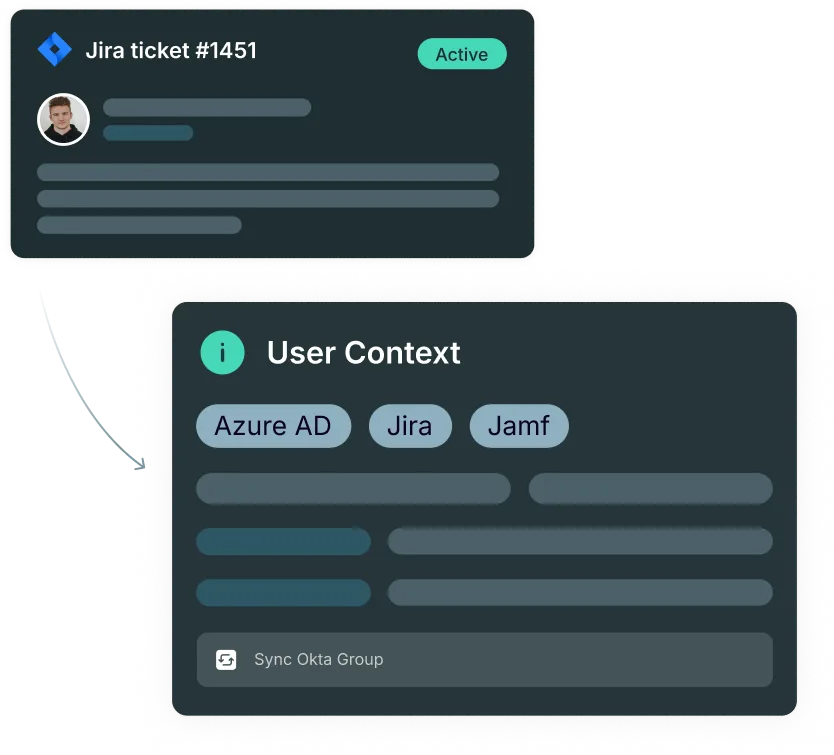
Think of Atolio as a case file that builds itself. Ask about the ticket or the user, and it brings their past tickets, their app access and the related docs into one answer, with a link to each source.
Example: A New Ticket
Example
Use CaseSee a User's Devices, Access and Past Tickets in One View
Connectors in This Example
Select a connector to see what Atolio looks for there.
In Jira, Atolio looks for The ticket and the user’s past issues.
In Okta, Atolio looks for Who the user is and which apps they’re assigned.
What to Expect
How Atolio Found It
You asked about one ticket. Atolio searched your ticketing tool and identity provider, then pulled the user’s past issues and app assignments into one view.
Each part links to its source. So before you make a change, you can open the original ticket or the user’s record and check the details.
Avoid These Traps
Asking about the person too broadly. “Tell me about Sam” brings back a bit of everything. Ask about the problem, like “Has Sam’s laptop had VPN issues before?”
Treating the summary as the fix. Atolio shows what’s happened before and who has access. You still decide what to change, in the tools where the change belongs.
Expecting tools that aren’t connected. Atolio only searches the tools your admin has connected. If device records live somewhere else, check that system directly.
What Atolio Does (and Doesn’t)
It will
Pull past tickets and app access
Find setup guides and runbooks
Link every answer to its source
It won't
Change access or devices for you
Search tools that aren’t connected
Show you anything you can’t access
Try It: Your Next Ticket
Try It NowCopy this into Atolio and swap the [brackets] for your own details.
Has [user or device] had issues like [problem] before?
Key Takeaways
Key Takeaways
Ask about the problem, not just the person
Open the source to check your records
Make sure your apps are connected
Up NextPractice prompts for every IT role, from the service desk to SecOps.
5 - Prompt Appendix: IT & Ops
Practice Atolio prompts for IT support, systems administration, IT management and security operations.
IT & Operations · Lesson 5 of 5 · 2 min
Everything you’ve explored in this track, from a new hire’s first request to your next access review, is packaged here as ready-to-use prompts to help you get started.
What Do I Ask?
You’ve seen what Atolio can do. But the first time you open it on your own, the empty search box can stop you cold, and one question takes over.
What do I ask?
That’s the objective of this appendix. The prompts below are grouped by role and written the way you’d ask a teammate. Pick your role, copy a prompt, swap anything in [brackets] for your own details and run it.
Pick Your Role
IT Support Specialist. Find troubleshooting guides, policies and request forms.
How do I reset [application] access for an employee?
When to use it Use it when an employee is locked out of an app.
What you get The reset steps from your IT docs or KB, with links.
Show me the new hire laptop setup guide
When to use it Use it before a new hire’s first day.
What you get The laptop provisioning guide, with links.
How do I grant [system or tool] permissions?
When to use it Use it when an access request comes in for a system you don’t manage often.
What you get The access process and request form, with sources.
Find troubleshooting steps for [error or issue]
When to use it Use it when a ticket describes a problem you’ve seen before.
What you get Troubleshooting guides and past fixes, with links.
Pull password reset procedures and security protocols
When to use it Use it when you need the approved way to handle a password reset.
What you get The password reset procedure and policy behind it.
Systems Administrator. Find configs, architecture docs and past outage fixes.
Show me the config standards for [system]
When to use it Use it before you change how a system is set up.
What you get Configuration standards for that system, with links.
Find architecture docs for [server or network]
When to use it Use it before maintenance or a change that could affect other systems.
What you get Architecture docs and diagrams of the dependencies.
What fixed similar outages in the past?
When to use it Use it during an outage, once you know what kind of failure it is.
What you get Postmortems for similar outages and their fixes.
Pull access policies and provisioning for [system]
When to use it Use it when you set up or review access to a system.
What you get Access policy and provisioning steps, with sources.
Show me backup and recovery procedures for [system]
When to use it Use it before a recovery test or when a system is at risk.
What you get Backup and recovery runbooks, with links.
IT Manager. Find vendor contracts, policies and team processes.
Show me vendor contracts, renewals and license counts
When to use it Use it before a renewal or budget review.
What you get Vendor contracts with renewal and license details.
Find our IT security and compliance policies
When to use it Use it before an audit or a policy review.
What you get Your IT security policies and compliance docs.
What onboarding docs exist for new IT team members?
When to use it Use it when someone joins the IT team.
What you get Onboarding docs and guides for the IT team.
Pull the SLAs and uptime reports for [critical system]
When to use it Use it before a service review with a vendor or stakeholder.
What you get Your SLAs and any uptime reports, with sources.
Show me tool costs and budget allocation
When to use it Use it when you plan next year’s IT budget.
What you get Budget docs and tool cost discussions, with links.
Security Operations. Find playbooks, policies and past security incidents.
Show me the incident playbook for [threat type]
When to use it Use it the moment a security alert needs a response.
What you get The playbook for that event, plus related runbooks.
Which compliance frameworks are we certified against?
When to use it Use it when a customer or auditor asks what you’re certified for.
What you get Security policies and the frameworks they cover.
How did we fix similar security incidents before?
When to use it Use it while you investigate a security incident.
What you get Past incident reports and how they were fixed.
Pull audit trails for [user or system] in [time frame]
When to use it Use it when you need to show who accessed what.
What you get Documented audit reports and access reviews.
Show me vulnerability status for [application]
When to use it Use it before a release or a security review.
What you get Vulnerability assessments and their fix tickets.
Make It a Habit
Use natural languageAsk the way you’d ask a teammate.
Add a time frame“Last month” pulls in recent tickets.
Tell it where to lookAdd “check the runbooks” when you know.
Follow up if neededAsk again instead of starting over.
Up NextSee how Strategy & GM teams find reports, budget docs and audit files.