How Atolio searches all your work apps at once and answers with sources.
Atolio Foundations · Lesson 1 of 6 · 3 min
Atolio Works Across the Tools You Use Every Day
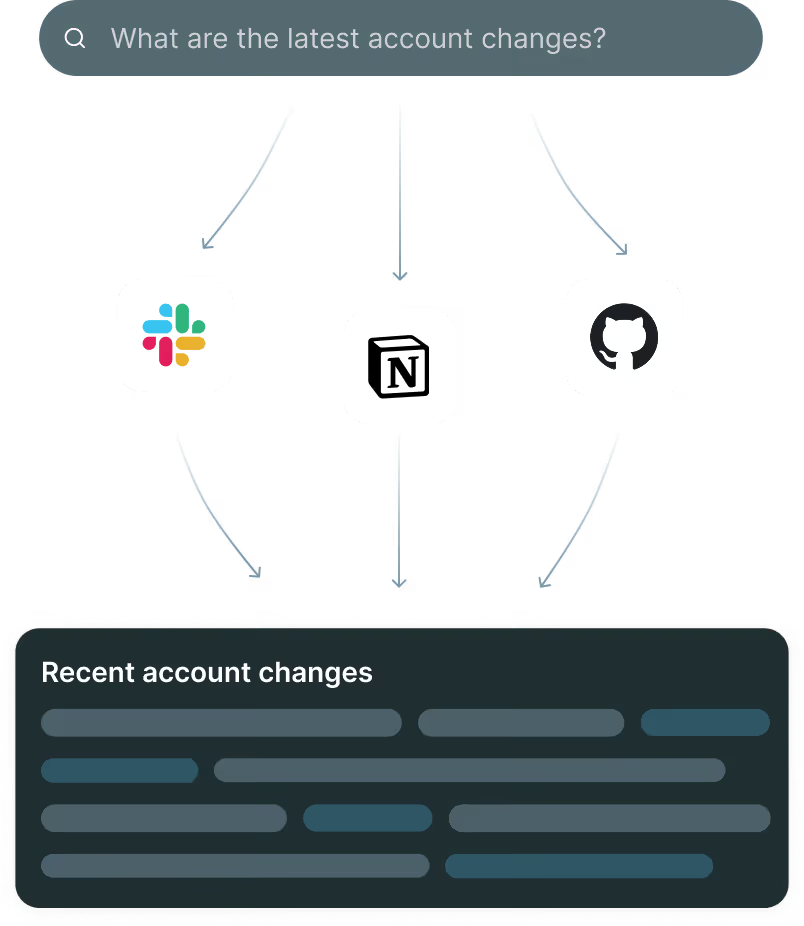
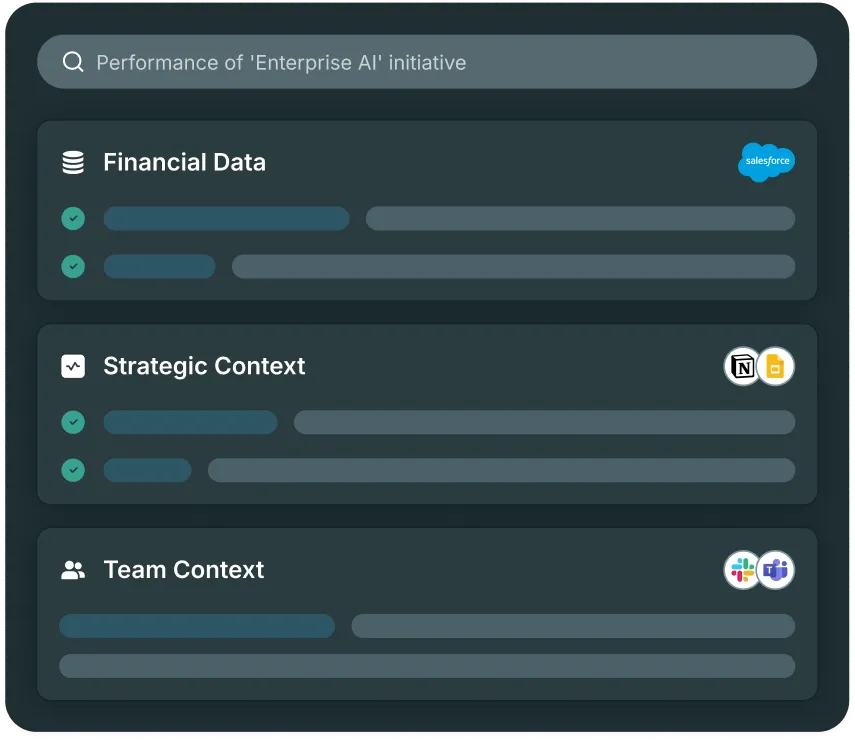
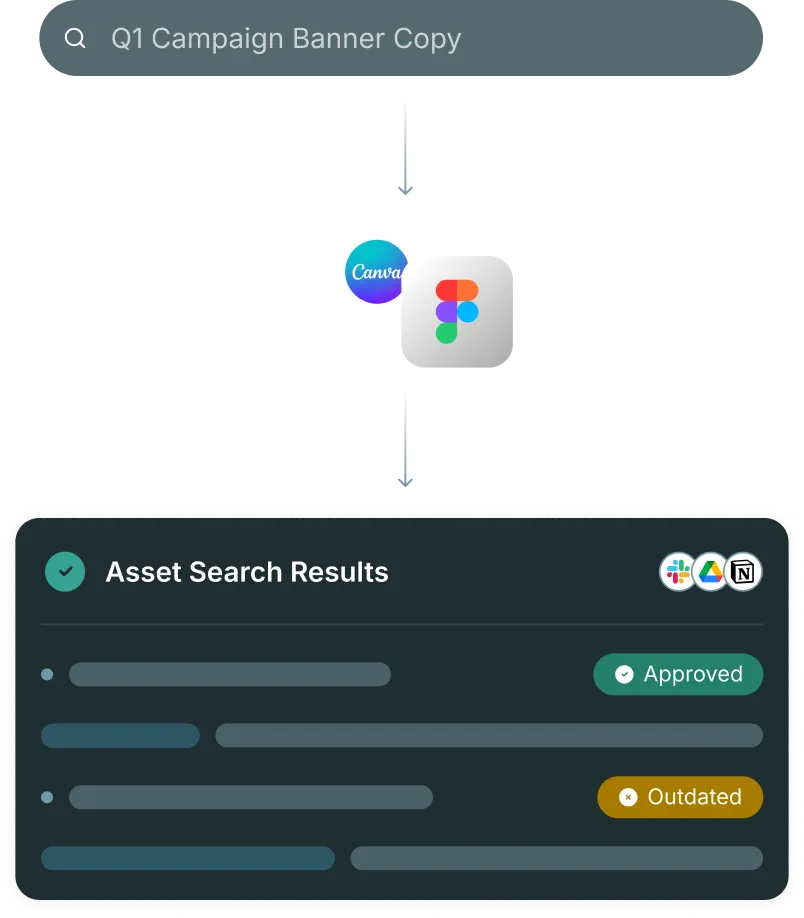
Ask one question and Atolio searches your chat, docs, code, tickets and CRM together, with answers that link to their sources. Your admin picks which tools are connected. These are just a few of the most common applications.
Select a logo to see what Atolio can search there.
Go from Searching to Knowing
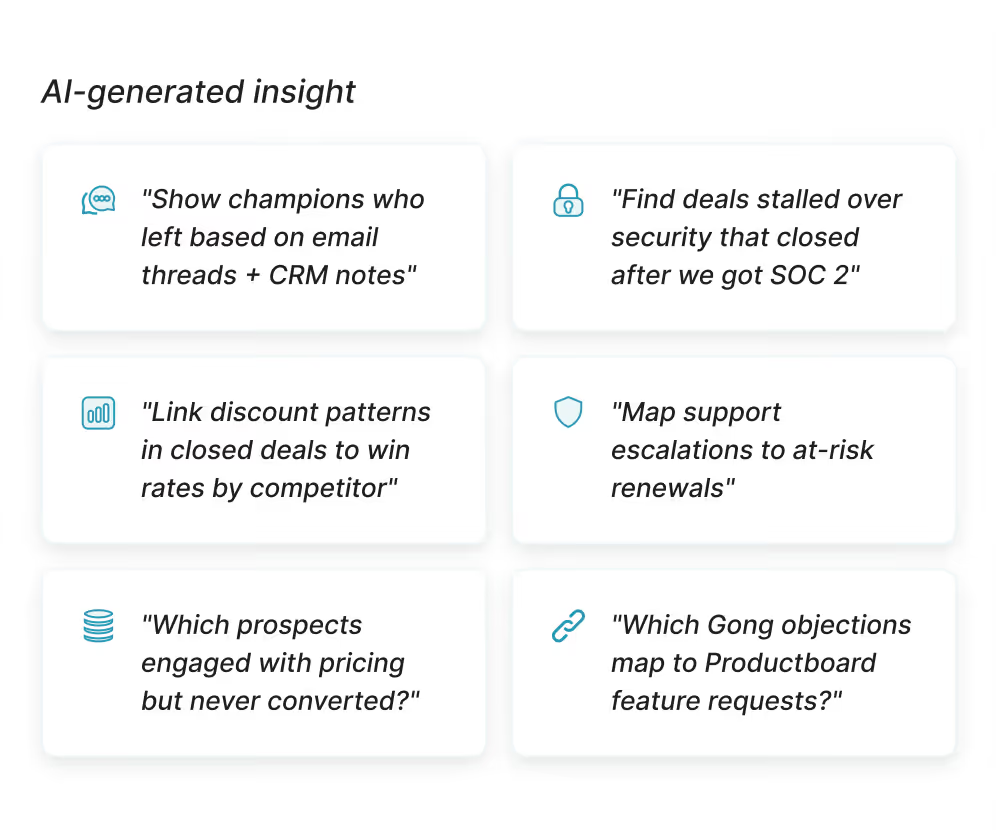
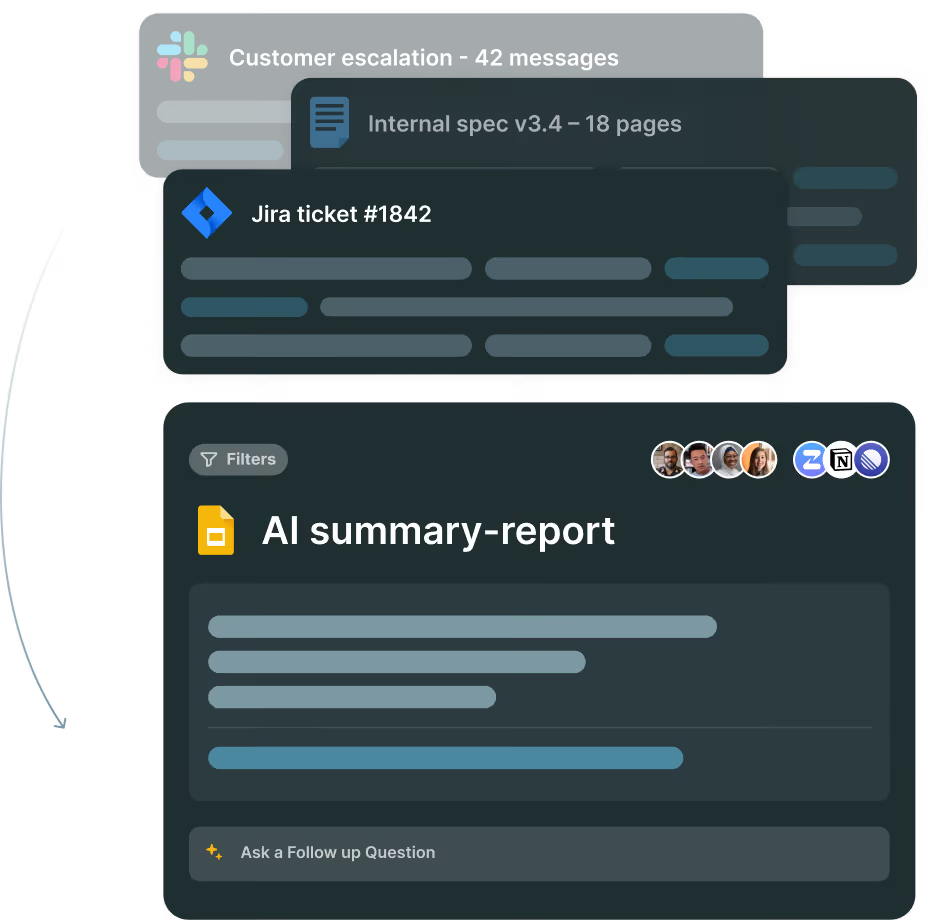
Your company’s know-how is spread across chat, docs, code, tickets and email. Atolio brings it together in one answer, so you spend less time digging and more time doing the work.
Old way
The answers exist. Finding them is the problem.
New way
Unlock institutional knowledge, unlock potential.
Built for Everyone at Your Company
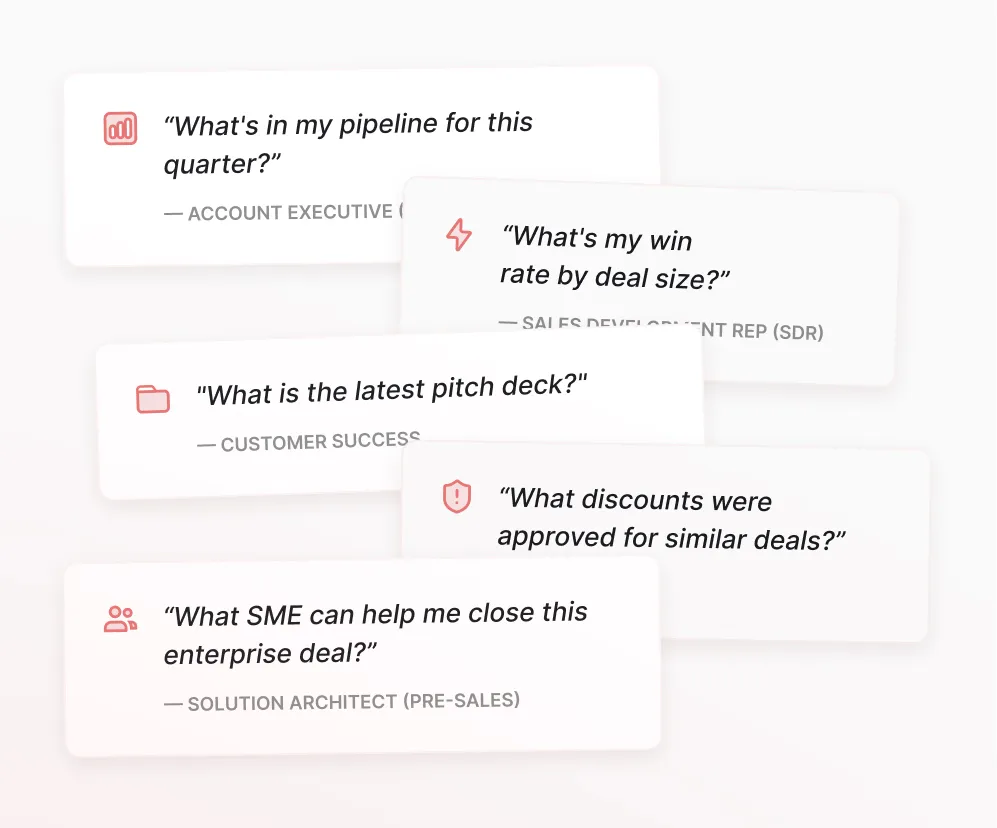
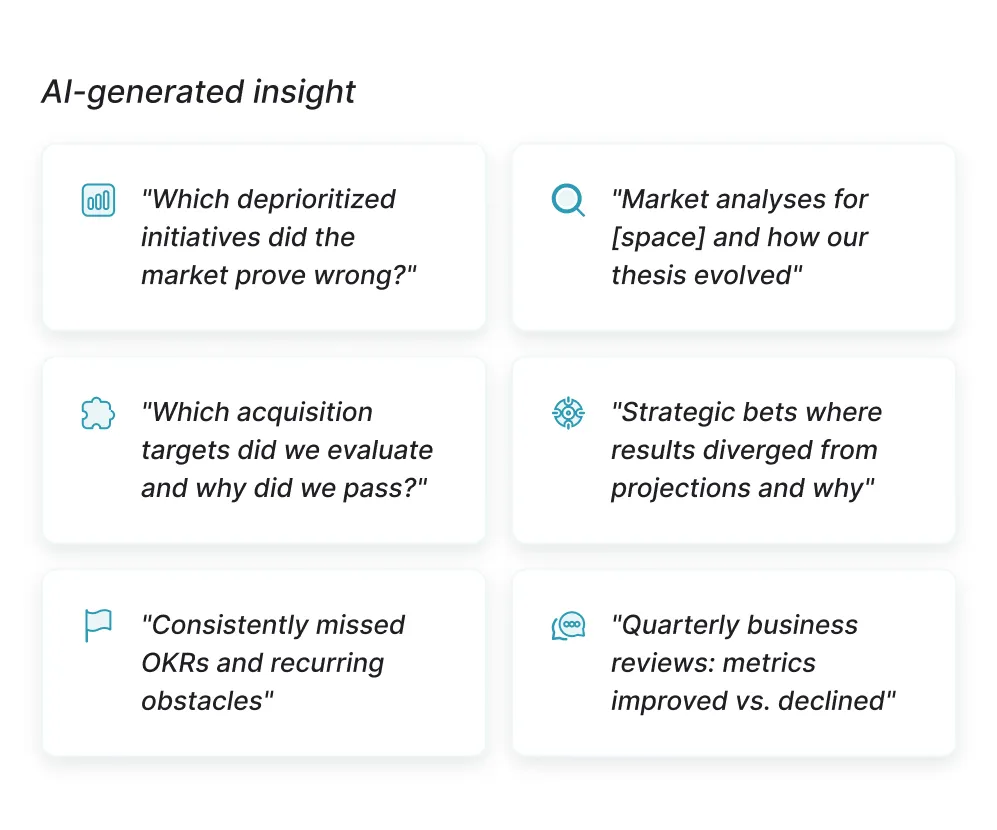
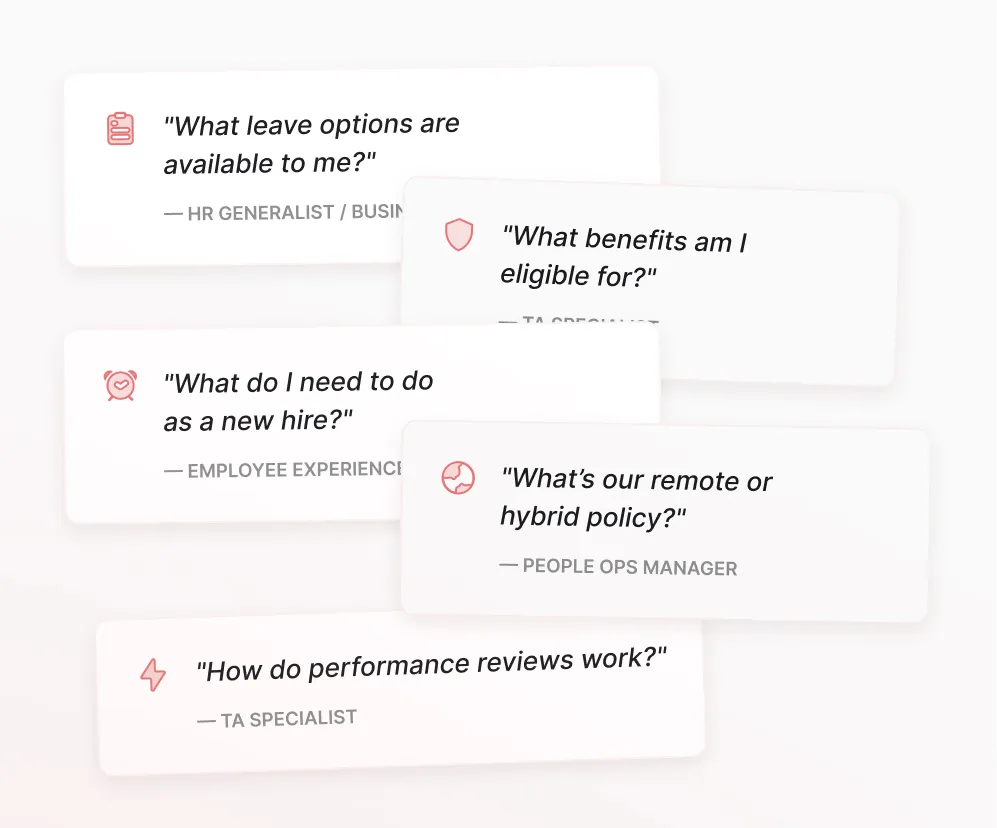
Every team asks Atolio different questions, and it searches the same connected tools for all of them. Open a team to see the questions it asks most.
Sales
Find account history, past deals and competitive notes before every call.
See how Atolio can help
“What's the latest with [company]?”
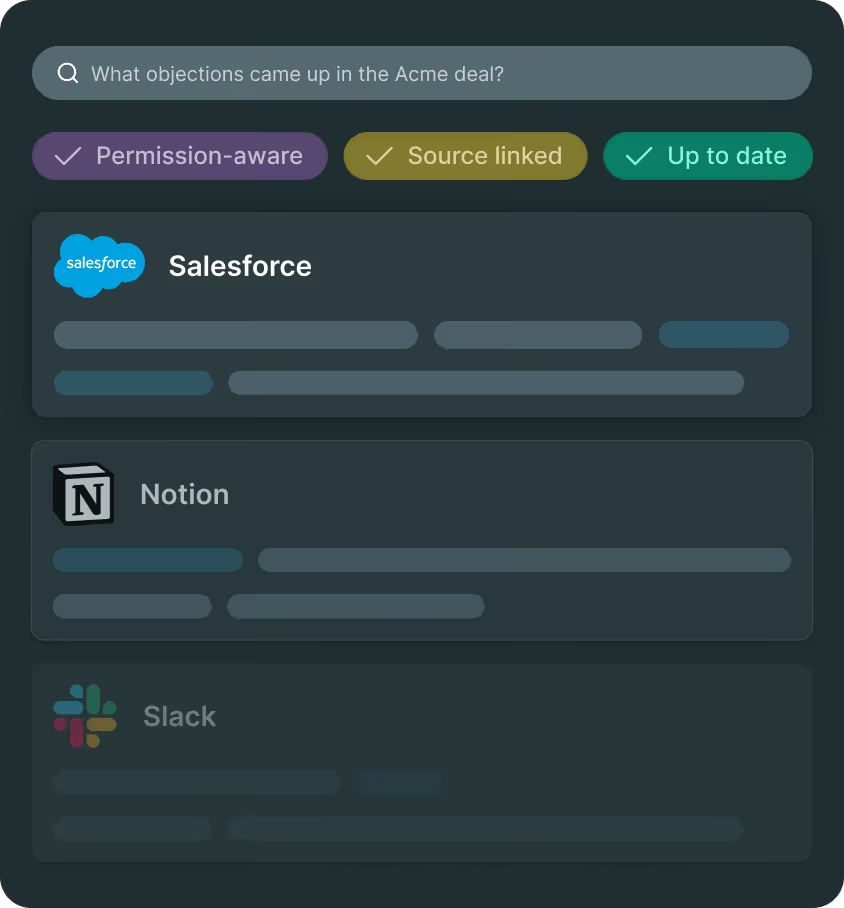
“What objections came up in the [Company] deal?”
“Find our latest battlecard for [Competitor]”
“Which [industry] customers could be a reference?”
Engineering
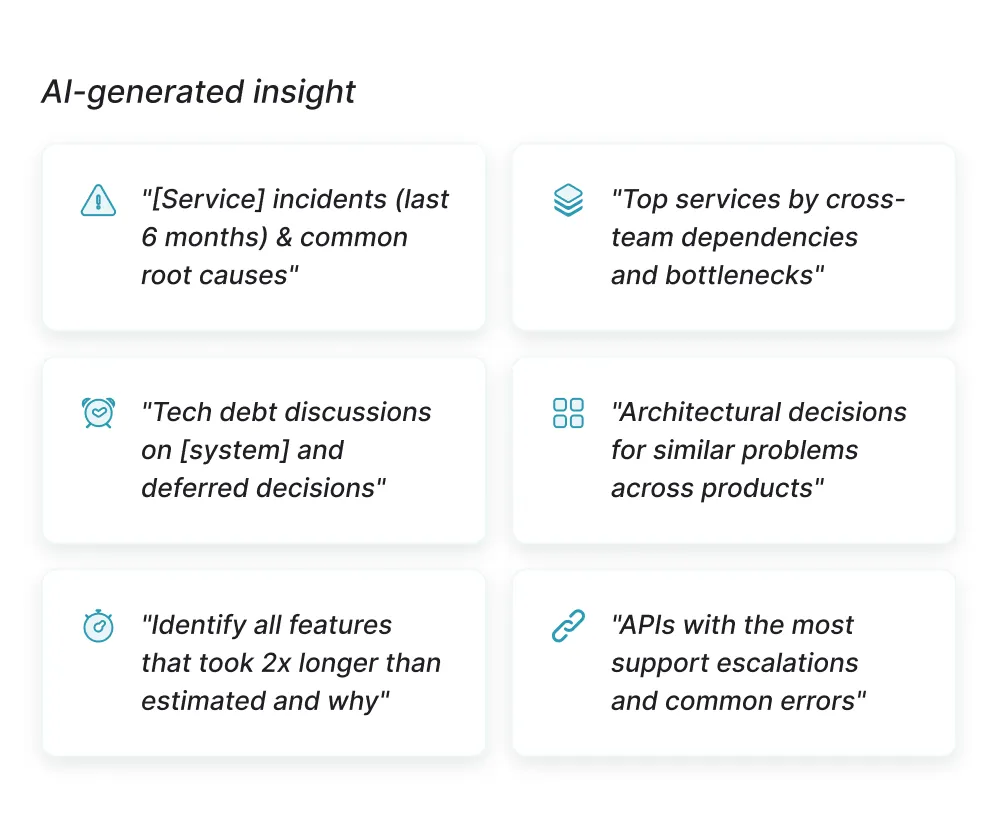
Find code context, design decisions and past incidents across your tools.
See how Atolio can help
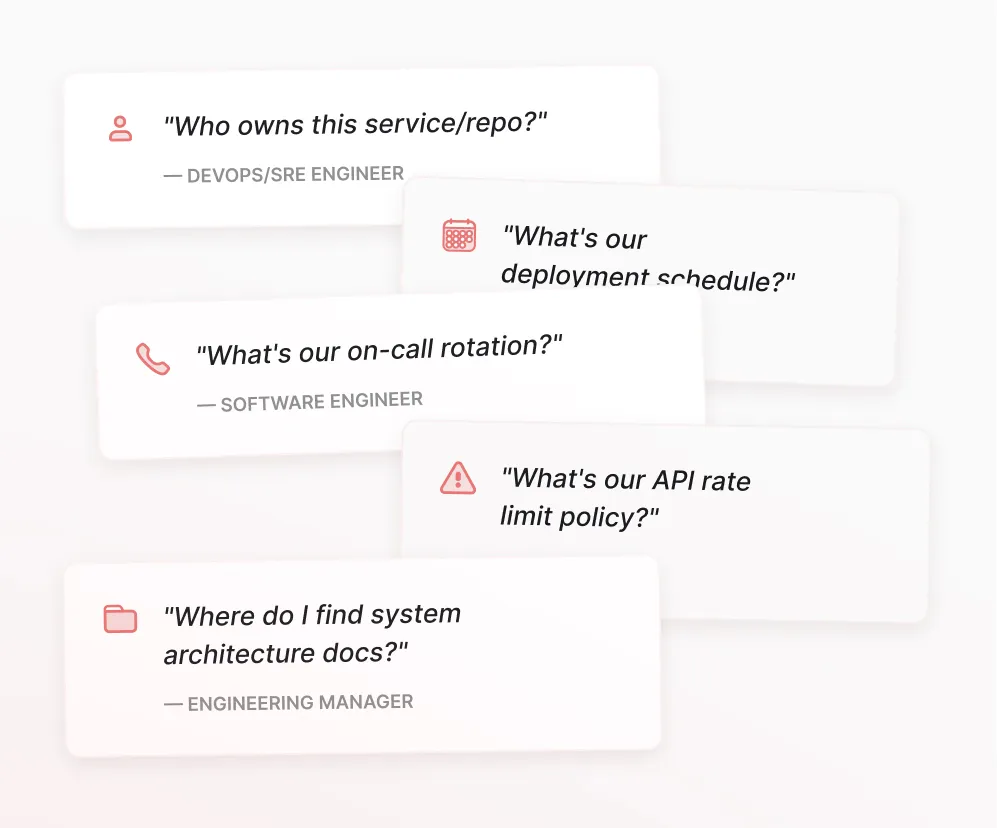
“How does [service] work, and who owns it?”
“Why did we choose [technology]?”
“Have we seen this error before?”
“Where's the runbook for [service]?”
IT & Operations
Answer access questions and find known fixes before they become tickets.
See how Atolio can help
“How do I get access to [app]?”
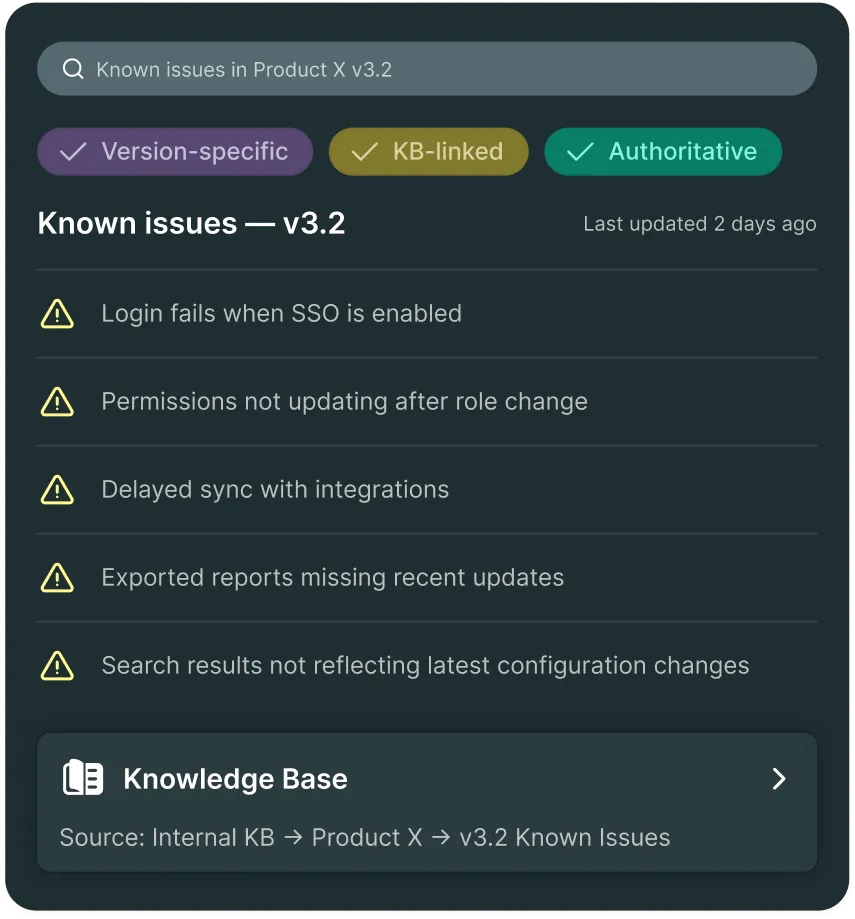
“What's the known fix for [issue]?”
“Who owns [system]?”
“Where's the setup guide for [tool]?”
People & HR
Find current policies and the right person to ask about them.
See how Atolio can help
“What's our current [policy] policy?”
“How many vacation days do new hires get?”
“Where's the onboarding checklist for [role]?”
“Who should I ask about [benefit]?”
Up NextFind out where Atolio runs and where your data stays.
1.2 - Where Atolio Runs: Self-Hosted in Your Environment
Atolio runs in your company’s own cloud or data center, not Atolio’s.
Atolio Foundations · Lesson 2 of 6 · 3 min
When you search with Atolio, your company’s data stays home, in your own cloud or data center.
Where Does My Data Go?
A customer asks how your company uses AI with their data. Or your security team sends a note before the rollout. Either way, the same question lands on your desk.
Where does my data go?
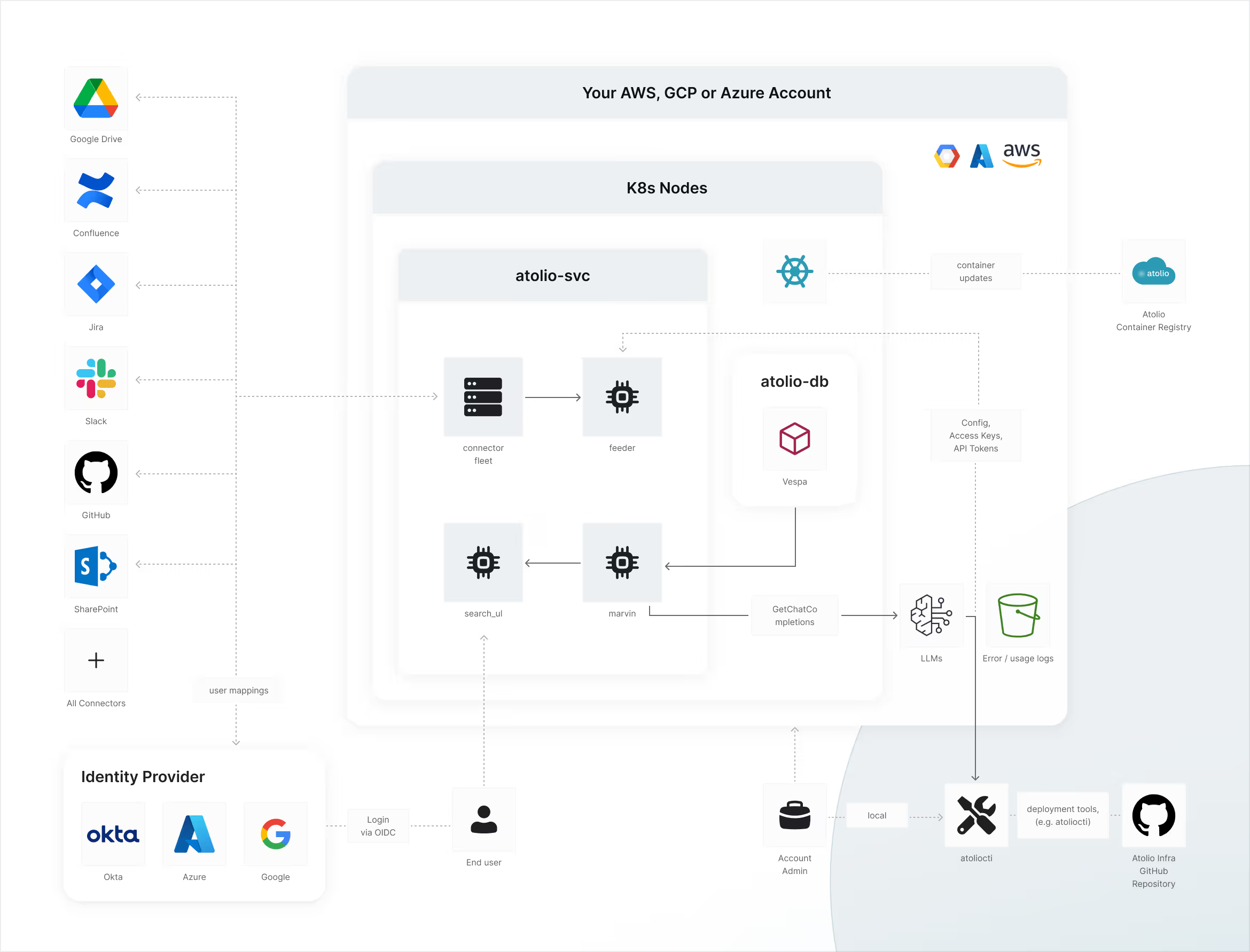
Nowhere new. Atolio runs inside your company’s own cloud account, like AWS, Azure or Google Cloud, or on your own hardware. Your content and the index built from it stay there.
Think of it like a safe installed in your own office instead of a vendor’s warehouse. Atolio built it, but it sits behind your walls and your locks.
Diagram: Inside Your Cloud
Diagram
Atolio ArchitectureSee What Runs Inside Your Own Cloud
FAQs
What's Atolio's approach to security, compliance and privacy?
Three ideas guide it. Atolio runs in your company’s own private cloud on AWS, GCP or Azure, none of your indexed content or questions goes to Atolio’s systems, and every result follows the permissions of the app it came from.
People sign in through your identity provider, like Okta, Microsoft Entra ID, Keycloak or Google Workspace.
Is Atolio self-contained? How does data flow?
Yes. Connectors pull content from your apps into an index that lives entirely in your environment, and searching and answering happen there too.
The only outside calls are the ones your company sets up, to its AI model provider and its connected apps, using credentials your company controls. Atolio staff only get in if your company grants temporary access, and that access is logged.
How does Atolio keep answers accurate?
Every answer is built only from content Atolio found in your index, and each claim cites its source so you can open it and check. If nothing it found answers the question, Atolio says so instead of guessing.
Does Atolio keep audit logs?
Yes. It logs searches, what was retrieved, admin changes and connector activity, and the logs stay in your environment for your security team.
Search never gives anyone more access than they already have, so asking a question a different way can’t reveal more.
Does Atolio test its own security?
Yes. Automated code scanning runs on every change, the running product is tested against attacks, and an outside security firm runs regular penetration tests. Enterprise customers can get a security package with architecture docs and test summaries under NDA.
Who holds the encryption keys?
Your company does. Data at rest is encrypted with AES-256 using your cloud’s key service, like AWS KMS, Google Cloud KMS or Azure Key Vault, and data in transit uses TLS 1.2 or higher. Your company also decides when keys are rotated.
How long does Atolio keep data?
As long as your company’s own policies say. When something is deleted or access is removed in an app, Atolio drops it from the index on its next sync.
Admins can also keep certain content out entirely. And if your contract ends, everything indexed is deleted.
Key Takeaways
Key Takeaways
Atolio runs in your company’s own environment
Your company picks the AI model
Only your question and its context reach the model
Up NextSee which apps Atolio can search and how fast it catches up.
1.3 - Connecting Your Knowledge Sources
Which apps Atolio can search and how fast new content shows up.
Atolio Foundations · Lesson 3 of 6 · 3 min
Atolio can only search the apps your company has connected, so it helps to know which ones.
Why Isn’t It Showing Up?
You wrote a doc this morning and searched for it right after lunch. Or you’re looking for a thread you know exists, and Atolio keeps coming back without it.
Why isn’t it showing up?
Usually it’s one of two things. The app it lives in isn’t connected yet, or Atolio hasn’t caught up with a brand new change. Your Atolio admin picks which apps are connected, and most changes show up within minutes.
Think of it like searching the photos on your phone. You only see photos from the devices that sync to it, and a photo you just took can take a moment to show up.
What a Connector Does
A connector is how an app’s content gets into Atolio. Follow one pricing deck from start to finish.
In Google Drive
Q3 pricing deckSales folder
Shared withFinanceSales
Drive connectorsynced 2 min ago
Q3 pricing deck
Content
Sharing rulesFinanceSales
Your cloud
Atolio index
Q3 pricing deckFinanceSales
#launch threadProduct
Auth fix PREngineering
Sync activitylive
EditedQ3 pricing deck2 min ago
DeletedOld price list5 min ago
Access removedEngineeringjust now
SRSales rep
"What's our Q3 pricing?"
Q3 pricing deckcited
ENEngineer
"What's our Q3 pricing?"
Not in their resultsno access
FAQs
What connectors does Atolio support, and can I connect custom sources?
Atolio has native connectors for the places most company knowledge lives, from Google Workspace and Microsoft 365 to Slack, Confluence, Jira, GitHub, Notion, Salesforce, Zendesk and ServiceNow. Self-hosted tools like Jira Data Center have their own connectors, and a web connector can index internal or public websites.
If something you rely on isn’t covered, Atolio will build the connector for you. The full list is in the Sources section of these docs.
Does Atolio inherit permissions from our source systems?
Yes. Each connector brings in who can see each item along with the content, and those permissions keep syncing. They’re checked on every search, including group memberships from your identity provider, before anything reaches the AI.
So people and AI tools only see what they could already open in the original app. Atolio never widens access.
How does Atolio stay current as content changes?
Most connectors sync in near real time, so content is usually only minutes old. Each one watches its app for new items, edits, deletions and permission changes, and updates just what changed.
When someone loses access or a doc is deleted, Atolio reflects it on the next sync. Admins can see the last sync time for every connector.
What does it take to set up a connector?
An admin in the app being connected and the credentials that app uses for integrations. Each connector has a setup guide in the Atolio docs that lists the access it needs, so your security team can review it first.
Connectors only read from your apps and never write back to them. After the first full crawl, the app stays in sync on its own.
Can Atolio connect to a system that isn't on the list?
Yes. Tell Atolio which system you need and Atolio builds the connector, with the same indexing and permission rules as the rest. That works for proprietary, on-premises and legacy systems too.
If your team would rather build it, there’s also an Atolio connector SDK with docs and support.
Can Atolio connect to on-premises and legacy systems?
Yes. Atolio can run in your own cloud or on your own hardware, even fully air-gapped. For on-premises apps, a connector runs inside your network, so those systems never need to be exposed to the internet.
Self-hosted tools like Confluence Data Center, GitHub Enterprise Server and self-managed GitLab have native connectors.
Do Copilot, Claude, ChatGPT and Gemini work with Atolio's connectors?
Yes. Each AI tool connects to Atolio once, through MCP or Atolio’s API, and can then draw on every connected app. Answers cite their sources, and an agent working for you only sees what you can see.
Does Atolio handle structured data, or only documents?
Both documents and records. CRM and ticket records come in with their fields, like a deal’s stage, amount and close date, so one question can draw on a CRM record and a chat thread together.
For documents, Atolio pulls the text from PDF, Word, PowerPoint and web pages. Data warehouse tables stay in their own systems, and AI tools reach them there instead.
Key Takeaways
Key Takeaways
Your admin picks which apps are connected
Most changes show up within minutes
Ask your admin when an app seems missing
Up NextSee why you only ever get results you’re allowed to open.
1.4 - Permission-Aware Search Explained
Why Atolio only shows you what you’re already allowed to open.
Atolio Foundations · Lesson 4 of 6 · 3 min
Atolio searches across all your apps, but it only ever shows you what you’re allowed to open.
Can It See My Private Stuff?
It’s your first week with Atolio. You ask a question, and answers come back from apps you haven’t even opened today. Then a thought stops you.
Can it see my private stuff?
Only you can, plus the people you’ve shared it with. Atolio reads who can open each item straight from the app it lives in, and checks you against that list every time you search, before anything reaches the AI.
Think of it like your building badge. It opens the same doors it always did, and Atolio never hands you a key you didn’t already have.
Example: The Account Plan
Example
Use CaseGet Answers Built Only from What You Can Open
What's in the Acme account plan?
Connectors in This Example
Select a connector to see what Atolio looks for there.
In Salesforce, Atolio looks for The account record, if you can open it in your CRM.
In Notion, Atolio looks for The account plan page, shared with your team.
In Slack, Atolio looks for Threads in channels you can already see.
What to Expect
How Atolio Found It
You asked about one account. Atolio found matching items in your CRM, docs and team chat, then checked each one against who can open it in its own app.
Anything you can’t open was left out before the answer was written, so the AI never saw it. A teammate with different access can ask the same question and get a different answer.
Avoid These Traps
Worrying about your DMs. Private chats and email are searchable, but only by the people in that conversation. Nobody else can find them in Atolio.
Thinking Atolio changed access. Atolio follows each app exactly. If a doc is shared with everyone, everyone can find it. Update the sharing where the doc lives.
Expecting instant updates, always. When making updates in an app, Atolio picks it up on its next sync. This period of time between apps can sometimes differ.
What Atolio Does (and Doesn’t)
It will
Follow each app’s own permissions
Check access every time you search
Pick up sharing changes on each sync
It won't
Show you anything you can’t open
Fix over-shared docs for you
Need a second set of access rules
Try It: Your Team’s Latest Doc
Try It Now
Where's my team's latest planning doc?
Key Takeaways
Key Takeaways
Atolio follows each app’s permissions
Private chats stay with the people in them
Fix over-sharing in the app it came from
Up NextLearn the habits that turn a question into a sharp, cited answer.
1.5 - How to Search Like an Expert
Simple habits that turn any question into a sharp, cited answer.
Atolio Foundations · Lesson 5 of 6 · 3 min
You don’t need the right keywords to find things in Atolio. Ask the way you’d ask a coworker.
How Do I Ask This Better?
You asked Atolio a quick question and got back a pile of results. Some are close, none are quite it, and you’re not sure what to try next.
How do I ask this better?
Add a little context. Say who or what it’s about, the type of doc you want and when. Atolio matches your words and their meaning, so plain language works, and a few details make it sharp.
Think of it like asking a librarian. “Something about onboarding” gets you a shelf. “This year’s onboarding checklist for engineers” gets you the book.
Example: The Onboarding Guide
Example
Use CaseAsk Once and Search Every Connected App
Find the Q3 onboarding guide
Connectors in This Example
Select a connector to see what Atolio looks for there.
In SharePoint, Atolio looks for Sites, pages and files your company shares.
In Confluence, Atolio looks for Pages, blog posts, comments and attachments.
In GitHub, Atolio looks for Pull requests, commits, reviews and issues.
In Slack, Atolio looks for Channels and threads the Atolio bot is in.
In Gmail, Atolio looks for Email messages you sent or received.
In Salesforce, Atolio looks for Accounts, opportunities, contacts and leads.
What to Expect
How Atolio Found It
You asked for something specific, a guide from one quarter. Atolio matched your words and their meaning across every connected app, then ranked the results using details like dates.
So the guide you meant comes first, not every doc that mentions onboarding. Ask also cites every source, so you can open it and check.
Avoid These Traps
Searching in keywords or titles. “RCA database Q3” makes Atolio guess. “What caused the Q3 database outage?” tells it exactly what you want, so ask in plain words.
Starting over after a weak answer. Your next question keeps the context. Follow up with “check Notion too” or “just Slack” instead of typing it all again.
Overthinking the perfect prompt. There’s no special wording to learn. Ask the way you’d ask a teammate, in a sentence or two, and let Atolio do the searching.
What Atolio Does (and Doesn’t)
It will
Understand natural language
Keep context when you follow up
Cite every source it used
It won't
Need the exact words from a doc
Know things nobody wrote down
Need a special way of asking
Try It: Add Who, What and When
Try It NowCopy this into Atolio and swap the [brackets] for your own details.
Find the [team] [doc type] from [time frame]
Key Takeaways
Key Takeaways
Ask in plain language
Add who or what, type and when
Follow up instead of starting over
Up NextGrab ready-to-use prompts for the questions everyone asks.
1.6 - Prompt Appendix: Atolio Foundations
Starter prompts for finding docs, people, updates and past decisions.
Atolio Foundations · Lesson 6 of 6 · 2 min
Everything you’ve explored in this track, from your first search to sharper questions, is packaged here as ready-to-use prompts to help you get started.
What Do I Ask?
You’ve seen what Atolio can do. But the first time you open it on your own, the empty search box can stop you cold, and one question takes over.
What do I ask?
That’s the objective of this appendix. The prompts below are grouped by what you need and written the way you’d ask a teammate. Pick a tab, copy a prompt, swap anything in [brackets] for your own details and run it.
Pick What You Need
Find a Doc. Find the current version of any doc or policy.
Where's the latest approved [doc type] template?
When to use it When you need the current approved version of a template.
What you get The latest approved template, with its source.
What's our current [topic] policy?
When to use it Before sharing data externally or onboarding a vendor.
What you get The current policy and when it was last updated.
Find the [team] [doc type] from [time frame]
When to use it When you know roughly what it is and when it was made.
What you get Matching docs from that time, newest first.
Find a Person. Find who owns what and who knows the most.
Who owns [system], and which team runs it?
When to use it Instead of asking around in chat.
What you get Docs and threads naming the owning team or person.
Who knows the most about [topic]?
When to use it When you need someone who has worked on a topic.
What you get People most active on that topic, with their work.
Who worked on [project]?
When to use it When you join a project that’s already underway.
What you get The people on the project and what they worked on.
Find the Why. Find why something was decided, and by whom.
Why did we choose [technology or tool]?
When to use it To recover why a past decision was made.
What you get Design docs, tickets and threads behind it.
Who decided [decision], and when?
When to use it When you need to know who made a call and when.
What you get The decision, who made it and when, with sources.
Where was [decision] discussed?
When to use it When you want the full conversation behind a choice.
What you get Threads, meeting notes and docs that discussed it.
Get an Update. Get up to speed on a project, account or topic.
What's the latest with [company]?
When to use it Before a meeting with a customer or prospect.
What you get CRM records, call notes, tickets and threads.
What's the latest on [project]?
When to use it When you come back from time off or join late.
What you get Recent updates, decisions and open questions.
What have customers said about [topic]?
When to use it To hear what customers actually said about a topic.
What you get Calls, tickets and notes where it came up.
Make It a Habit
Use natural languageAsk the way you’d ask a teammate.
Add a time frame“This quarter” pulls in the newest docs.
Tell it where to lookAdd “check Notion too” when you know.
Follow up if neededAsk again instead of starting over.
Up NextSee how Sales teams prep any deal with past objections and wins.
2 - Sales
Learn to use Atolio at every stage of a deal, from first outreach to renewal.
Intermediate6 lessons15 minFor SDRs, AEs, SAs and CSMs
How Atolio pulls account context, deal history, and competitive notes from your sales tools.
Sales · Lesson 1 of 6 · 3 min
Atolio Works with Every Part of the Sales Workflow
Ask one question and Atolio searches your CRM, calls, email and chat together, with answers that link to their sources. Your admin picks which tools are connected. These are just a few of the most common applications.
Select a logo to see what Atolio can search there.
Go from Searching to Knowing
The answers your team needs already exist, scattered across your CRM, calls, email and chat. Atolio brings them together in one answer, so you spend less time digging and more time selling.
Old way
The answers exist. Finding them is the problem.
New way
Unlock institutional knowledge, unlock potential.
Built for Everyone on the Sales Team
From the SDR booking the first meeting to the CSM planning the renewal, everyone gets answers from the same tools. Open a role to see the questions it asks most.
Sales Development Rep (SDR)
Find account research, messaging templates and qualification notes, so you book more good meetings.
See how Atolio can help
“What pain points do we solve for [prospect's role] in [industry]?”
“Show me successful cold call scripts for this buyer persona”
“Find recent case studies or customer stories in [prospect's industry]”
“What questions should I ask to qualify [use case or need]?”
“Pull up talking points on how we differ from [competitor they're using]”
Account Executive (AE)
Find account history, past deals and competitive notes in one place, so you can personalize outreach and move deals forward.
See how Atolio can help
“Show me past deals with [industry] companies over $500K and why we won or lost”
“What objections came up in the [Company] deal, and how did we handle them?”
“Find competitive battlecards and recent win stories against [Competitor]”
“Pull up customer references in [industry] for this prospect's use case”
“What pricing and discount strategies worked for similar deal sizes in my territory?”
Solution Architect (Pre-Sales)
Find technical docs, past solution designs and integration details, so you can scope deals and answer technical questions.
See how Atolio can help
“Find similar architectures we've built for [use case or industry]”
“Show me integration guides and API docs for [platform]”
“What security and compliance questions came up in recent enterprise deals?”
“Pull technical win and loss analysis from deals with similar requirements”
“Find demo environments and POC playbooks for [product capability]”
Customer Success
Find account history, adoption notes and expansion playbooks, so you can keep customers and grow accounts.
See how Atolio can help
“Show me this account's support history, feature requests and past escalations”
“What expansion plays have worked for similar customers in [industry or segment]?”
“Find QBR templates and health score criteria for enterprise accounts”
“Pull best practices for driving adoption of [feature] with customers”
“What renewal risk signals should I watch for in support patterns?”
Up NextFind the signals that make cold outreach personal.
2.2 - Outreach & Qualification
Find the signals that make cold outreach personal, and the questions that qualify it.
Sales · Lesson 2 of 6 · 3 min
Every good first message starts with context. Who is the prospect, what do they care about and what does your company already know about them?
What Do We Know About Them?
You’ve got a list of new accounts and a blank email. You could open with the same pitch everyone sends, but you know that rarely lands. Before you write a word, one question comes to mind.
What do we know about them?
More than you’d think. Notes from past conversations sit in your CRM, calls with similar companies sit in your call recordings and the latest account chatter sits in team chat. They’re just in different places.
Think of Atolio as your research assistant. Ask about the account, and it brings what’s changed, what similar customers struggled with and the stories that match their industry into one answer, with a link to each source.
Example: A New Account
Example
Use CaseSee What's Changed at an Account Before You Reach Out
What are the latest account changes?
Connectors in This Example
Select a connector to see what Atolio looks for there.
In Slack, Atolio looks for Account channels and the latest chatter about the company.
In Notion, Atolio looks for Account plans and notes your team keeps on the company.
In GitHub, Atolio looks for Product updates worth mentioning in your message.
What to Expect
How Atolio Found It
You asked about one account in plain language. Atolio searched the places your team keeps account notes, like team chat, docs and product updates, and pulled the recent changes into one summary.
Every part of that summary links back to its source. So before you hit send, you can open the thread or the note and check the detail you’re about to mention.
Avoid These Traps
Asking about a company too broadly. “Tell me about Acme” brings back a bit of everything. Ask “What changed at Acme this quarter?” and the answer gets focused.
Skipping over the cited sources. Your team’s notes pile up over time. Open the linked sources and make sure you have the most recent version before a detail goes in your opener.
The answer may not exist. If an insight never made it into a note, a call or a thread, Atolio can’t find it. That’s when a quick message to the account owner helps.
What Atolio Does (and Doesn’t)
It will
Pull account notes from your tools
Find stories from similar customers
Link every answer to its source
It won't
Send anything on your behalf
Show you anything you can’t access
Know things nobody wrote down
Try It: Your Next Account
Try It NowCopy this into Atolio and swap the [brackets] for your own details.
What pain points do we solve for [role] in [industry]?
Key Takeaways
Key Takeaways
Research using your internal documentation
Summarize what changed at the account
Check the source before you quote it
Up NextFind past deals, objections and references for any deal.
2.3 - Deal Intelligence
Find past deals, objections, competitive notes and references for any deal.
Sales · Lesson 3 of 6 · 3 min
Every deal you work has a history behind it, in the calls, the objections and the deals like it that came before.
Have We Seen This Before?
You’re two calls into a big deal. The buyer just raised a tough objection, and a competitor’s name came up for the first time. Your next call is tomorrow, and one question won’t let go.
Have we seen this before?
Almost always, yes. Someone on your team has heard that objection, faced that competitor or closed a deal like this one. Their notes are in your CRM, their playbooks are in your docs and the debrief is in team chat.
Think of Atolio as a teammate who sat in on every deal. Ask about the objection or the competitor, and it brings back how your team handled it before, with a link to each source.
Example: The Acme Deal
Example
Use CaseFind How Your Team Handled the Same Objection Before
What objections came up in the Acme deal?
Connectors in This Example
Select a connector to see what Atolio looks for there.
In Salesforce, Atolio looks for Opportunity history, notes and close reasons for the deal.
In Notion, Atolio looks for Battlecards and objection guides your team keeps.
In Slack, Atolio looks for Deal team threads where people talked through the objection.
What to Expect
How Atolio Found It
You asked about one deal. Atolio searched your CRM, docs and team chat, found what the buyer raised and how your team answered, and pulled it into one answer.
Only what you’re allowed to see comes back, and each part links to its source. So before your next call, you can open the original note and hear it in your teammate’s words.
Avoid These Traps
Asking too broadly. “What objections do we hear?” could cover a hundred deals. Name the deal or the competitor, like “the Acme deal,” and the answer gets much sharper.
Trusting an old answer. Atolio finds what worked before, including deals from years ago. Check the dates on the sources, and ask about recent deals when it matters.
Stopping after one question. The first answer tells you what came up. Follow up in the same conversation and ask which references or pricing helped close similar deals.
What Atolio Does (and Doesn’t)
It will
Find how past objections were handled
Surface battlecards and win stories
Link every answer to its source
It won't
Make the call on pricing for you
Show you anything you can’t access
Know things nobody wrote down
Try It: Your Toughest Objection
Try It NowCopy this into Atolio and swap the [brackets] for your own details.
What objections came up in the [Company] deal?
Key Takeaways
Key Takeaways
Find how similar deals were won
Ask who worked on comparable deals
Compare objections across past deals
Up NextReuse past architectures and security answers in technical reviews.
2.4 - Technical Sales Support
Reuse past architectures, integration docs and security answers in technical reviews.
Sales · Lesson 4 of 6 · 2 min
Every technical review comes with questions about security, integrations and how it all fits into the customer’s stack.
Has Anyone Answered This Already?
A security questionnaire lands the week before a POC, and half the questions look familiar. You know a teammate answered something like this last quarter, but the answer is buried in a ticket, a spec or a thread. So you start to wonder.
Has anyone answered this already?
Chances are, someone has. The approved answers, the integration specs and the notes from past reviews are already written down, just spread across your tools.
Think of Atolio as a colleague who worked every technical deal before yours. Ask about the requirement, and it pulls the relevant specs, tickets and threads into one summary, with a link to each source.
Example: A Security Review
Example
Use CaseReuse Past Answers When a Technical Review Lands
Connectors in This Example
Select a connector to see what Atolio looks for there.
In Slack, Atolio looks for Escalation threads and past review discussions.
In Notion, Atolio looks for Specs, POC playbooks and approved security answers.
In Jira, Atolio looks for Tickets for integration work and technical issues.
What to Expect
How Atolio Found It
You asked about a requirement. Atolio searched your team chat, docs and ticketing tool for the reviews, specs and tickets that covered it, and summarized what it found.
You can keep asking follow-up questions from the same summary, and every answer links to its source. So you can confirm the approved wording before anything goes to the customer.
Avoid These Traps
Asking too much at once. A long list of questions gets you a long, general answer. Ask Atolio one section at a time, like security first, then integrations.
Add context if needed. The more you tell Atolio, the better it matches. Add the customer, their setup and the exact requirement, like SOC 2 for a healthcare customer on Azure.
It’s ok to start fresh. After many follow-ups, answers can drift. When you switch topics or the thread gets crowded, start fresh with a new question.
What Atolio Does (and Doesn’t)
It will
Find past specs, tickets and threads
Show who answered it before
Answer your follow-up questions
It won't
Approve an answer for the customer
Show you anything you can’t access
Guess when there’s no source
Try It: Your Next Questionnaire
Try It Now
How did we answer security questions in recent deals?
Key Takeaways
Key Takeaways
Ask section by section, not all at once
Confirm an answer is still approved
Follow up from the same summary
Up NextPrep QBRs, spot expansion chances and catch renewal risk early.
2.5 - Expansion & QBR Prep
Prep QBRs, spot expansion chances and catch renewal risk early.
Sales · Lesson 5 of 6 · 2 min
Every renewal is built on trust, and trust comes from knowing your customer’s world well enough to spot problems, and chances, before they do.
What’s Changed Since We Last Talked?
Your QBR is on Thursday. Since the last one, there have been support tickets, a few feature requests and a roadmap update you only half remember. Before you build a single slide, there’s one thing you need to know.
What’s changed since we last talked?
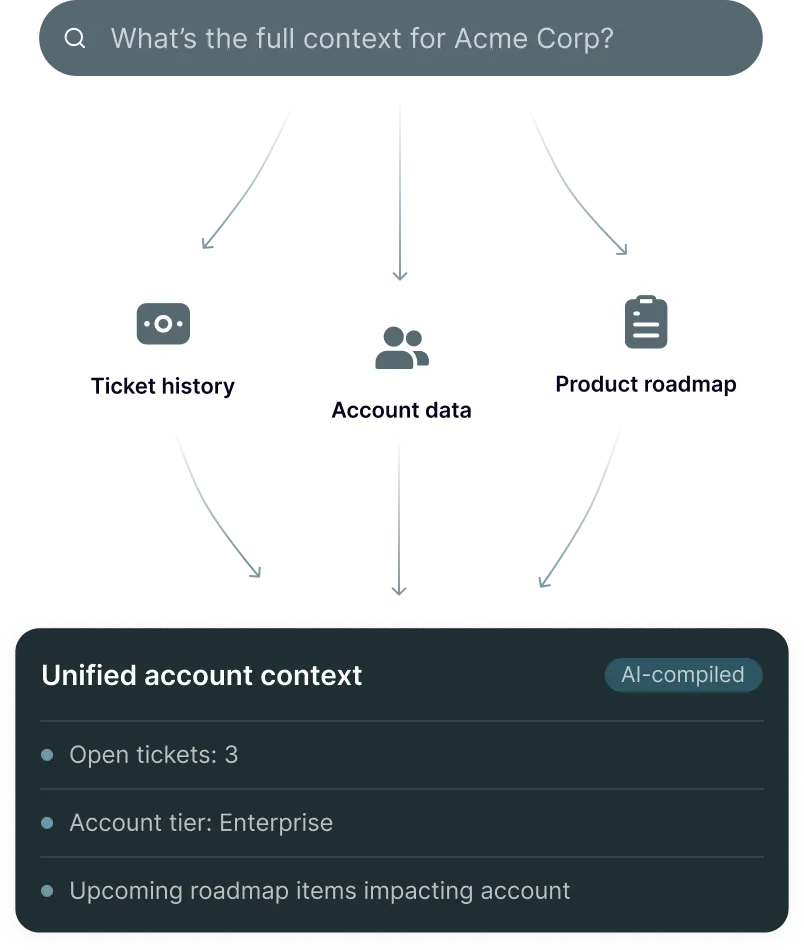
It’s all on record. The tickets are in your help desk, the account details are in your CRM and the roadmap lives in your docs. Pulling it together by hand just means a lot of tabs.
Think of Atolio as the account brief you wish you always had. Ask about the account, and it brings the open tickets, the account details and the roadmap items that affect them into one answer, with a link to each source.
Example: The Acme Corp QBR
Example
Use CaseGet the Full Account Picture Before Every QBR
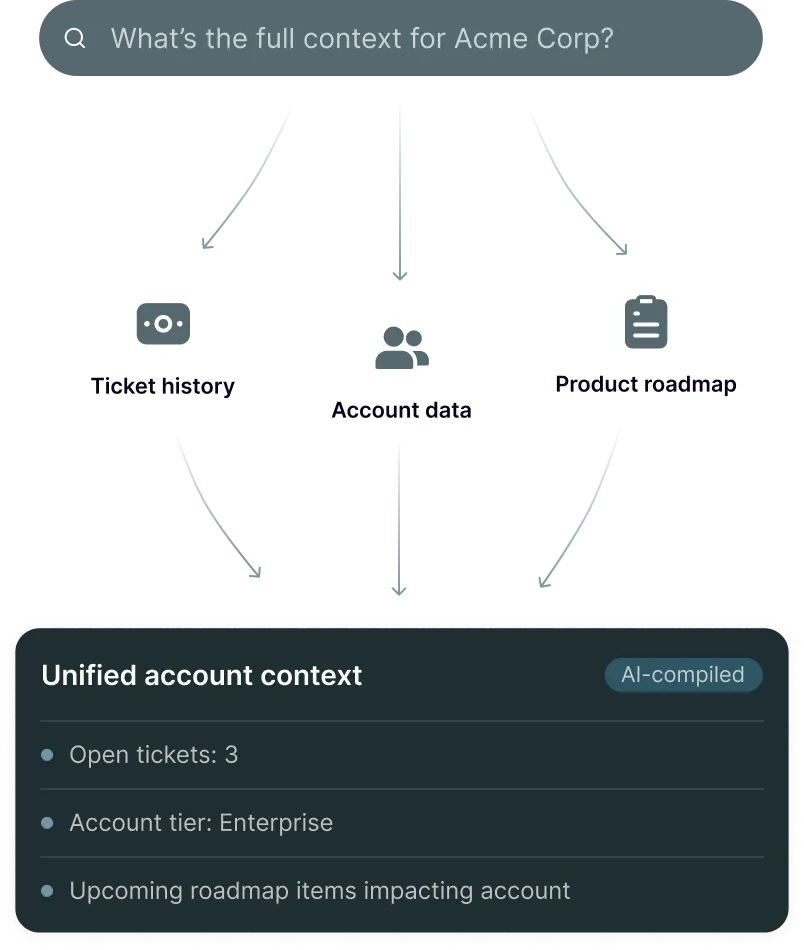
What's the full context for Acme Corp?
Connectors in This Example
Select a connector to see what Atolio looks for there.
In Zendesk, Atolio looks for Support tickets and their comments for the account.
In Salesforce, Atolio looks for Account details, contacts and open opportunities.
In Notion, Atolio looks for Roadmap pages for features the customer is waiting on.
What to Expect
How Atolio Found It
You asked about one account. Atolio searched your help desk, CRM and docs, then pulled the open tickets, the account details and the roadmap items that affect them into one view.
Each part links to its source. So when a ticket looks like a risk, you can open it and read the whole thread before the meeting.
Avoid These Traps
Reading only the summary. Atolio’s summary is where you start. A short line like “3 open tickets” can hide a frustrated customer, so open the tickets behind it.
Leaving out the time frame. “Open issues for Acme” can pull in tickets from years ago. Add “since our last QBR” so you see what changed this quarter.
The answer may not exist. If a concern only came up in a conversation nobody wrote down, Atolio can’t find it. Check in with the account team before the QBR.
What Atolio Does (and Doesn’t)
It will
Pull tickets and account history
Help you spot risk and expansion
Link every answer to its source
It won't
Talk to the customer for you
Show you anything you can’t access
Know things nobody wrote down
Try It: Your Next QBR
Try It NowCopy this into Atolio and swap the [brackets] for your own details.
What tickets and requests has [Account Name] had lately?
Key Takeaways
Key Takeaways
Summarize what changed since the last QBR
Ask who on your team knows the account
Find the features they have asked for
Up NextPractice prompts for every sales role, from SDRs to CSMs.
2.6 - Prompt Appendix: Sales
Practice Atolio prompts for SDRs, account executives, solution architects and CSMs.
Sales · Lesson 6 of 6 · 2 min
Everything you’ve explored in this track, from your first outreach to your next renewal, is packaged here as ready-to-use prompts to help you get started.
What Do I Ask?
You’ve seen what Atolio can do. But the first time you open it on your own, the empty search box can stop you cold, and one question takes over.
What do I ask?
That’s the objective of this appendix. The prompts below are grouped by role and written the way you’d ask a teammate. Pick your role, copy a prompt, swap anything in [brackets] for your own details and run it.
Pick Your Role
Sales Development Rep. Find signals for outreach and questions to qualify.
What pain points do we solve for [role] in [industry]?
When to use it When you need a personal opener for cold outreach or a cold call.
What you get Pain points and proof points, with sources.
Do we have call scripts for [buyer persona]?
When to use it When you need call scripts for a specific buyer type.
What you get Call scripts from Enablement, plus related calls.
Find recent case studies from [industry]
When to use it Before a prospecting email or intro call.
What you get Recent case studies for that industry, with links.
What should I ask to qualify [use case]?
When to use it Before qualifying a specific pain point or use case.
What you get Discovery questions from your methodology guides.
Account Executive. Find past deals, competitors and pricing precedents.
Why did we win or lose [industry] deals over [size]?
When to use it Before an enterprise discovery call, to compare past deals in the prospect’s industry.
What you get Past deals in that industry and size, with sources.
Find our latest battlecard for [Competitor]
When to use it Before a deal where the prospect is looking at a named competitor.
What you get The latest battlecard and recent wins against them.
How do we stand apart from [competitor]?
When to use it Before a call with a prospect who already uses a competitor.
What you get Talking points from your positioning guide.
What objections came up in the [Company] deal?
When to use it Before a high-stakes call, to learn from a comparable deal.
What you get That deal’s objections and how your team answered.
Which [vertical] customers could be a reference?
When to use it When a prospect asks for a reference in their industry.
What you get Reference customers in that vertical, with owners.
What discounts closed deals of a similar size?
When to use it Before a pricing negotiation.
What you get Pricing notes from similar closed-won deals.
Solution Architect. Find architectures, integrations and security answers.
What architectures have we built for [use case]?
When to use it Before a technical discovery call or POC scoping session.
What you get Similar architectures and who built them.
Where are the integration guides for [platform]?
When to use it Before a demo or integration scoping call, like one for Okta or ServiceNow.
What you get The integration guide, plus notes from past deals.
How did we answer security questions in recent deals?
When to use it Before the security part of an enterprise POC or IT review.
What you get Recent security questions and how we answered.
Why did we win or lose deals that needed [requirement]?
When to use it Before investing time in a POC.
What you get Technical win and loss notes from similar deals.
Find demos and POC playbooks for [capability]
When to use it Before a technical evaluation of a specific capability.
What you get Demo environment docs and the POC playbook.
Customer Success. Find account history, risk signals and expansion plays.
What tickets and requests has [Account Name] had?
When to use it Before a QBR, renewal call, or executive business review.
What you get The account’s tickets, requests and escalations.
Where's our QBR template for enterprise accounts?
When to use it When prepping a QBR for a large strategic account.
What you get Your current QBR template and recent example decks.
Do [Account Name]'s tickets suggest renewal risk?
When to use it When you want to catch renewal risk early.
What you get Recent tickets and notes that hint at risk.
What expansion plays worked for similar customers?
When to use it Before an upsell or cross-sell conversation.
What you get Expansion plays from similar customers, with sources.
How do we drive adoption of [underused feature]?
When to use it Before a check-in with a customer who isn’t using a key feature.
What you get Adoption playbooks and CSM notes for that feature.
Make It a Habit
Use natural languageAsk the way you’d ask a teammate.
Add a time frame“Last quarter” pulls in recent deals.
Tell it where to lookAdd “check call recordings” when you know.
Follow up if neededAsk again instead of starting over.
Up NextSee how Engineering & DevOps teams find code context, docs and incident history.
3 - Engineering & DevOps
Learn to find code context, decisions, runbooks and past incidents.
Advanced5 lessons15 minFor Engineers, SREs and DevOps
How Atolio helps engineers find code context, docs, and incident history fast.
Engineering & DevOps · Lesson 1 of 5 · 3 min
Atolio Works with Every Part of the Engineering Workflow
Ask one question and Atolio searches your code, tickets, docs and chat together, with answers that link to their sources. Your admin picks which tools are connected. These are just a few of the most common applications.
Select a logo to see what Atolio can search there.
Go from Searching to Knowing
The answers your team needs already exist, scattered across code, tickets, docs and chat. Atolio brings them together in one answer, so you spend less time asking around and more time building.
Old way
The answers exist. Finding them is the problem.
New way
Unlock institutional knowledge, unlock potential.
Built for Every Engineer on the Team
From the engineer writing code to the manager planning the quarter, everyone gets answers from the same tools. Open a role to see the questions it asks most.
Software Engineer
Find code examples, architecture decisions and troubleshooting guides, so you can ship features without hopping between tools.
See how Atolio can help
“Show me how we implemented [feature or pattern] in similar services”
“Find architecture decision records (ADRs) for [system or component]”
“What's the runbook for deploying [service] to production?”
“Pull API documentation and integration examples for [internal service or library]”
“Show me past incidents and root causes related to [system behavior]”
DevOps/SRE Engineer
Find infrastructure docs, incident playbooks and system dependencies, so you can resolve outages and keep systems reliable.
See how Atolio can help
“Find runbooks and escalation procedures for [service or alert type]”
“Show me the infrastructure dependencies and configuration for [system]”
“What were the root causes and fixes for similar incidents in the past?”
“Pull deployment procedures and rollback steps for [environment or service]”
“Find monitoring dashboards and SLO definitions for [critical service]”
Engineering Manager
Find team docs, project context and cross-team dependencies, so you can unblock engineers without digging through chat threads.
See how Atolio can help
“Show me technical specs and status updates for [project or initiative]”
“Find onboarding documentation and setup guides for new engineers”
“What are the current tech debt priorities and their business impact?”
“Pull postmortems from the last quarter and the action items we committed to”
“Show me architecture reviews and technical proposals waiting on a decision”
QA/Automation Engineer
Find test plans, known issues and quality standards, so you can validate releases and catch bugs sooner.
See how Atolio can help
“Show me test cases and coverage for [feature or component]”
“Find known bugs and edge cases related to [functionality]”
“What are our testing standards and automation frameworks for [test type]?”
“Pull regression test suites and expected behavior for [release]”
“Show me past bug reports similar to this issue and how they were verified”
Up NextFind the docs, setup guides and team know-how you need from day one.
3.2 - Onboarding New Engineers
Help new engineers find docs, setup guides, and team know-how from day one.
Engineering & DevOps · Lesson 2 of 5 · 3 min
Every engineering team runs on institutional knowledge. It’s the design docs, past incidents and hard-won decisions that explain how a system really works.
Where Does This Live?
Your first week usually goes something like this. You get a laptop, a ticket and a link to a wiki that hasn’t been touched in a while. You open the code, find the service you’ll be working on, and the same question keeps coming up.
Where does this live?
The answer is almost always out there. It’s in a design doc on the wiki, a pull request in your code repo or a thread in team chat. The hard part is knowing where to look.
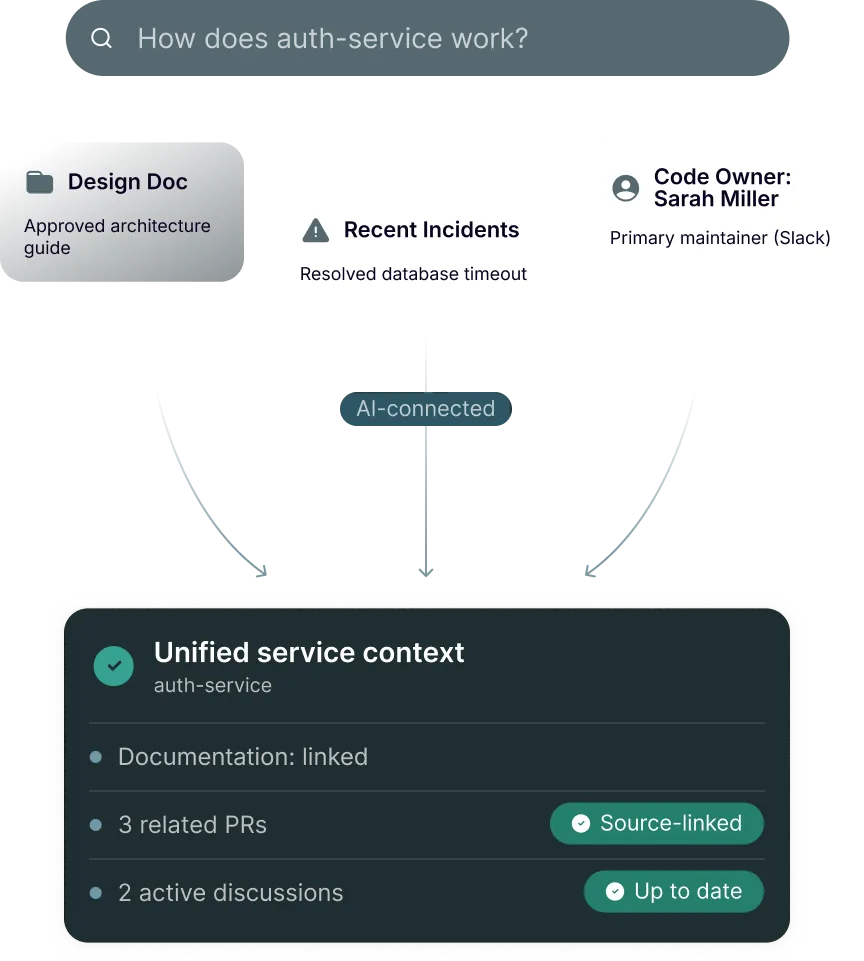
Think of Atolio as one search bar for everything your team has written down. Ask how a service works, and it brings the design doc, the recent changes and the person who owns it into one answer, with a link to each.
Example: auth-service
Example
Use CaseLearn How a Service Works, and Who to Ask, from Your First Day
How does auth-service work?
Connectors in This Example
Select a connector to see what Atolio looks for there.
In Confluence, Atolio looks for The design doc and architecture guide for the service.
In GitHub, Atolio looks for Recent pull requests, commits and code owners.
In Slack, Atolio looks for Active discussions about the service.
What to Expect
How Atolio Found It
You asked one question in plain language. Atolio searched the places your team writes things down, like your wiki, code and team chat, found the pieces about auth-service and put them together into one answer.
Every part of that answer links back to where it came from. So if something catches your eye, you can open the design doc or the pull request and keep reading.
Avoid These Traps
Questions that are too broad. “How does auth work?” could mean a dozen things. Name the service, like “How does auth-service work?”, and the answer gets much sharper.
Docs that are out of date. Atolio finds what your team wrote, including the older pages. Check the dates on the sources, and ask for the latest version when it matters.
The answer may not exist. Some knowledge only lives in a teammate’s head. Ask Atolio who has worked on the service most, then go straight to that expert.
What Atolio Does (and Doesn’t)
It will
Search your connected tools at once
Link every answer to its source
Answer your follow-up questions
It won't
Show you anything you can’t access
Know things nobody wrote down
Replace reading the code yourself
Try It: Your Own Service
Try It NowCopy this into Atolio and swap the [brackets] for your own details.
How does [service] work, and who owns it?
Key Takeaways
Key Takeaways
Your team’s knowledge is spread across systems
Name the service and ask for the latest version
Follow up to go from understanding to action
Up NextFind the why behind the code in PRs, issues, design docs and discussions.
3.3 - Finding Code Context & Decisions
Find the why behind code changes in PRs, issues, design docs, and discussions.
Engineering & DevOps · Lesson 3 of 5 · 3 min
By now, you know your way around. But the first time you change real code, a harder question comes up. Why is it built this way? Every codebase is full of decisions, and the reasoning behind them is rarely in the code.
Is This Accurate?
So you go looking. You find a design doc from two years ago, a newer page that says something different and a chat thread where someone mentions it changed after an outage. Three sources, three versions of the story. Before you touch anything, you have to ask yourself one thing.
Is this accurate?
That’s where Atolio helps. Ask why the code works the way it does, and it searches those docs, tickets and threads together, then brings back the reasoning with a link to every source.
Think of it like a teammate who has read the docs and threads, and always shows their work. You can see where each part of the answer came from, open the original and decide for yourself.
Example: The Checkout API
Example
Use CaseUnderstand Why the Code Works This Way Before You Change It
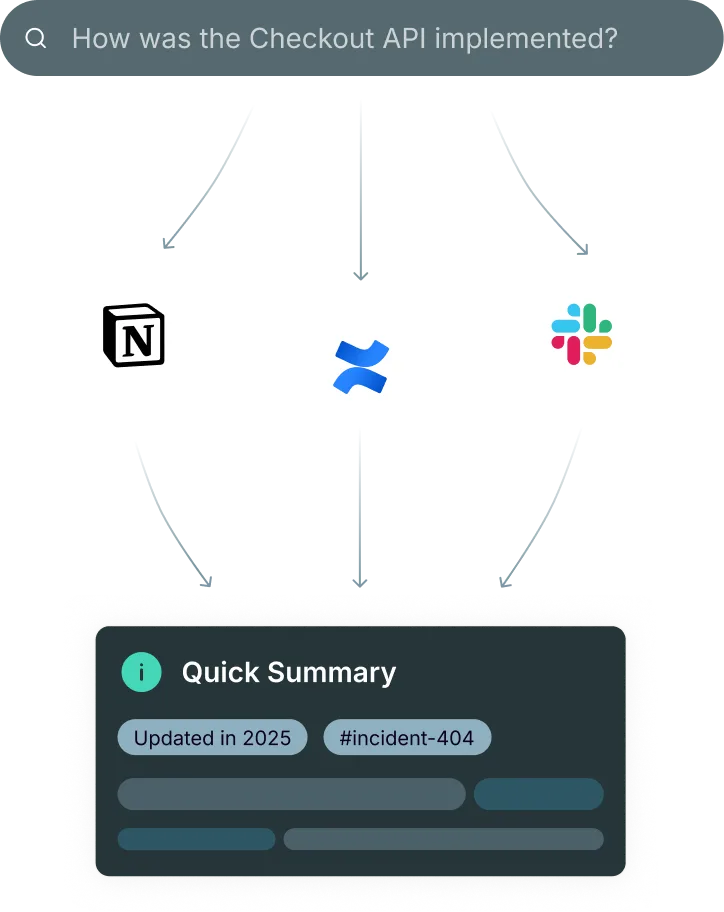
How was the Checkout API implemented?
Connectors in This Example
Select a connector to see what Atolio looks for there.
In Notion, Atolio looks for Specs and design docs for the Checkout API.
In Confluence, Atolio looks for Decision records on how Checkout is built.
In Slack, Atolio looks for Threads where the team debated the approach.
What to Expect
How Atolio Found It
You asked why, not just what. Atolio searched your specs, decision records and team chat for what was written about the Checkout API, and pulled the reasoning into one answer.
Each part of that answer links to its source. So when two docs disagree, you can see exactly which one said what, and when.
Avoid These Traps
Asking “what” when you mean “why.” “What does this code do?” gets you a description. “Why does Checkout retry this way?” gets you the reasoning behind it.
Trusting the first source you see. A decision can change after the doc is written. Open the links and check the dates before you rely on one.
Reasons that no longer apply. A workaround made sense when it was added. Follow up and ask whether the problem it solved still exists.
What Atolio Does (and Doesn’t)
It will
Find the why in specs and threads
Link every answer to its source
Show what’s already been tried
It won't
Show you anything you can’t access
Find a decision nobody wrote down
Make a decision without your input
Try It: Your Own Code
Try It NowCopy this into Atolio and swap the [brackets] for your own details.
Why does [API or service] work this way?
Key Takeaways
Key Takeaways
The code reasoning is likely well-documented
Ask why, and name the code you’re looking at
Follow up to check whether the reason still holds
Up NextFind past incidents, runbooks and on-call context while an incident is live.
3.4 - Incident Response & Postmortems
Find past incidents, runbooks, and on-call context while an incident is live.
Engineering & DevOps · Lesson 4 of 5 · 3 min
Sooner or later, it’s your turn on call. An alert fires, customers notice, and everything you’ve learned in this track matters at once.
Who Can I Ask?
Picture it. It’s late, the alert won’t stop, and you’ve found the error, but not the person who knows this service. The owner moved teams, the channel is quiet and the fix from last time is buried somewhere. One question takes over.
Who can I ask?
Atolio answers it in one place. Ask about the error, and you get who owns the service, what changed recently and how the team fixed it last time, with a link to each source.
Think of it as having your team’s memory on call with you.
Example: A Risky Deploy
Example
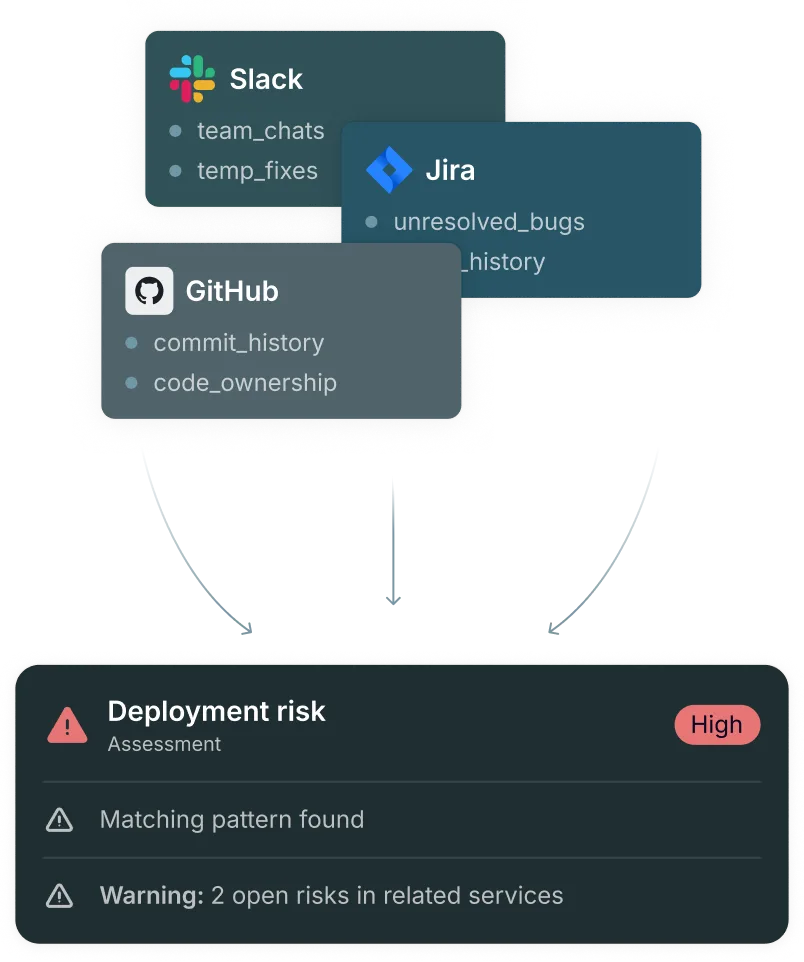
Use CaseSpot a Risky Change by Checking It Against Past Incidents and Open Bugs
Connectors in This Example
Select a connector to see what Atolio looks for there.
In Slack, Atolio looks for Fixes people shared the last time it broke.
In Jira, Atolio looks for Unresolved bugs and the ticket history for the service.
In GitHub, Atolio looks for The commit history for the service, and who owns the code.
What to Expect
How Atolio Found It
You started from what broke. Atolio looked across your team chat, tickets and code history for that service and found the chats where people shared fixes, the open bugs and the recent commits.
It lined them up into one picture, so you can see what changed, whether this has happened before and who owns the code, with a link to each source.
Avoid These Traps
Paraphrasing the error. Paste the exact message. Small details, like an error code, are often what match a past incident.
Asking everything at once. Start with what broke, then follow up on what changed, then who to call. One question at a time keeps each answer focused.
Treating the answer as the fix. Atolio shows you what happened before. You still decide what to do now, and your runbook still comes first.
What Atolio Does (and Doesn’t)
It will
Find past incidents and recent changes
Identify the subject matter expert
Show how it was fixed last time
It won't
Guess at the root cause
Show you anything you can’t access
Know about changes nobody logged
Try It: Your Last Alert
Try It NowCopy this into Atolio and swap the [brackets] for your own details.
Has [service] had incidents like [error message] before?
Key Takeaways
Key Takeaways
Most incidents have previous resolutions
Paste the exact error and ask one thing at a time
Follow up to connect what broke to what changed
Up NextPractice prompts for every engineering role, from software engineers to QA.
3.5 - Prompt Appendix: Engineering
Practice Atolio prompts for software engineers, DevOps and SRE engineers, engineering managers and QA.
Engineering & DevOps · Lesson 5 of 5 · 2 min
Everything you’ve explored in this track, from your first week to your first on-call shift, is packaged here as ready-to-use prompts to help you get started.
What Do I Ask?
You’ve seen what Atolio can do. But the first time you open it on your own, the empty search box can stop you cold, and one question takes over.
What do I ask?
That’s the objective of this appendix. The prompts below are grouped by role and written the way you’d ask a teammate. Pick your role, copy a prompt, swap anything in [brackets] for your own details and run it.
Pick Your Role
Software Engineer. Find code examples, past decisions and fixes.
Show me how we implemented [feature] in other services
When to use it Use it before you build something another team may have built already.
What you get PRs and design docs from teams that solved it.
Find the ADRs for [system or component]
When to use it Use it to learn why a system works the way it does before you change it.
What you get The ADRs and design docs for that system.
What's the runbook for deploying [service]?
When to use it Use it before your first deploy of a service.
What you get The deploy runbook and any linked steps.
Find API docs and examples for [internal service]
When to use it Use it when you start integrating with a service your team doesn’t own.
What you get API docs and integration examples, with sources.
Show me past incidents related to [system behavior]
When to use it Use it when a system does something odd and you suspect it’s happened before.
What you get Past incidents and their root causes.
DevOps/SRE Engineer. Find runbooks, past incidents and dependencies.
Find runbooks and escalation steps for [alert type]
When to use it Use it when an alert fires and you need the procedure fast.
What you get The runbook and escalation steps, with links.
Show me the dependencies and config for [system]
When to use it Use it before a change that could ripple into other systems.
What you get Docs and diagrams of what the system depends on.
What fixed similar incidents in the past?
When to use it Use it mid-incident, once you know what kind of failure you’re seeing.
What you get Postmortems for similar failures and their fixes.
Pull deploy and rollback steps for [service]
When to use it Use it before a risky deploy, so you know how to back out.
What you get The deploy and rollback steps, with sources.
Find dashboards and SLOs for [critical service]
When to use it Use it when you take on a service or review its reliability.
What you get Links to its dashboards and SLO docs.
Engineering Manager. Find project context, team docs and decisions waiting on you.
Show me specs and status updates for [project]
When to use it Use it before a planning meeting or a status review.
What you get Specs and recent updates from docs, tickets and chat.
Find onboarding docs and setup guides for engineers
When to use it Use it when someone new joins your team.
What you get Onboarding docs and setup guides, with links.
What are our tech debt priorities, and why?
When to use it Use it when you’re planning a quarter or making the case for cleanup work.
What you get Tech debt priorities and the reasoning behind them.
Pull last quarter's postmortems and action items
When to use it Use it before a reliability review or a retro.
What you get Last quarter’s postmortems and their action items.
Show me proposals that are waiting on a decision
When to use it Use it to see what’s blocked on you or your team.
What you get Open proposals still waiting on a decision.
QA/Automation Engineer. Find test plans, known bugs and standards.
Show me test cases and coverage for [feature]
When to use it Use it before you test a change to a feature you don’t know well.
What you get Test plans and coverage notes, with sources.
Find known bugs and edge cases for [functionality]
When to use it Use it before you sign off on a release that touches that area.
What you get Known bugs and flagged edge cases, with links.
What are our testing standards for [test type]?
When to use it Use it when you write a new kind of test or join a new team.
What you get Your testing standards and the frameworks they name.
Pull the regression suites for [release]
When to use it Use it when a release is about to go out.
What you get Regression suites and expected behavior for it.
Find similar past bugs and how they were verified
When to use it Use it when a new bug looks familiar.
What you get Similar past bugs and how each fix was checked.
Make It a Habit
Use natural languageAsk the way you’d ask a teammate.
Add a time frame“Last month” pulls in recent activity.
Tell it where to lookAdd “check the wiki” when you know.
Follow up if neededAsk again instead of starting over.
Up NextSee how IT & Operations teams find runbooks, asset docs and vendor records.
4 - IT & Operations
Learn to resolve tickets, manage access and find asset and vendor docs.
Beginner5 lessons15 minFor IT, service desk and ops teams
How Atolio helps IT and ops teams find runbooks, incidents, asset docs, and vendor records.
IT & Operations · Lesson 1 of 5 · 3 min
Atolio Works with Every Part of the IT Workflow
Ask one question and Atolio searches your tickets, runbooks, policies and chat together, with answers that link to their sources. Your admin picks which tools are connected. These are just a few of the most common applications.
Select a logo to see what Atolio can search there.
Go from Searching to Knowing
The answers your team needs already exist, scattered across tickets, wikis, file shares and chat. Atolio brings them together in one answer, so you spend less time digging and more time resolving.
Old way
The answers exist. Finding them is the problem.
New way
Unlock institutional knowledge, unlock potential.
Built for Everyone on the IT Team
From the service desk answering the first ticket to the analyst running a security review, everyone gets answers from the same tools. Open a role to see the questions it asks most.
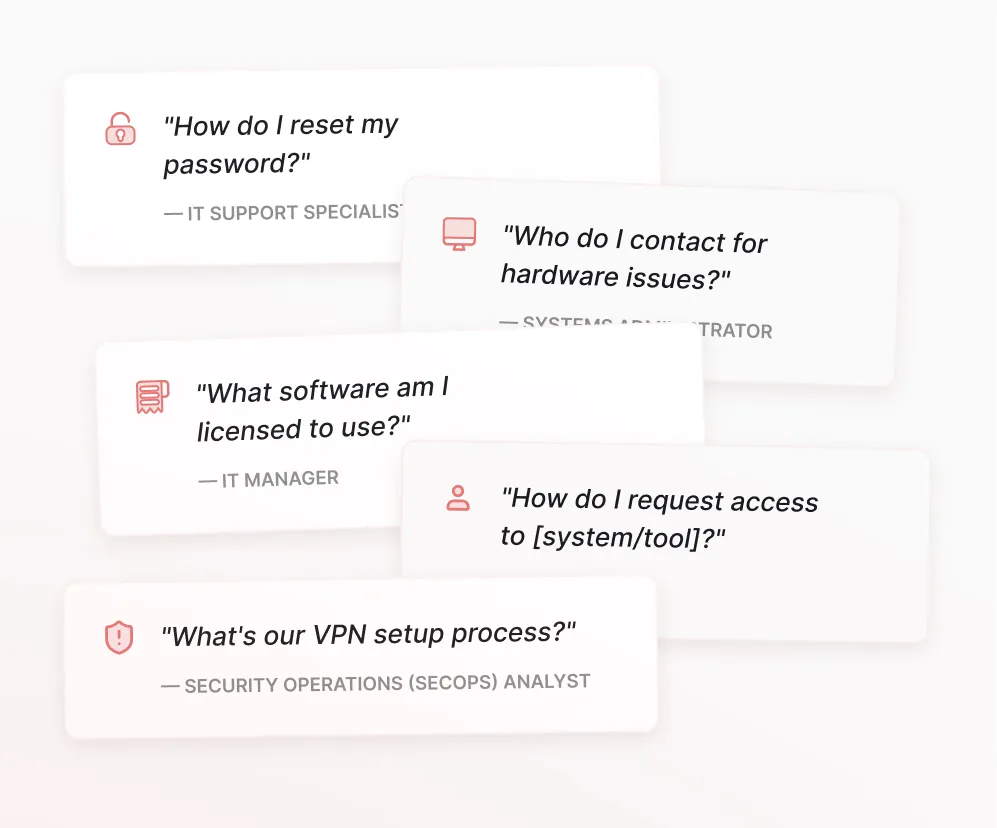
IT Support Specialist
Find troubleshooting guides and IT policies, so you can resolve employee requests without escalating to senior teammates.
See how Atolio can help
“How do I reset [application] access for an employee?”
“Show me the setup guide for new hire laptop provisioning”
“What's the process for granting [system or tool] permissions?”
“Find troubleshooting steps for [common error or connectivity issue]”
“Pull password reset procedures and security protocols”
Systems Administrator
Find system docs, configuration guides and past incident fixes, so you can keep infrastructure running and limit downtime.
See how Atolio can help
“Show me configuration standards and best practices for [system or application]”
“Find documentation on [server or network] architecture and dependencies”
“What were the root causes and fixes for similar outages in the past?”
“Pull access control policies and provisioning workflows for [tool or system]”
“Show me backup and disaster recovery procedures for [critical system]”
IT Manager
Find vendor contracts, IT policies and team processes, so you can run operations and make informed technology decisions.
See how Atolio can help
“Show me active vendor contracts, renewal dates and license counts”
“Find IT security policies and compliance requirements we need to maintain”
“What onboarding documentation exists for new IT team members?”
“Pull service level agreements (SLAs) and uptime metrics for [critical systems]”
“Show me budget allocation and cost savings opportunities across tools”
Security Operations (SecOps) Analyst
Find security playbooks, threat intelligence and compliance docs, so you can respond to incidents and keep your security posture strong.
See how Atolio can help
“Show me incident response playbooks for [threat type or security event]”
“Find the security policies and compliance frameworks we're certified against”
“What similar security incidents happened before, and how were they fixed?”
“Pull access logs and audit trails for [user or system] during [time frame]”
“Show me vulnerability assessments and remediation status for [application or system]”
Up NextPoint new hires to answers before they file a ticket.
4.2 - Access Management & Onboarding
Point new hires to access guides, setup docs and policies before they file a ticket.
IT & Operations · Lesson 2 of 5 · 3 min
Every new hire starts with the same requests, like app access, a working laptop and a way onto the VPN.
How Do I Get Access to This?
It’s Monday, three people just started, and your queue is filling up with the same handful of questions. Each one is small, but together they add up. And every ticket starts the same way.
How do I get access to this?
The answer usually exists. The access policy is on the wiki, the setup guide sits in a file share and the request form is linked from an old thread. New hires just don’t know where to look.
Think of Atolio as your IT front desk. New hires ask in plain language, and it brings back the right policy, guide or form, with a link to each source. If it can’t help, they can still open a ticket.
Example: AWS Access
Example
Use CaseHelp New Hires Find Answers Before They File a Ticket
How to access AWS Production?
Connectors in This Example
Select a connector to see what Atolio looks for there.
In Confluence, Atolio looks for Access guides and IT how-to pages.
In SharePoint, Atolio looks for Access policies and request forms.
What to Expect
How Atolio Found It
A new hire asked in plain language. Atolio searched your wiki and file shares, found the access guide and the policy behind it, and put the steps into one answer.
Every step links back to its source, so they can open the full guide. And if the answer isn’t enough, the next step is still a ticket.
Avoid These Traps
Asking about access in general. “How do I get access?” could mean any app you own. Name the system, like “AWS Production,” and the answer points to the right guide.
Trusting an outdated guide. Atolio finds what your team wrote, including older pages. If a step looks off, check the date on the source and flag it for an update.
Skipping the ticket when it’s needed. Atolio shows how to request access, but it doesn’t grant it. Once you know the steps, follow them or open the ticket.
What Atolio Does (and Doesn’t)
It will
Find access guides and request forms
Link every step to its source
Answer your follow-up questions
It won't
Approve access without your input
Show you anything you can’t access
Replace your ticketing process
Try It: A New Hire’s Question
Try It NowCopy this into Atolio and swap the [brackets] for your own details.
How do I get access to [system or tool]?
Key Takeaways
Key Takeaways
Point new hires to Atolio first
Encourage them to ask questions
Make sure documents are up to date
Up NextSee how Atolio shows each person only what they’re allowed to see.
4.3 - Permission-Aware Search
See how Atolio shows each person only what they’re allowed to see.
IT & Operations · Lesson 3 of 5 · 3 min
Every security review comes down to trust and whether people only see what they’re allowed to see.
Who Can See What?
Security is running an access review, and Atolio is on the list. They want to know whether a search tool could put the exec comp file in front of the wrong person. Before the meeting, you need a clear answer to one question.
Who can see what?
The same people who could see it before. Atolio checks each person’s access in the source app on every search, so a file you can’t open there never shows up in your results.
Think of Atolio as a librarian who checks your badge for every book. When access changes at the source, Atolio follows it, and there’s no separate permission list to maintain. For the full story, see Permission-Aware Search Explained.
Example: The Exec Comp File
Example
Use CaseSee Only What You're Allowed to See, in Every Answer
What's in the exec comp review?
Connectors in This Example
Select a connector to see what Atolio looks for there.
In Salesforce, Atolio looks for Only the records you can open in Salesforce.
In Notion, Atolio looks for Only the pages shared with you.
In Slack, Atolio looks for Only the channels you can see.
What to Expect
How Atolio Found It
Someone asked about a sensitive file. Atolio checked their access in each source app before anything came back, and only showed what they could already open.
A junior analyst asking the same question gets nothing back, while a senior HR leader sees the file. Same question, different answers, because their access is different.
Avoid These Traps
Fixing access in Atolio. There’s no separate permission list to change. Fix an over-shared doc in the app where it lives, and Atolio picks up the change.
Forgetting the identity provider. When someone leaves, remove their access in your identity provider. Atolio follows it, so their content disappears from search too.
Testing with your own account. You may see more than most people do. Ask a teammate with less access to try the same search, so you see what they see.
What Atolio Does (and Doesn’t)
It will
Check access on every search
Follow changes at the source
Show private content only to you
It won't
Show anything you can’t open
Keep its own permission list
Fix over-sharing in the source app
Try It: Your Next Access Review
Try It Now
Find our past access reviews and offboarding SOP.
Key Takeaways
Key Takeaways
Atolio follows each app’s permissions
Fix sharing problems at the source
Remove access in your identity provider
Up NextFind everything about a device, a user or an asset in one search.
4.4 - IT Asset & Documentation Search
Find a user’s devices, access and past tickets, plus the docs behind them.
IT & Operations · Lesson 4 of 5 · 3 min
Every IT request has a backstory, like the person’s device, what they can access and what’s gone wrong before.
Where’s Everything About This?
A ticket lands. Someone’s laptop can’t reach a core app, and they need it working today. Before you can help, you need their device, their access and whether this has happened before, and each answer lives in a different tool. So you ask yourself one thing.
Where’s everything about this?
Spread across your ticketing tool, your identity provider and a few file shares. Pulling it together by hand means a tab for every system.
Think of Atolio as a case file that builds itself. Ask about the ticket or the user, and it brings their past tickets, their app access and the related docs into one answer, with a link to each source.
Example: A New Ticket
Example
Use CaseSee a User's Devices, Access and Past Tickets in One View
Connectors in This Example
Select a connector to see what Atolio looks for there.
In Jira, Atolio looks for The ticket and the user’s past issues.
In Okta, Atolio looks for Who the user is and which apps they’re assigned.
What to Expect
How Atolio Found It
You asked about one ticket. Atolio searched your ticketing tool and identity provider, then pulled the user’s past issues and app assignments into one view.
Each part links to its source. So before you make a change, you can open the original ticket or the user’s record and check the details.
Avoid These Traps
Asking about the person too broadly. “Tell me about Sam” brings back a bit of everything. Ask about the problem, like “Has Sam’s laptop had VPN issues before?”
Treating the summary as the fix. Atolio shows what’s happened before and who has access. You still decide what to change, in the tools where the change belongs.
Expecting tools that aren’t connected. Atolio only searches the tools your admin has connected. If device records live somewhere else, check that system directly.
What Atolio Does (and Doesn’t)
It will
Pull past tickets and app access
Find setup guides and runbooks
Link every answer to its source
It won't
Change access or devices for you
Search tools that aren’t connected
Show you anything you can’t access
Try It: Your Next Ticket
Try It NowCopy this into Atolio and swap the [brackets] for your own details.
Has [user or device] had issues like [problem] before?
Key Takeaways
Key Takeaways
Ask about the problem, not just the person
Open the source to check your records
Make sure your apps are connected
Up NextPractice prompts for every IT role, from the service desk to SecOps.
4.5 - Prompt Appendix: IT & Ops
Practice Atolio prompts for IT support, systems administration, IT management and security operations.
IT & Operations · Lesson 5 of 5 · 2 min
Everything you’ve explored in this track, from a new hire’s first request to your next access review, is packaged here as ready-to-use prompts to help you get started.
What Do I Ask?
You’ve seen what Atolio can do. But the first time you open it on your own, the empty search box can stop you cold, and one question takes over.
What do I ask?
That’s the objective of this appendix. The prompts below are grouped by role and written the way you’d ask a teammate. Pick your role, copy a prompt, swap anything in [brackets] for your own details and run it.
Pick Your Role
IT Support Specialist. Find troubleshooting guides, policies and request forms.
How do I reset [application] access for an employee?
When to use it Use it when an employee is locked out of an app.
What you get The reset steps from your IT docs or KB, with links.
Show me the new hire laptop setup guide
When to use it Use it before a new hire’s first day.
What you get The laptop provisioning guide, with links.
How do I grant [system or tool] permissions?
When to use it Use it when an access request comes in for a system you don’t manage often.
What you get The access process and request form, with sources.
Find troubleshooting steps for [error or issue]
When to use it Use it when a ticket describes a problem you’ve seen before.
What you get Troubleshooting guides and past fixes, with links.
Pull password reset procedures and security protocols
When to use it Use it when you need the approved way to handle a password reset.
What you get The password reset procedure and policy behind it.
Systems Administrator. Find configs, architecture docs and past outage fixes.
Show me the config standards for [system]
When to use it Use it before you change how a system is set up.
What you get Configuration standards for that system, with links.
Find architecture docs for [server or network]
When to use it Use it before maintenance or a change that could affect other systems.
What you get Architecture docs and diagrams of the dependencies.
What fixed similar outages in the past?
When to use it Use it during an outage, once you know what kind of failure it is.
What you get Postmortems for similar outages and their fixes.
Pull access policies and provisioning for [system]
When to use it Use it when you set up or review access to a system.
What you get Access policy and provisioning steps, with sources.
Show me backup and recovery procedures for [system]
When to use it Use it before a recovery test or when a system is at risk.
What you get Backup and recovery runbooks, with links.
IT Manager. Find vendor contracts, policies and team processes.
Show me vendor contracts, renewals and license counts
When to use it Use it before a renewal or budget review.
What you get Vendor contracts with renewal and license details.
Find our IT security and compliance policies
When to use it Use it before an audit or a policy review.
What you get Your IT security policies and compliance docs.
What onboarding docs exist for new IT team members?
When to use it Use it when someone joins the IT team.
What you get Onboarding docs and guides for the IT team.
Pull the SLAs and uptime reports for [critical system]
When to use it Use it before a service review with a vendor or stakeholder.
What you get Your SLAs and any uptime reports, with sources.
Show me tool costs and budget allocation
When to use it Use it when you plan next year’s IT budget.
What you get Budget docs and tool cost discussions, with links.
Security Operations. Find playbooks, policies and past security incidents.
Show me the incident playbook for [threat type]
When to use it Use it the moment a security alert needs a response.
What you get The playbook for that event, plus related runbooks.
Which compliance frameworks are we certified against?
When to use it Use it when a customer or auditor asks what you’re certified for.
What you get Security policies and the frameworks they cover.
How did we fix similar security incidents before?
When to use it Use it while you investigate a security incident.
What you get Past incident reports and how they were fixed.
Pull audit trails for [user or system] in [time frame]
When to use it Use it when you need to show who accessed what.
What you get Documented audit reports and access reviews.
Show me vulnerability status for [application]
When to use it Use it before a release or a security review.
What you get Vulnerability assessments and their fix tickets.
Make It a Habit
Use natural languageAsk the way you’d ask a teammate.
Add a time frame“Last month” pulls in recent tickets.
Tell it where to lookAdd “check the runbooks” when you know.
Follow up if neededAsk again instead of starting over.
Up NextSee how Strategy & GM teams find reports, budget docs and audit files.
5 - Strategy & GM
Learn to prep briefings and get the real status of cross-team work.
Intermediate4 lessons15 minFor Executives, GMs and finance leaders
See how leaders use Atolio to find board decks, plans and past decisions.
Strategy & GM · Lesson 1 of 4 · 3 min
Atolio Works with Every Part of the Strategy Workflow
Ask one question and Atolio searches your decks, docs, wikis and chat together, with answers that link to their sources. Your admin picks which tools are connected. These are just a few of the most common applications.
Select a logo to see what Atolio can search there.
Go from Searching to Knowing
The answers your team needs already exist, scattered across decks, docs, wikis and chat. Atolio brings them together in one answer, so you spend less time chasing updates and more time deciding.
Old way
The answers exist. Finding them is the problem.
New way
Unlock institutional knowledge, unlock potential.
Built for Everyone on the Strategy Team
From the chief of staff prepping the board deck to the GM running the business, everyone gets answers from the same tools. Open a role to see the questions it asks most.
Business Operations (BizOps) Manager
Find cross-functional data, process docs and performance metrics, so you can improve operations and drive business outcomes.
See how Atolio can help
“Show me OKRs, KPIs and performance dashboards across all departments”
“Find process documentation and workflow maps for [business process]”
“What data sources and reporting exist for [metric or business area]?”
“Pull resource allocation and headcount planning models for [function or team]”
“Show me past business reviews and action items from leadership meetings”
Chief of Staff
Pull together executive briefings, strategic initiatives and cross-functional updates, so leadership stays informed and aligned.
See how Atolio can help
“Show me the strategic initiatives, owners and status updates across the company”
“Find board meeting materials and executive briefings from [time frame]”
“What are the key decisions, blockers and action items from recent leadership meetings?”
“Pull org charts, reporting structures and team makeup”
“Show me company-wide announcements for [topic or initiative]”
Corporate Strategy Associate
Find market research, financial models and competitive analysis, so you can back your recommendations and business cases.
See how Atolio can help
“Show me market sizing and competitive landscape analysis for [market or opportunity]”
“Find financial models and business cases for similar strategic initiatives”
“What M&A evaluation frameworks and integration playbooks do we have?”
“Pull industry reports and trend analysis relevant to [strategic question]”
“Show me past strategic planning documents and their outcomes”
General Manager (GM)
Find P&L data, operating metrics and strategic context across functions, so you can make informed decisions about the business.
See how Atolio can help
“Show me the P&L breakdown, unit economics and margin analysis for [product or business unit]”
“Find go-to-market strategy and pricing models for [segment or region]”
“What are the key performance drivers and risks for [business area]?”
“Pull customer feedback, NPS scores and retention metrics for my portfolio”
“Show me resource plans, headcount allocation and budget forecasts”
Up NextPrep board and customer briefings with sources behind every line.
5.2 - Executive Briefing Prep
Prep board and customer briefings with sources behind every line.
Strategy & GM · Lesson 2 of 4 · 3 min
Every board meeting asks for the full story, from the original thesis to the latest numbers.
How Did We Get Here?
The board meets next week, and they want an update on the European expansion. You know the idea started as a pitch, turned into a plan and has shown up in board decks ever since. Pulling that story together means opening all of them. So you ask yourself one thing.
How did we get here?
Every step is already written down. The original thesis sits in an old deck, the strategic plan lives in your docs and last quarter’s review is in the board folder.
Think of Atolio as the company’s memory for big bets. Ask about the initiative, and it lines up the thesis, the plan and the latest review in order, with a link to each source.
Example: A Market Expansion
Example
Use CaseTrace a Big Bet from First Thesis to the Latest Board Deck
Expansion into European Market
Connectors in This Example
Select a connector to see what Atolio looks for there.
In Google Drive, Atolio looks for Board decks and the original pitch.
In Notion, Atolio looks for Strategic plans and roadmaps.
What to Expect
How Atolio Found It
You asked about one initiative. Atolio searched your decks and docs, found each document that shaped it and lined them up from first thesis to latest review.
Each one links to its source. So before anything goes on a slide, you can open the original deck and check the number in context.
Avoid These Traps
Asking for the whole briefing at once. “Prep my board update” is too big for one answer. Ask about each part, like performance or risks, one at a time.
Trusting a number out of context. Atolio links each figure to the deck or doc it came from. Open the source and check the number before it goes on a slide.
Missing what changed along the way. The latest deck shows where things stand, not why. Follow up and ask what changed between the plan and the last review.
What Atolio Does (and Doesn’t)
It will
Find every deck and plan on a topic
Line up how a strategy evolved
Link every number to its source
It won't
Set the strategy without your input
Show you anything you can’t access
Know decisions nobody wrote down
Try It: Your Next Board Update
Try It NowCopy this into Atolio and swap the [brackets] for your own details.
How has the plan for [topic] changed over time?
Key Takeaways
Key Takeaways
Search across past decks and plans
Check every number at its source
Follow up on what changed
Up NextGet a cross-team project’s real status without calling a meeting.
5.3 - Cross-Functional Project Discovery
Get a cross-team project’s real status without calling a meeting.
Strategy & GM · Lesson 3 of 4 · 3 min
Every cross-team project has moving parts, and each team tracks its own in a different tool.
Is This Really on Track?
The CEO wants an update on the Enterprise AI initiative. Engineering says it’s on track, finance has its own spreadsheet and the latest discussion is buried in a chat thread. Before you call yet another status meeting, you need to answer one question.
Is this really on track?
The truth is usually already written down. The numbers are in your CRM, the plan is in your docs and the blockers come up in team chat. No one has put them side by side.
Think of Atolio as a status meeting you don’t have to schedule. Ask about the initiative, and it brings the financials, the strategic context and the team discussion into one view, with a link to each source.
Example: An AI Initiative
Example
Use CaseSee an Initiative's Numbers, Plans and Team Chatter in One View
Performance of 'Enterprise AI' initiative
Connectors in This Example
Select a connector to see what Atolio looks for there.
In Salesforce, Atolio looks for Pipeline and revenue tied to the initiative.
In Notion, Atolio looks for The initiative brief and strategic plans.
In Slack, Atolio looks for Team threads on progress and blockers.
What to Expect
How Atolio Found It
You asked about one initiative. Atolio searched your CRM, docs and team chat, then grouped what it found into financials, strategic context and team discussion.
Each part links to its source. So when one team’s update doesn’t match another’s, you can open both and see where the gap is.
Avoid These Traps
Taking one team’s word for it. A single update shows one view. Ask about the initiative across teams, then compare what each one reports before you update the slide.
Asking only about status. “Is it on track?” gets you a yes or a no. Follow up on open issues and dependencies, so you can spot the blocker one team tracked alone.
Missing who’s doing the work. Docs show what’s planned, not who to call. Ask Atolio who has worked on the initiative in each team, so you know who to loop in.
What Atolio Does (and Doesn’t)
It will
Pull updates from every team’s tools
Provide an executive summary
Link every answer to its source
It won't
Set priorities without your input
Show you anything you can’t access
Replace talking to the project lead
Try It: Your Biggest Initiative
Try It NowCopy this into Atolio and swap the [brackets] for your own details.
What's the latest status and risks for [initiative]?
Key Takeaways
Key Takeaways
Summarize updates from every team
Open the source behind each update
Find out who has worked on a project
Up NextPractice prompts for every strategy role, from BizOps to the GM.
5.4 - Prompt Appendix: Strategy & GM
Practice Atolio prompts for BizOps, chiefs of staff, strategy and GMs.
Strategy & GM · Lesson 4 of 4 · 2 min
Everything you’ve explored in this track, from your next board briefing to your biggest initiative, is packaged here as ready-to-use prompts to help you get started.
What Do I Ask?
You’ve seen what Atolio can do. But the first time you open it on your own, the empty search box can stop you cold, and one question takes over.
What do I ask?
That’s the objective of this appendix. The prompts below are grouped by role and written the way you’d ask a teammate. Pick your role, copy a prompt, swap anything in [brackets] for your own details and run it.
Pick Your Role
BizOps Manager. Find metrics, process docs and planning models.
Show me OKRs and KPIs across all departments
When to use it Use it before a quarterly review or planning cycle.
What you get OKR docs and metric write-ups from each department.
Find process docs and workflow maps for [process]
When to use it Use it before you change how a process works.
What you get Process docs and workflow maps for that process.
What reporting exists for [metric or business area]?
When to use it Use it when you need a number and don’t know who reports it.
What you get The reports that track that metric, and their owners.
Pull headcount planning models for [team]
When to use it Use it when you plan headcount or shift resources.
What you get Planning docs and headcount models, with sources.
Show me past business reviews and their action items
When to use it Use it before a business review, to see what was promised last time.
What you get Past review decks and their action items.
Chief of Staff. Find initiatives, board materials and decisions.
Show me our strategic initiatives and their owners
When to use it Use it before a leadership meeting or exec update.
What you get Initiative docs, owners and status updates.
Find board materials from [time frame]
When to use it Use it when you prep the next board meeting.
What you get Board decks and briefings from that period.
What did recent leadership meetings decide?
When to use it Use it to follow up after leadership meetings.
What you get Meeting notes with decisions, blockers and actions.
Pull org charts, reporting structures and team makeup
When to use it Use it when you plan a reorg or brief a new leader.
What you get Org charts and team docs, with links.
Show me company-wide announcements on [topic]
When to use it Use it before you write a new update on the same topic.
What you get Past announcements and all-hands notes on that topic.
Strategy Associate. Find market research, models and past plans.
Show me market sizing for [market or opportunity]
When to use it Use it when you start work on a new market or opportunity.
What you get Market research and competitive analysis docs.
Find business cases for similar initiatives
When to use it Use it before you build a business case from scratch.
What you get Past models and business cases, with links.
What M&A frameworks and playbooks do we have?
When to use it Use it when a deal or acquisition comes up.
What you get M&A frameworks and integration playbooks.
Pull industry reports on [strategic question]
When to use it Use it when you frame a strategic question for leadership.
What you get Industry reports and trend write-ups, with links.
Show me past strategic plans and their outcomes
When to use it Use it before this year’s planning, to learn from past plans.
What you get Past strategic plans and the reviews that followed.
General Manager. Find P&L data, GTM plans and business risks.
Show me the P&L and margins for [business unit]
When to use it Use it before a business review or pricing decision.
What you get The P&L and margin analysis for that unit.
Find GTM and pricing plans for [segment or region]
When to use it Use it before you enter or grow a segment or region.
What you get GTM plans and pricing docs, with sources.
What are the key drivers and risks for [business area]?
When to use it Use it when you prep a quarterly update on your business.
What you get Docs that call out drivers and risks, with links.
Pull NPS and retention metrics for my portfolio
When to use it Use it before a customer or portfolio review.
What you get Survey write-ups, CS notes and retention reports.
Show me headcount plans and budget forecasts
When to use it Use it during annual or quarterly planning.
What you get Budget forecasts, headcount and resource plans.
Make It a Habit
Use natural languageAsk the way you’d ask a teammate.
Add a time frame“Last quarter” pulls in recent reviews.
Tell it where to lookAdd “check the board folder” when you know.
Follow up if neededAsk again instead of starting over.
Up NextSee how People & HR teams find policies, handbooks and hiring docs.
6 - People & HR
Learn to answer policy questions, support onboarding and find HR docs.
See how HR teams find policies, handbooks and hiring docs in one search.
People & HR · Lesson 1 of 4 · 3 min
Atolio Works with Every Part of the HR Workflow
Ask one question and Atolio searches your policies, handbooks, intranet and chat together, with answers that link to their sources. Your admin picks which tools are connected. These are just a few of the most common applications.
Select a logo to see what Atolio can search there.
Go from Searching to Knowing
The answers your people need already exist, scattered across policies, handbooks, intranets and chat. Atolio brings them together in one answer, so HR spends less time repeating answers and more time on people.
Old way
The answers exist. Finding them is the problem.
New way
Unlock institutional knowledge, unlock potential.
Built for Everyone on the HR Team
From the HR business partner answering a tough question to the lead planning the next culture program, everyone gets answers from the same tools. Open a role to see the questions it asks most.
HR Generalist / Business Partner (HRBP)
Find HR policies, past case guidance and benefits information, so you can resolve employee issues and support people managers.
See how Atolio can help
“Show me HR policies and guidelines for [employee situation or issue]”
“Find past case resolutions and guidance for similar [performance or conduct] matters”
“What are the benefits enrollment steps and plan details for [benefit type]?”
“Pull compensation bands and promotion guidelines for [role or level]”
“Show me leave policies and accommodation procedures for [leave type or situation]”
People Ops Manager
Bring together HR systems docs, process workflows and people analytics, so you can run operations smoothly and improve the employee experience.
See how Atolio can help
“Show me HRIS system guides and integration documentation for [platform or process]”
“Find employee lifecycle workflows and automation rules for [process or event]”
“What are the data definitions and reporting methods for [HR metric]?”
“Pull onboarding checklists and new hire experience documentation”
“Show me compliance requirements and audit documentation for [HR process or regulation]”
Employee Experience Lead
Find engagement data, program feedback and culture initiatives, so you can design experiences that attract and keep talent.
See how Atolio can help
“Show me engagement survey results and sentiment trends by [team or topic]”
“Find documentation on employee programs and participation rates for [initiative]”
“What feedback and testimonials exist about [workplace program or policy]?”
“Pull DEI metrics, representation data and inclusion program outcomes”
“Show me the perks, benefits and culture content used in employer branding”
Up NextTurn repeat policy questions into answers employees find themselves.
6.2 - Policy & Handbook Discovery
Turn repeat policy questions into answers employees find themselves.
People & HR · Lesson 2 of 4 · 3 min
Every HR team hears the same questions about time off, benefits, expenses and leave, over and over.
Didn’t We Already Answer This?
It’s open enrollment, and your inbox is full. Does dental cover braces? When’s the deadline? How do I add my partner? The answers are in the benefits guide, but nobody can find it. So you catch yourself thinking the same thing.
Didn’t we already answer this?
You did, in writing. The benefits guide is on the intranet, the plan details sit in a shared drive and last year’s FAQ is pinned in an HR channel. Employees just don’t know where to look.
Think of Atolio as an HR front desk for the easy questions. Employees ask in plain language, and it brings back the right policy or guide, with a link to each source. That leaves HR free for the questions that need a person.
Example: A Benefits Question
Example
Use CaseLet Employees Answer Benefits Questions on Their Own
Does my dental insurance cover orthodontics?
Connectors in This Example
Select a connector to see what Atolio looks for there.
In SharePoint, Atolio looks for Benefits guides and plan documents.
In Slack, Atolio looks for HR channel posts and pinned FAQs.
What to Expect
How Atolio Found It
An employee asked in plain language. Atolio searched your intranet, file shares and HR channels, found this year’s benefits guide and pulled out the answer.
It links to the plan document and the claim form. So the employee can read the details and take the next step without opening a ticket.
Avoid These Traps
Leaving out who it’s for. PTO, benefits and leave often differ by country or role. Add the details, like “PTO for full-time staff in the UK”, to get the right policy.
Sharing an outdated version. Atolio favors newer docs, but older copies can still show up. Check the date on the source before you send a policy to anyone.
Always finding an answer. Some situations aren’t covered by any policy. If the answer isn’t written down, Atolio can’t find it, and that’s a question for HR.
What Atolio Does (and Doesn’t)
It will
Find the policy behind a question
Link every answer to its source
Show only what each person can see
It won't
Make policy decisions for HR
Handle cases nobody wrote down
Show you anything you can’t access
Try It: A Common Question
Try It NowCopy this into Atolio and swap the [brackets] for your own details.
What's our policy on [topic], like PTO?
Key Takeaways
Key Takeaways
Summarize policies in plain language
Make sure policies are kept up to date
Let employees find answers themselves
Up NextGive every new hire, and every departure, the right checklist for their role.
6.3 - Onboarding & Offboarding Support
Give every new hire, and every departure, the right checklist for their role.
People & HR · Lesson 3 of 4 · 3 min
Every first day, and every last one, comes with a checklist, and the right one depends on the role.
Where Do I Even Start?
A new product manager starts Monday in another office. Their manager wants a plan, IT wants the setup request and the new hire wants to know where everything is. Meanwhile, someone else leaves on Friday. Before the week begins, one thought comes to mind.
Where do I even start?
With what’s already written. The onboarding plan for each role, the setup guides and the offboarding checklist all live in your wiki and file shares.
Think of Atolio as the welcome desk on day one. New hires ask in plain language, and it brings back their plan and setup guides, with a link to each source. HR can pull the offboarding checklist the same way.
Example: A New Hire’s First Week
Example
Use CaseHelp New Hires Find Their Plan and Setup Guides on Day One
Where's my new hire checklist?
Connectors in This Example
Select a connector to see what Atolio looks for there.
In Confluence, Atolio looks for Onboarding plans and team guides.
In SharePoint, Atolio looks for Setup guides and offboarding checklists.
What to Expect
How Atolio Found It
A new hire asked in plain language. Atolio searched your wiki and file shares, then pulled their onboarding checklist and setup guides into one answer.
Each part links to its source. When someone leaves, the same kind of question brings back the offboarding checklist and the handoff template.
Avoid These Traps
Asking without enough context. “Show me the onboarding plan” brings back a generic one. Add the role or location, like “new PM in London,” to get the right plan.
Skipping the people expertise. A checklist covers the tasks, not the team. Ask Atolio who has worked most on the new hire’s projects, so you know who to introduce them to.
Forgetting access at the source. Atolio follows each app’s permissions. Remove a departing person’s access in your identity provider, and Atolio follows it.
What Atolio Does (and Doesn’t)
It will
Answer a new hire’s first questions
Pull checklists and guides together
Link every answer to its source
It won't
Revoke access without your input
Know steps nobody wrote down
Show you anything you can’t access
Try It: Your Next New Hire
Try It NowCopy this into Atolio and swap the [brackets] for your own details.
Find the onboarding checklist for a new [role] in [team].
Key Takeaways
Key Takeaways
Answer new hire questions in one place
Introduce new hires to the right experts
Make sure checklists are kept up to date
Up NextPractice prompts for every HR role, from HRBPs to employee experience.
6.4 - Prompt Appendix: People & HR
Practice Atolio prompts for HRBPs, people ops and employee experience.
People & HR · Lesson 4 of 4 · 2 min
Everything you’ve explored in this track, from a new hire’s first question to your next policy update, is packaged here as ready-to-use prompts to help you get started.
What Do I Ask?
You’ve seen what Atolio can do. But the first time you open it on your own, the empty search box can stop you cold, and one question takes over.
What do I ask?
That’s the objective of this appendix. The prompts below are grouped by role and written the way you’d ask a teammate. Pick your role, copy a prompt, swap anything in [brackets] for your own details and run it.
Pick Your Role
HR Business Partner. Find policies, benefits and past case guidance.
Show me HR policies for [employee situation]
When to use it Use it when an employee or manager brings you a situation you need to check.
What you get The policies and guidelines that apply, with links.
Find past guidance for similar [performance] cases
When to use it Use it before you advise a manager on a sensitive case.
What you get Guidance docs and past case notes, with sources.
What are the enrollment steps for [benefit type]?
When to use it Use it during open enrollment or when an employee asks about a plan.
What you get The enrollment guide and plan documents, with links.
Pull compensation bands for [role or level]
When to use it Use it before a promotion or offer conversation.
What you get Compensation docs you have permission to see.
Show me the leave policy for [leave type]
When to use it Use it when an employee asks about leave or an accommodation.
What you get The leave policy and accommodation steps, with links.
People Ops Manager. Find HR system guides, workflows and checklists.
Show me the HRIS guides for [platform or process]
When to use it Use it when you set up or troubleshoot an HR system process.
What you get HRIS guides and integration docs, with links.
Find lifecycle workflows for [process or event]
When to use it Use it before you change an onboarding, transfer or offboarding step.
What you get Workflow docs for that lifecycle event, with sources.
How is [HR metric] defined and reported?
When to use it Use it before you report on an HR metric.
What you get Docs that define the metric and how it’s reported.
Pull onboarding checklists and new hire guides
When to use it Use it when you plan for a new hire’s first weeks.
What you get Onboarding checklists and new hire guides.
Show me compliance docs for [HR process or regulation]
When to use it Use it before an audit or a compliance review.
What you get Compliance docs and audit materials, with sources.
Employee Experience. Find survey results, program docs and feedback.
Show me survey results for [team or topic]
When to use it Use it before you plan an engagement initiative.
What you get Survey write-ups and summaries, with links.
Find program docs and participation for [initiative]
When to use it Use it when you review whether a program is working.
What you get Program docs and participation reports, with sources.
What feedback exists about [program or policy]?
When to use it Use it when you’re deciding whether to change a program or policy.
What you get Survey comments and threads about that program.
Pull DEI reports and inclusion program outcomes
When to use it Use it before a DEI review or report.
What you get DEI reports you have permission to see, with sources.
Show me the culture content used in employer branding
When to use it Use it when you refresh careers pages or recruiting materials.
What you get Employer branding content and the docs behind it.
Make It a Habit
Use natural languageAsk the way you’d ask a teammate.
Add a time frame“This year” pulls in the latest plans.
Tell it where to lookAdd “check the handbook” when you know.
Follow up if neededAsk again instead of starting over.
Up NextSee how Customer Support teams find past fixes, customer history and escalation paths.
7 - Customer Support
Learn to resolve tickets with past fixes and full customer history.
Beginner5 lessons15 minFor Support engineers and agents
See how support teams find past fixes and customer history in one search.
Customer Support · Lesson 1 of 5 · 3 min
Atolio Works with Every Part of the Support Workflow
Ask one question and Atolio searches your tickets, help articles, docs and chat together, with answers that link to their sources. Your admin picks which tools are connected. These are just a few of the most common applications.
Select a logo to see what Atolio can search there.
Go from Searching to Knowing
The answers your team needs already exist, scattered across tickets, help articles, docs and chat. Atolio brings them together in one answer, so you spend less time searching and more time helping customers.
Old way
The answers exist. Finding them is the problem.
New way
Unlock institutional knowledge, unlock potential.
Built for Everyone on the Support Team
From the Tier 1 agent answering the first ticket to the ops lead tuning the playbook, everyone gets answers from the same tools. Open a role to see the questions it asks most.
Tier 1 Support Agent
Find answers to customer questions across every knowledge source, so you can resolve tickets without escalating.
See how Atolio can help
“How do I troubleshoot [error message] for customers on [product or plan]?”
“Show me step-by-step guides for [common task] that I can send to customers”
“What's the workaround for [known issue] until it's fixed?”
“Find similar tickets to this issue and how they were resolved”
“What are the requirements and limits for [feature] the customer is asking about?”
Technical Support Engineer (TSE)
Find technical docs, past escalations and engineering notes, so you can diagnose complex issues and unblock customers.
See how Atolio can help
“Show me past cases involving [integration or API endpoint] and their root causes”
“Find engineering notes and known bugs related to [system behavior]”
“What diagnostic steps and logs do I need to collect for [issue type]?”
“Pull configuration examples and best practices for [advanced feature setup]”
“Show me recent product updates or changes that could explain this behavior”
Customer Success Manager (CSM)
Find account history, adoption notes and expansion playbooks, so you can keep customers and grow accounts.
See how Atolio can help
“Show me this account's support history, feature requests and past escalations”
“What expansion plays have worked for similar customers in [industry or segment]?”
“Find QBR templates and health score criteria for enterprise accounts”
“Pull best practices for driving adoption of [feature] with customers”
“What renewal risk signals should I watch for in support patterns?”
Support Operations Lead
Find support metrics, process gaps and team insights, so you can improve team performance and the customer experience.
See how Atolio can help
“What are our top ticket drivers, and which ones lack good documentation?”
“Show me escalation patterns and resolution times by issue category”
“Find the macros, templates and workflows for [ticket type or scenario]”
“Which knowledge articles get searched often but still don't resolve tickets?”
“Pull onboarding materials and SOPs for new support agent training”
Up NextFind the past fix or KB article you need to close a case.
7.2 - Ticket & Case Resolution
Find the past fix or KB article you need to close a case.
Customer Support · Lesson 2 of 5 · 3 min
Most tickets come with a history, because something like them has happened before.
Haven’t We Fixed This Before?
A customer says their login fails after they turned on SSO. It sounds familiar. You’re pretty sure someone fixed it a few months ago, but was it in a ticket, a help article or a chat thread? Before you start from scratch, you wonder.
Haven’t we fixed this before?
Probably. Fixes live in old tickets, the knowledge base and engineering notes. The hard part is finding the one that matches this customer’s version.
Think of Atolio as your team’s case history, searchable in plain language. Describe the problem, and it brings back the known issues, the fix and the article worth sharing, with a link to each source.
Example: A Known Issue
Example
Use CaseFind the Known Issue and the Article to Share in One Search
Known issues in Product X v3.2
Connectors in This Example
Select a connector to see what Atolio looks for there.
In Zendesk, Atolio looks for Past tickets and Help Center articles.
In Confluence, Atolio looks for Internal KB pages and known issue lists.
What to Expect
How Atolio Found It
You asked about one product version. Atolio searched your tickets and knowledge base, pulled the known issues for that version and linked the article that covers them.
Each one links to its source. So before you reply, you can open the article and make sure you’re sharing the right version with the customer.
Avoid These Traps
Starting every reply from scratch. A teammate may have answered the same issue before. Ask “How did we resolve [issue] last time?” and build your reply from there.
Searching only the knowledge base. The fix may live in a chat thread or an engineering ticket instead. Leave out the source and Atolio checks every connected app.
Leaving a new fix undocumented. If you solved something new, write it up in the ticket or an article. Once it’s saved, Atolio can find it for the next person who asks.
What Atolio Does (and Doesn’t)
It will
Find past fixes and known issues
Link the article worth sharing
Answer your follow-up questions
It won't
Reply to customers without your input
Show you anything you can’t access
Know fixes nobody wrote down
Try It: Your Next Ticket
Try It NowCopy this into Atolio and swap the [brackets] for your own details.
Has [error message] come up before, and how was it fixed?
Key Takeaways
Key Takeaways
Find out how the issue was solved before
Search every connected app, not just the KB
Make sure documentation exists today
Up NextGet a customer’s full story before every reply or call.
7.3 - Customer History & Context Lookup
Get a customer’s full story before every reply or call.
Customer Support · Lesson 3 of 5 · 3 min
Every customer has a story, and the best replies start from it.
What’s Their Story?
A customer calls about their renewal. You don’t know they have three open tickets, or that sales is talking to them about expanding. The call is about to get awkward. Before you pick up, you need one answer.
What’s their story?
It’s all on record, just spread out. The tickets are in your help desk, the account details are in your CRM and the roadmap items they care about live in your docs.
Think of Atolio as a briefing you get before every call. Ask about the customer, and it brings their open tickets, account details and the roadmap items that affect them into one view, with a link to each source.
Example: The Acme Corp Account
Example
Use CaseWalk into Every Ticket Already Knowing the Customer
What's the full context for Acme Corp?
Connectors in This Example
Select a connector to see what Atolio looks for there.
In Zendesk, Atolio looks for The customer’s tickets and comments.
In Salesforce, Atolio looks for Account details, cases and opportunities.
In Notion, Atolio looks for Roadmap pages for features they asked for.
What to Expect
How Atolio Found It
You asked about one customer. Atolio searched your help desk, CRM and docs, then pulled the open tickets, the account details and the relevant roadmap items into one view.
Each part links to its source. So you can read the tickets in order and see what’s still open before you reply.
Avoid These Traps
Asking only about tickets. Tickets tell part of the story. Ask about the account too, like its tier, renewal and open requests, so nothing catches you off guard.
Reading only the summary. A short line like “3 open tickets” can hide a frustrated customer. Open the tickets and read them in order before you reply.
The answer may not exist. If a promise was only made on a call nobody wrote up, Atolio can’t find it. Check with the account owner before you reply.
What Atolio Does (and Doesn’t)
It will
Pull tickets and account history
Help you spot what’s still open
Link every answer to its source
It won't
Reply to customers without your input
Show you anything you can’t access
Know promises nobody wrote down
Try It: Your Next Call
Try It NowCopy this into Atolio and swap the [brackets] for your own details.
What tickets and requests has [customer] had lately?
Key Takeaways
Key Takeaways
Summarize the customer’s full history
Find out who’s worked on the account
Check which tickets are actively open
Up NextKnow when to escalate, who owns it and what engineering knows.
7.4 - Escalation Path Discovery
Know when to escalate, who owns it and what engineering knows.
Customer Support · Lesson 4 of 5 · 3 min
Every escalation is a handoff, and a good one comes with the history attached.
Is Engineering Already on This?
The workaround didn’t hold, and now the ticket needs an engineer. Before you escalate, you want to know whether this is a one-off or the twelfth time this month, and whether anyone is already working on it. One question comes to mind.
Is engineering already on this?
Often, yes. Repeat issues show up in tickets, the root cause gets discussed in team chat and the fix gets planned in a ticket or doc. Nobody has connected them for you.
Think of Atolio as the bridge between support and product. Ask what keeps coming up, and it links the related tickets to the product discussion and the planned fix, with a link to each source.
Example: A Recurring Issue
Example
Use CaseConnect a Recurring Issue to What Engineering Already Knows
What issues keep coming up for Product X?
Connectors in This Example
Select a connector to see what Atolio looks for there.
In Zendesk, Atolio looks for The tickets where customers reported it.
In Slack, Atolio looks for Threads on customer impact.
In Notion, Atolio looks for Proposed fixes and design notes.
In Jira, Atolio looks for Epics and tickets for the planned fix.
What to Expect
How Atolio Found It
You asked what keeps coming up. Atolio searched your tickets, team chat, docs and issue tracker, then linked the related tickets to the product discussion and the planned fix.
Each part links to its source. So your escalation can point engineering straight to the thread and the epic, with the customer’s ticket attached.
Avoid These Traps
Looking at one ticket alone. A single report can look like a one-off. Ask how many customers hit the same issue this quarter, so engineering sees the full impact.
Trusting an old escalation doc. Owners and on-call rotations change. Check the date on the source, and ask who has worked on the issue most recently before you reach out.
Losing track after you escalate. Later, ask “What’s the latest on [issue]?” Atolio pulls the newest updates from the thread, ticket and epic for you.
What Atolio Does (and Doesn’t)
It will
Link tickets to product discussions
Find owners and escalation docs
Link every answer to its source
It won't
Escalate without your input
Show you anything you can’t access
Know about issues nobody reported
Try It: Your Next Escalation
Try It NowCopy this into Atolio and swap the [brackets] for your own details.
Who owns [product area], and what's the escalation path?
Key Takeaways
Key Takeaways
Connect the ticket to related product work
Find the right owner and escalation path
Check if it’s already a known issue
Up NextPractice prompts for every support role, from Tier 1 to support ops.
7.5 - Prompt Appendix: Support
Practice Atolio prompts for agents, TSEs, CSMs and support ops.
Customer Support · Lesson 5 of 5 · 2 min
Everything you’ve explored in this track, from your first ticket to your next escalation, is packaged here as ready-to-use prompts to help you get started.
What Do I Ask?
You’ve seen what Atolio can do. But the first time you open it on your own, the empty search box can stop you cold, and one question takes over.
What do I ask?
That’s the objective of this appendix. The prompts below are grouped by role and written the way you’d ask a teammate. Pick your role, copy a prompt, swap anything in [brackets] for your own details and run it.
Pick Your Role
Tier 1 Agent. Find troubleshooting guides, workarounds and past fixes.
How do I troubleshoot [error message] on [plan]?
When to use it Use it when a ticket arrives with an error you don’t recognize.
What you get Troubleshooting guides and past fixes, with links.
Find a customer-ready guide for [common task]
When to use it Use it when a customer needs help with a routine task.
What you get Help Center and KB articles, ready to share.
What's the workaround for [known issue]?
When to use it Use it when a customer hits a bug engineering already knows about.
What you get The workaround and where it came from.
Find similar tickets and how they were resolved
When to use it Use it before you start troubleshooting from scratch.
What you get Past tickets with the same symptoms and their fixes.
What are the requirements and limits for [feature]?
When to use it Use it when a customer asks whether something is supported.
What you get Docs on the feature’s requirements and limits.
Support Engineer. Find past cases, known bugs and diagnostic steps.
Show me past cases and root causes for [integration]
When to use it Use it when an integration issue reaches you.
What you get Past cases and escalations with their root causes.
Find known bugs related to [system behavior]
When to use it Use it when a behavior looks like a bug.
What you get Bug tickets and engineering threads, with sources.
What logs should I collect for [issue type]?
When to use it Use it before you ask the customer for more information.
What you get The guide that lists what to collect for that issue.
Pull setup examples for [advanced feature]
When to use it Use it when a customer is setting up something complex.
What you get Setup guides and examples, with links.
What changed recently that could explain this?
When to use it Use it when something that used to work stops working.
What you get Release notes and change tickets from that time.
Customer Success. Find account history, adoption guides and risk signals.
Show me [account]'s tickets, requests and escalations
When to use it Use it before a renewal or check-in call.
What you get Tickets, requests and escalations, with sources.
What expansion plays worked for similar customers?
When to use it Use it before an upsell or cross-sell conversation.
What you get Expansion plays from similar customers, with links.
Find QBR templates and health score criteria
When to use it Use it when you prepare a QBR.
What you get QBR templates and health score docs, with sources.
How do we drive adoption of [feature]?
When to use it Use it when an account isn’t using a feature they paid for.
What you get Adoption guides and CS notes, with links.
What renewal risks show up in support patterns?
When to use it Use it when you want to catch renewal risk early.
What you get Recent tickets and notes that hint at risk.
Support Operations. Find ticket drivers, macros and training materials.
What are our top ticket drivers?
When to use it Use it when you plan what to document next.
What you get Ticket themes and the KB articles that cover them.
Show me escalation patterns by issue category
When to use it Use it before a support review.
What you get Escalation tickets and related reports, with links.
Find the macros and templates for [ticket type]
When to use it Use it when you handle a ticket type you don’t see often.
What you get Macros, templates and workflow docs, with sources.
Which articles still don't resolve tickets?
When to use it Use it when you decide which KB articles to rewrite.
What you get Articles tied to tickets that still escalated.
Pull onboarding SOPs for new support agents
When to use it Use it when a new agent joins the team.
What you get Onboarding guides and SOPs for support agents.
Make It a Habit
Use natural languageAsk the way you’d ask a teammate.
Add a time frame“Last month” pulls in recent tickets.
Tell it where to lookAdd “check the KB” when you know.
Follow up if neededAsk again instead of starting over.
Up NextSee how Product teams find requests, history and feedback.
8 - Product
Learn to research a feature from customer feedback, past decisions and bugs.
Intermediate5 lessons15 minFor Product and program managers
See how product teams find requests, decisions and feedback in one search.
Product · Lesson 1 of 5 · 3 min
Atolio Works with Every Part of the Product Workflow
Ask one question and Atolio searches your backlog, specs, customer notes and chat together, with answers that link to their sources. Your admin picks which tools are connected. These are just a few of the most common applications.
Select a logo to see what Atolio can search there.
Go from Searching to Knowing
The answers your team needs already exist, scattered across backlogs, specs, customer notes and chat. Atolio brings them together in one answer, so you spend less time hunting for context and more time building.
Old way
The answers exist. Finding them is the problem.
New way
Unlock institutional knowledge, unlock potential.
Built for Everyone on the Product Team
From the PM weighing the next feature to the strategy lead setting direction, everyone gets answers from the same tools. Open a role to see the questions it asks most.
Product Manager (PM)
Find customer feedback, competitive intel and past product decisions, so you can prioritize features and ship what matters most.
See how Atolio can help
“Show me customer requests and support tickets related to [feature area]”
“Find past product specs and why we decided not to build [capability]”
“What competitive analysis exists for [competitor feature or positioning]?”
“Pull user research findings and pain points for [persona or use case]”
“Show me adoption metrics and feedback for features launched in [time frame]”
Product Ops Manager
Bring product processes and scattered data together, so PMs can spend their time building.
See how Atolio can help
“What are our product launch checklists and go-to-market templates?”
“Show me feature request trends and the most common customer pain points”
“Find documentation on our prioritization framework and roadmap process”
“Pull metrics dashboards and KPI definitions for product performance”
“What tools and integrations are available for product analytics and tracking?”
Technical Program Manager (TPM)
Find project dependencies, technical context and cross-functional plans, so you can keep complex initiatives on track.
See how Atolio can help
“Show me the dependencies and blockers for [initiative or release]”
“Find technical design docs and system architecture for [project]”
“What are the timelines and deliverables across engineering, design and product?”
“Pull past program retrospectives and lessons learned from similar launches”
“Show me resource allocation and capacity planning for [team or quarter]”
VP of Product Strategy
Pull together market trends, competitive intel and portfolio insights, so you can set product vision and direction.
See how Atolio can help
“What market research and competitive analysis exists for [category or trend]?”
“Show me product performance metrics and portfolio health across all initiatives”
“Find strategic planning docs and OKRs from previous quarters”
“Pull customer cohort analysis and retention drivers for [segment]”
“What are our product principles, positioning and differentiation strategies?”
Up NextBring feedback from support, sales and research into one picture.
8.2 - Customer Feedback & Insights
Bring feedback from support, sales and research into one picture.
Product · Lesson 2 of 5 · 3 min
Every roadmap decision starts with a signal from customers, and those signals come in from everywhere.
Is This a Real Pattern?
Sales says a big customer needs a feature. Support has seen a few tickets about it. A user interview mentioned it last month. It feels important, but you’ve been fooled by the loudest voice before. Before it goes on the roadmap, you have to ask.
Is this a real pattern?
The evidence is out there, just scattered. Requests sit in your help desk, call notes live in your call recordings and interview insights are in your research docs.
Think of Atolio as one inbox for every customer signal. Ask about a feature area, and it brings support requests, sales calls and interview notes into one view, with a link to each source.
Example: A Feature Request
Example
Use CaseSee Every Request for a Feature, Wherever It Came From
Connectors in This Example
Select a connector to see what Atolio looks for there.
In Zendesk, Atolio looks for Support requests and tickets.
In Gong, Atolio looks for Sales calls where customers asked for it.
In Notion, Atolio looks for User interview notes and research.
What to Expect
How Atolio Found It
You asked about one feature area. Atolio searched your help desk, call recordings and research docs, then brought every request for it into one list.
Each request links to its source. So you can count how many separate customers asked and hear it in their own words.
Avoid These Traps
Asking about feedback too broadly. “What do customers want?” brings back everything. Name one area, like “feedback on reporting this quarter,” to get a focused list.
Stopping at the first answer. Follow up with “Which came from enterprise customers?” or “Any from sales calls?” to narrow the list without starting over.
Quoting a customer out of context. Atolio links each request to its source. Open the ticket or call before you quote it, so you share what they actually meant.
What Atolio Does (and Doesn’t)
It will
Pull requests from every channel
Link each request to its source
Answer your follow-up questions
It won't
Prioritize the roadmap for you
Show you anything you can’t access
Know feedback nobody wrote down
Try It: Your Next Feature
Try It NowCopy this into Atolio and swap the [brackets] for your own details.
Show me customer requests for [feature area]
Key Takeaways
Key Takeaways
Pull feedback from every channel at once
Find out which customers asked for it
Look for patterns, not the loudest voice
Up NextFind the reasoning behind past product decisions before you build.
8.3 - Feature Research & Decision History
Find the reasoning behind past product decisions before you build.
Product · Lesson 3 of 5 · 3 min
Every product has a paper trail of choices, and the reasons behind them rarely stay in one place.
Why Did We Choose This?
A new engineer asks why the team picked one approach over another. The PM who made the call has moved on, the spec is two years old and the debate happened in a chat thread. Before you answer, or change course, you need to know.
Why did we choose this?
Someone wrote it down. The options, the tradeoffs and the final call live in old specs, meeting notes and team chat.
Think of Atolio as your team’s memory for decisions. Ask why, and it brings back the options that were weighed and the reasons one won, with a link to each source.
Example: Approach A or B
Example
Use CaseRecover Why the Team Chose One Approach Over Another
Why did we choose approach A over B?
Connectors in This Example
Select a connector to see what Atolio looks for there.
In Confluence, Atolio looks for Specs, PRDs and meeting notes.
In Slack, Atolio looks for Threads where the team debated it.
What to Expect
How Atolio Found It
You asked why. Atolio searched your specs, meeting notes and team chat, then laid out the options that were weighed and why one was chosen.
Each point links to its source. So you can read the original thinking instead of a secondhand summary.
Avoid These Traps
Asking what instead of why. “What did we build?” gets you a description. “Why did we choose this over that?” gets you the tradeoffs behind the call.
Trusting an old reason. A choice that made sense two years ago may not hold today. Check the dates, then follow up on what’s changed since.
Forgetting old names. Features and projects get renamed over time. If nothing comes up, describe the problem it solved instead of using today’s name.
What Atolio Does (and Doesn’t)
It will
Show who was part of a past decision
Find the specs and research behind it
Link every point to its source
It won't
Make a decision without your input
Show you anything you can’t access
Know reasons nobody wrote down
Try It: A Past Decision
Try It NowCopy this into Atolio and swap the [brackets] for your own details.
Why did we decide not to build [capability]?
Key Takeaways
Key Takeaways
Ask why, not just what
Find out who was part of a past decision
Describe the problem if names changed
Up NextFind related bugs and past fixes before you file or prioritize a ticket.
8.4 - Bug & Issue Discovery
Find related bugs and past fixes before you file or prioritize a ticket.
Product · Lesson 4 of 5 · 3 min
Most bugs have a past life, even if nobody remembers what it was called.
Is This Already Filed?
A customer reports that their session keeps timing out. You’re about to file a new ticket, but something about it feels familiar. It might be a known bug, a duplicate or the same problem from two years ago under a different name. Before you file, you ask.
Is this already filed?
Often, in some form. The original bug sits in an old ticket, the root cause in a postmortem and the fix in a spec, each under its own name.
Think of Atolio as a detective for your backlog. Describe the symptom, and it connects the old tickets, specs and postmortems about the same problem, with a link to each source.
Example: A Recurring Auth Bug
Example
Use CaseConnect a Bug to Every Time It's Shown Up Before
Connectors in This Example
Select a connector to see what Atolio looks for there.
In Jira, Atolio looks for Old tickets and bug reports.
In Confluence, Atolio looks for PRDs and postmortems.
What to Expect
How Atolio Found It
You described a symptom. Atolio searched your tickets, specs and postmortems, then connected the ones about the same problem, even though each used different words.
Each one links to its source. So you can link the existing issue in your ticket instead of filing a duplicate.
Avoid These Traps
Leaving out where it happens. “Login is broken” matches every login bug ever filed. Add the platform or version, like “Safari on the iOS app,” to find the one that fits.
Missing who fixed it last time. Ask Atolio who worked on the related tickets, so you know which engineer to loop in before you file or prioritize.
Assuming an old fix still applies. A workaround from two years ago may not work on today’s product. Check the date on the source and ask what has changed since.
What Atolio Does (and Doesn’t)
It will
Find related bugs from past incidents
Summarize tickets and postmortems
Link every answer to its source
It won't
Prioritize bugs without your input
Show you anything you can’t access
Know about issues nobody reported
Try It: Your Next Bug
Try It NowCopy this into Atolio and swap the [brackets] for your own details.
Has anyone reported [symptom] already?
Key Takeaways
Key Takeaways
Find out about prior bugs
Learn what caused it before
Know what fixed it last time
Up NextPractice prompts for every product role, from PMs to product strategy.
8.5 - Prompt Appendix: Product
Practice Atolio prompts for PMs, product ops, TPMs and strategy.
Product · Lesson 5 of 5 · 2 min
Everything you’ve explored in this track, from the first customer signal to the bug you almost filed twice, is packaged here as ready-to-use prompts to help you get started.
What Do I Ask?
You’ve seen what Atolio can do. But the first time you open it on your own, the empty search box can stop you cold, and one question takes over.
What do I ask?
That’s the objective of this appendix. The prompts below are grouped by role and written the way you’d ask a teammate. Pick your role, copy a prompt, swap anything in [brackets] for your own details and run it.
Pick Your Role
Product Manager. Find requests, past specs and research.
Show me customer requests for [feature area]
When to use it Use it before you write a spec.
What you get Feature requests from tickets, calls and CS notes.
Why did we decide not to build [capability]?
When to use it Use it when an old idea comes back up.
What you get Past specs and the threads where it was decided.
What competitive analysis exists for [competitor]?
When to use it Use it before you position a feature against a competitor.
What you get Competitive analysis docs and win/loss notes.
Pull user research findings for [persona]
When to use it Use it when you start discovery for a new problem.
What you get Research write-ups and interview notes, with links.
Show me feedback on features launched in [time frame]
When to use it Use it in a launch retro or quarterly review.
What you get Launch reviews and feedback threads, with links.
Product Ops. Find launch checklists, trends and frameworks.
Find our launch checklists and GTM templates
When to use it Use it when a launch is coming up.
What you get Launch checklists and GTM templates, with links.
What pain points come up most in feature requests?
When to use it Use it before roadmap planning.
What you get Feedback summaries grouped by theme, with sources.
Find docs on our prioritization framework
When to use it Use it when you onboard a new PM or revisit how you plan.
What you get Docs on how your team prioritizes and plans.
Pull our KPI definitions for product performance
When to use it Use it before you report on product health.
What you get The docs that define each KPI, with links.
Which product analytics tools do we use?
When to use it Use it when you set up tracking for a new feature.
What you get Docs and threads on your analytics tools.
Program Manager. Find dependencies, design docs and retros.
Show me dependencies and blockers for [release]
When to use it Use it before a release review or status update.
What you get Tickets and specs that call out blockers.
Find design docs and architecture for [project]
When to use it Use it when you join a project already underway.
What you get Design docs and architecture write-ups, with links.
What are the timelines across each team for [launch]?
When to use it Use it before a cross-team planning meeting.
What you get Plans and status docs from each team, with dates.
Pull retros and lessons learned from similar launches
When to use it Use it before kickoff, to avoid last time’s mistakes.
What you get Retro docs and lessons learned, with sources.
Show me capacity plans for [team or quarter]
When to use it Use it when you plan staffing for a program.
What you get Capacity plans and allocation docs, with links.
Product Strategy. Find market research, OKRs and principles.
What market research exists for [category or trend]?
When to use it Use it when you’re shaping product strategy for a market.
What you get Market research and competitive docs, with sources.
Show me portfolio health across our initiatives
When to use it Use it before a portfolio or board review.
What you get Health write-ups for each initiative, with links.
Find strategy docs and OKRs from past quarters
When to use it Use it before this quarter’s planning.
What you get Past strategy docs and OKR tracking, with links.
Pull retention analysis for [segment]
When to use it Use it when you decide where to invest next.
What you get Cohort and retention analyses, with sources.
What are our product principles and positioning?
When to use it Use it when you write a strategy doc or brief a new leader.
What you get Docs on your principles and positioning, with links.
Make It a Habit
Use natural languageAsk the way you’d ask a teammate.
Add a time frame“Last quarter” pulls in recent feedback.
Tell it where to lookAdd “check the PRDs” when you know.
Follow up if neededAsk again instead of starting over.
Up NextSee how Marketing teams find assets, briefs and research.
9 - Marketing
Learn to find approved brand assets, competitive intel and campaign materials.
Intermediate4 lessons15 minFor Marketing and content teams
See how marketing teams find assets, briefs and research in one search.
Marketing · Lesson 1 of 4 · 3 min
Atolio Works with Every Part of the Marketing Workflow
Ask one question and Atolio searches your decks, brand files, briefs and chat together, with answers that link to their sources. Your admin picks which tools are connected. These are just a few of the most common applications.
Select a logo to see what Atolio can search there.
Go from Searching to Knowing
The answers your team needs already exist, scattered across decks, brand files, briefs and chat. Atolio brings them together in one answer, so you spend less time hunting for files and more time creating.
Old way
The answers exist. Finding them is the problem.
New way
Unlock institutional knowledge, unlock potential.
Built for Everyone on the Marketing Team
From the PMM shaping the launch to the ops lead wiring the tools together, everyone gets answers from the same tools. Open a role to see the questions it asks most.
Product Marketing Manager (PMM)
Find competitive intel, messaging frameworks and launch assets, so you can position products well and enable sales.
See how Atolio can help
“Show me competitive battlecards and recent win/loss analysis for [competitor]”
“Find messaging frameworks and positioning docs for [product or feature]”
“Pull customer case studies and testimonials for [industry or use case]”
“What launch materials and sales enablement assets exist for [product]?”
“Show me market research and buyer persona documentation for [segment]”
Demand Generation Lead
Find campaign results, conversion insights and targeting strategies, so you can build pipeline and show return.
See how Atolio can help
“Show me performance metrics and conversion rates for [campaign type or channel]”
“Find audience segmentation strategies and targeting criteria that worked best”
“Which email templates and nurture sequences have the highest engagement?”
“Pull A/B test results and lessons from past campaigns”
“Show me lead scoring models and qualification criteria for [segment]”
Content Strategist
Find brand guidelines, content results and topic research, so you can create on-brand content that lands.
See how Atolio can help
“Show me brand voice guidelines and approved messaging for [topic or product]”
“Find top-performing content by engagement and conversion for [audience or channel]”
“What content gaps exist based on SEO research and customer questions?”
“Pull content calendars and editorial guidelines for [channel or campaign]”
“Show me competitor content analysis and ways we can stand apart”
Marketing Ops Manager
Bring marketing tech docs, campaign workflows and performance analytics together, so you can improve processes and show return.
See how Atolio can help
“Show me integration documentation and data flow between [marketing tools]”
“Find campaign setup guides and approval workflows for [campaign type]”
“What are our attribution models, and how do we track revenue contribution?”
“Pull lead routing rules and CRM sync processes for [segment or region]”
“Show me how our marketing tools are used and where we could cut licenses”
Up NextFind the current, approved version of any brand asset or copy.
9.2 - Finding Brand Assets & Copy
Find the current, approved version of any brand asset or copy.
Marketing · Lesson 2 of 4 · 3 min
Every launch runs on brand assets, and there’s always more than one version floating around.
Which Version Is the Right One?
The Q1 campaign goes live tomorrow, and you need the approved banner copy. You find three files. One says final, one says final_v2 and one was edited last week. Before anything ships, you need to know.
Which version is the right one?
Your team already decided, somewhere. The approval sits in a team chat thread, the file lives in a shared drive and the brand rules are in your docs.
Think of Atolio as a brand librarian. Describe the asset in plain words, and it brings back the files, the approval threads and the guidelines together, with a link to each source.
Example: Q1 Banner Copy
Example
Use CaseFind the Approved Copy Before an Old Version Ships
Q1 Campaign Banner Copy
Connectors in This Example
Select a connector to see what Atolio looks for there.
In Google Drive, Atolio looks for Banner files, decks and copy docs.
In Slack, Atolio looks for Threads where the copy was approved.
In Notion, Atolio looks for Brand guidelines and campaign briefs.
What to Expect
How Atolio Found It
You described the asset in plain words. Atolio searched your shared drives, team chat and docs, reading the text inside each file instead of relying on its name.
Each result links to its source. So you can open the approval thread and confirm which version your team signed off on.
Avoid These Traps
Skipping the brand guide. Colors, fonts and tone have rules. Ask “What does our brand guide say about [topic]?” before you tweak an asset, so it stays on brand.
Rewriting what already exists. Before you draft a new tagline or boilerplate, ask “What approved copy do we have for [product]?” and start from there.
Looking only in the asset folder. Approved copy often lives in a chat thread or a launch doc instead. Leave out the source and Atolio checks every connected app.
What Atolio Does (and Doesn’t)
It will
Find approved copy you can reuse
Pull files, threads and guidelines
Link every answer to its source
It won't
Update versions without your input
Show you anything you can’t access
Know brand rules nobody wrote down
Try It: Your Next Launch
Try It NowCopy this into Atolio and swap the [brackets] for your own details.
Where's the approved [asset] for [campaign]?
Key Takeaways
Key Takeaways
Find the latest logo in one search
Reuse approved copy when you can
Search every app, not just the asset folder
Up NextGather what your company already knows about a competitor.
9.3 - Competitive Research Across Your Company
Gather what your company already knows about a competitor.
Marketing · Lesson 3 of 4 · 3 min
Every company knows more about its competitors than any one person does.
What’s the Field Saying?
A competitor just changed their pricing. Sellers are hearing about it on calls, someone posted a screenshot in chat and the win/loss doc is from last quarter. Your team wants a take by Friday, and one question comes first.
What’s the field saying?
A lot, just in pieces. Deal notes sit in your CRM, battlecards live in your docs and the freshest intel shows up in team chat.
Think of Atolio as a newsroom for competitive intel. Ask about the competitor, and it brings the deal notes, the battlecards and the latest chatter into one answer, with a link to each source.
Example: A Pricing Change
Example
Use CaseGather What Sellers, Docs and Deals Say About a Competitor
What's the latest on Rival Co's pricing?
Connectors in This Example
Select a connector to see what Atolio looks for there.
In Salesforce, Atolio looks for Deal notes and loss reasons that name them.
In Notion, Atolio looks for Battlecards and positioning docs.
In Slack, Atolio looks for Field chatter about the competitor.
What to Expect
How Atolio Found It
You asked about one competitor. Atolio searched your CRM, docs and team chat, then put the latest field chatter next to older deal notes and battlecards.
Each part links to its source. So you can see how fresh each piece is and quote it accurately in your take.
Avoid These Traps
Treating one post as the news. A single chat message is a rumor until something backs it up. Look for the same detail in deal notes or calls before you share it.
Relying on an old battlecard. Battlecards go stale fast. Check the date, then ask what’s changed since, so your take reflects the latest from the field.
Missing what sales already heard. Reps hear about competitors on every call. Ask “What have prospects said about [Competitor] lately?” to pull in call notes and deal records.
What Atolio Does (and Doesn’t)
It will
Pull intel from deals, docs and chat
Show what prospects said on calls
Link every answer to its source
It won't
Update battlecards without your input
Show you anything you can’t access
Know what nobody wrote down
Try It: Your Top Competitor
Try It NowCopy this into Atolio and swap the [brackets] for your own details.
What are we hearing about [competitor] lately?
Key Takeaways
Key Takeaways
Pull intel from every connected app
Compare win stories across competitors
Find out what prospects said on calls
Up NextPractice prompts for every marketing role, from PMMs to marketing ops.
9.4 - Prompt Appendix: Marketing
Practice Atolio prompts for PMMs, demand gen, content and ops.
Marketing · Lesson 4 of 4 · 2 min
Everything you’ve explored in this track, from the approved banner copy to your next competitive take, is packaged here as ready-to-use prompts to help you get started.
What Do I Ask?
You’ve seen what Atolio can do. But the first time you open it on your own, the empty search box can stop you cold, and one question takes over.
What do I ask?
That’s the objective of this appendix. The prompts below are grouped by role and written the way you’d ask a teammate. Pick your role, copy a prompt, swap anything in [brackets] for your own details and run it.
Pick Your Role
Product Marketing. Find battlecards, positioning and launch assets.
Show me battlecards and win/loss notes for [competitor]
When to use it Use it before a launch or a sales enablement session.
What you get The latest battlecards and win/loss write-ups.
Find positioning docs for [product or feature]
When to use it Use it before you write launch copy.
What you get Messaging and positioning docs, with links.
Pull case studies for [industry or use case]
When to use it Use it when sales asks for proof points.
What you get Case studies and customer stories, with links.
What launch assets exist for [product]?
When to use it Use it before you build launch assets from scratch.
What you get Launch decks, one-pagers and enablement docs.
Show me persona docs for [segment]
When to use it Use it when you plan messaging for a new segment.
What you get Persona docs and market research, with links.
Demand Gen. Find campaign results, targeting and tests.
Show me campaign results for [channel]
When to use it Use it before you plan the next campaign.
What you get Campaign reports and results write-ups, with sources.
What targeting worked best in past campaigns?
When to use it Use it when you set up targeting for a new campaign.
What you get Briefs and retros on targeting and results.
Which nurture emails had the best engagement?
When to use it Use it before you write a new nurture.
What you get Templates and the reports that compare them.
Pull A/B test results from past campaigns
When to use it Use it before you design a new test.
What you get Test write-ups and what was learned, with links.
Show me lead scoring criteria for [segment]
When to use it Use it when you review how leads are scored.
What you get Lead scoring docs and qualification criteria.
Content Strategy. Find brand voice, top content and calendars.
Show me brand voice guidelines for [topic]
When to use it Use it before you write or review copy.
What you get Brand guidelines and approved messaging, with links.
Find our top-performing content for [audience]
When to use it Use it when you plan your content calendar.
What you get Reports that call out top performers, with sources.
What content gaps do customer questions reveal?
When to use it Use it when you decide what to write next.
What you get SEO research and common questions from tickets.
Pull the content calendar for [channel]
When to use it Use it when you join a campaign already underway.
What you get The content calendar and editorial guidelines.
How does competitor content compare to ours?
When to use it Use it before you plan content against a competitor.
What you get Competitive content reviews and positioning docs.
Marketing Ops. Find tool docs, workflows and attribution.
Show me how data flows between [marketing tools]
When to use it Use it when data isn’t syncing between tools.
What you get Integration docs and diagrams, with links.
Find setup and approval steps for [campaign type]
When to use it Use it before you launch a campaign type you haven’t run before.
What you get Setup guides and approval steps, with sources.
How do we attribute revenue to marketing?
When to use it Use it before you report on marketing’s impact.
What you get Docs that define your attribution model.
Pull lead routing rules for [segment or region]
When to use it Use it when leads end up with the wrong rep.
What you get Lead routing docs and CRM sync guides, with sources.
Where could we cut marketing tool licenses?
When to use it Use it before renewals or budget planning.
What you get Tool reviews and usage write-ups, with links.
Make It a Habit
Use natural languageAsk the way you’d ask a teammate.
Add a time frame“Last quarter” pulls in recent campaigns.
Tell it where to lookAdd “check the brand guide” when you know.
Follow up if neededAsk again instead of starting over.
See how legal teams find contracts and policies, with permissions respected.
Legal & Compliance · Lesson 1 of 4 · 3 min
Atolio Works with Every Part of the Legal Workflow
Ask one question and Atolio searches your contracts, policies, memos and correspondence together, with answers that link to their sources. Your admin picks which tools are connected. These are just a few of the most common applications.
Select a logo to see what Atolio can search there.
Go from Searching to Knowing
The answers your team needs already exist, scattered across contracts, policies, memos and email. Atolio brings them together in one answer, and only shows each person what they’re allowed to see.
Old way
The answers exist. Finding them is the problem.
New way
Unlock institutional knowledge, unlock potential.
Built for Everyone on the Legal Team
From the counsel reviewing a clause to the paralegal pulling case files, everyone gets answers from the same tools. Open a role to see the questions it asks most.
Corporate Counsel
Find past contracts, legal memos and regulatory guidance, so you can move deals forward and manage risk.
See how Atolio can help
“Show me past contracts and negotiation positions for [deal type or clause]”
“Find legal memos and opinions on [regulatory issue or legal question]”
“What compliance requirements and policies apply to [business area or region]?”
“Pull standard contract templates and approved fallback language for [agreement type]”
“Show me litigation history and outcomes for similar matters”
Contract Administrator
Find contract templates, approval workflows and clause language, so you can process agreements with fewer errors.
See how Atolio can help
“Show me standard terms and approved language for [contract type or clause]”
“Find contract approval workflows and signature authority for [deal size or type]”
“What are the redline guidelines and negotiation limits for [clause]?”
“Pull renewal dates, obligations and key terms for [vendor or customer contract]”
“Show me contract playbooks and checklists for [agreement type]”
Legal Operations Manager
Bring legal processes, vendor records and matter tracking together, so you can run the team well and show legal’s value.
See how Atolio can help
“Show me outside counsel spend and matter budgets by practice area”
“Find legal request intake processes and SLA tracking for [request type]”
“What legal tech tools do we have, and how do they connect?”
“Pull contract lifecycle reports and where agreements get stuck”
“Show me the legal team's workload and capacity planning”
Paralegal
Find case files, discovery materials and research, so you can support attorneys and keep legal work moving.
See how Atolio can help
“Show me the case files and discovery documents related to [matter or topic]”
“Find legal research and case law on [legal issue or jurisdiction]”
“What filing requirements and deadlines apply to [court or proceeding type]?”
“Pull document templates and formatting guidelines for [legal document type]”
“Show me deposition transcripts and evidence from similar cases”
Up NextFind any contract, amendment or clause by party, type or status.
10.2 - Contract Search & Retrieval
Find any contract, amendment or clause by party, type or status.
Legal & Compliance · Lesson 2 of 4 · 3 min
Every agreement leaves a trail of drafts, redlines and signed copies, and only one of them counts.
Which Version Did We Sign?
A vendor renewal is due next month, and the business wants to know what we agreed to. You find a folder full of files called final, a redline in someone’s email and a signed copy somewhere else. Before you answer, you need to know one thing.
Which version did we sign?
It’s on file. The executed agreement sits in a shared drive, the amendments live next to it and the negotiation happened over email.
Think of Atolio as a contract clerk who reads the fine print. Ask by counterparty, type or clause, and it finds the language you need, with a link to the document it came from.
Example: A Liability Clause
Example
Use CaseFind the Clause You Need and the Document It Came From
Liability limitation clause for SaaS
Connectors in This Example
Select a connector to see what Atolio looks for there.
In Google Drive, Atolio looks for Contracts and templates in shared drives.
In SharePoint, Atolio looks for Executed agreements and amendments.
What to Expect
How Atolio Found It
You asked about a clause. Atolio searched your contract files, reading the text inside each PDF and Word document, and brought back the language with its source.
Each answer links to its document. So you can confirm it’s the executed version, not a draft, before you rely on it.
Avoid These Traps
Leaving out the status. “Find the Acme MSA” can return drafts too. Name the counterparty, type and status, like “executed MSA with Acme,” to get the signed copy.
Missing the amendments. The parent contract isn’t the whole story. Ask for amendments and SOWs alongside it, so you see what actually applies today.
Check the source documents. Atolio links each answer to its document. Open it and check the version and date before the language goes to anyone.
What Atolio Does (and Doesn’t)
It will
Find contracts by party, type or clause
Read text inside PDFs and Word files
Link every answer to its document
It won't
Replace the legal advice of your team
Show you anything you can’t access
Approve contracts without your input
Try It: Your Next Renewal
Try It NowCopy this into Atolio and swap the [brackets] for your own details.
Find the executed MSA with [counterparty]
Key Takeaways
Key Takeaways
Summarize the key terms of any contract
Find every amendment that applies
Search by clause, not just file name
Up NextFind the current version of every policy an auditor asks for.
10.3 - Compliance & Policy Discovery
Find the current version of every policy an auditor asks for.
Legal & Compliance · Lesson 3 of 4 · 3 min
Every audit comes down to proof, and the policies you need are rarely in one place.
Is This the Current Policy?
An auditor sends a list of policies they want to see by Friday. You know you have them, but one is in a shared drive, one is on the wiki and one went out in an all-company email two years ago. Before anything goes over, you have to ask.
Is this the current policy?
Usually, the answer is written down. The latest version sits somewhere in your shared drives or wiki, next to older copies nobody cleaned up.
Think of Atolio as your policy library with a search bar. Ask by name, topic or regulation, and it brings back the policy and related guidance, with a link to each source.
Example: A Data Privacy Policy
Example
Use CasePull the Policy an Auditor Asks For, with Its Source
Where's our current data privacy policy?
Connectors in This Example
Select a connector to see what Atolio looks for there.
In Confluence, Atolio looks for Policy pages and compliance guides.
In SharePoint, Atolio looks for Official policy documents.
What to Expect
How Atolio Found It
You asked for a policy in plain language. Atolio searched your wiki and file shares, found the documents that cover it and pulled the answer into one place.
Each part links to its source. So you can check the version and date before anything goes to an auditor.
Avoid These Traps
Use plain language. Skip the legal phrasing. Ask in plain words, like “How long do we keep customer data?”, and Atolio finds the policy.
Asking by file name. Nobody remembers what the policy was called. Ask by topic or regulation instead, like “How do we handle GDPR requests?”
Expecting a legal opinion. Atolio finds what your company has written. Whether a policy satisfies a regulation is still a call for your legal team.
What Atolio Does (and Doesn’t)
It will
Find policies by name, topic or rule
Pull related guidance and memos
Link every answer to its source
It won't
Decide if you’re compliant
Show you anything you can’t access
Make policy changes without your input
Try It: Your Next Audit
Try It NowCopy this into Atolio and swap the [brackets] for your own details.
Where's our current policy on [topic]?
Key Takeaways
Key Takeaways
Ask in plain language, not legal terms
Summarize what a policy requires
Find related guidance and memos
Up NextPractice prompts for every legal role, from counsel to paralegals.
10.4 - Prompt Appendix: Legal
Practice Atolio prompts for counsel, contracts, legal ops and paralegals.
Legal & Compliance · Lesson 4 of 4 · 2 min
Everything you’ve explored in this track, from the contract you signed to the policy an auditor wants, is packaged here as ready-to-use prompts to help you get started.
What Do I Ask?
You’ve seen what Atolio can do. But the first time you open it on your own, the empty search box can stop you cold, and one question takes over.
What do I ask?
That’s the objective of this appendix. The prompts below are grouped by role and written the way you’d ask a teammate. Pick your role, copy a prompt, swap anything in [brackets] for your own details and run it.
Pick Your Role
Corporate Counsel. Find past contracts, memos and policies.
Show me past negotiation positions on [clause]
When to use it Use it before you negotiate a clause you’ve negotiated before.
What you get Past agreements and the threads that set positions.
Find our memos on [legal question]
When to use it Use it before you research a question from scratch.
What you get Memos and opinions on that question, with sources.
What policies apply to [business area or region]?
When to use it Use it when the business moves into a new area or region.
What you get Policies and compliance docs that cover it.
Pull the template and fallback language for [agreement]
When to use it Use it when you draft or review that type of agreement.
What you get Current templates and fallback language, with links.
Show me outcomes of similar past matters
When to use it Use it when a new dispute comes in.
What you get Matter summaries you have access to, with sources.
Contract Admin. Find approved terms, workflows and renewals.
Show me approved language for [clause]
When to use it Use it when a counterparty asks for changes.
What you get Standard terms and approved language, with links.
Who has signature authority for [deal type]?
When to use it Use it before you route a contract for signature.
What you get Approval workflow and signature authority docs.
What are our redline limits for [clause]?
When to use it Use it when you’re marking up a contract.
What you get Playbooks that set out what you can accept.
Pull renewal dates and key terms for [contract]
When to use it Use it before a renewal or when a notice deadline is close.
What you get The executed contract and amendments, with links.
Show me the contract playbook for [agreement type]
When to use it Use it when you take on an agreement type you don’t handle often.
What you get Playbooks and checklists, with sources.
Legal Ops. Find spend, intake processes and legal tools.
Show me outside counsel spend by practice area
When to use it Use it before budget planning.
What you get Budget docs and spend reports, with links.
How does legal intake work for [request type]?
When to use it Use it when you review how requests reach legal.
What you get Intake process docs and SLA reports.
What legal tech tools do we have?
When to use it Use it before you buy or set up a new legal tool.
What you get Docs and threads on your legal tools.
Where do our contracts get stuck?
When to use it Use it when you look for ways to speed up contracting.
What you get Process reviews on contract turnaround.
Show me the legal team's capacity plan
When to use it Use it when you plan hiring or reassign work.
What you get Capacity plans and workload docs, with sources.
Paralegal. Find case files, research and templates.
Show me case files for [matter or topic]
When to use it Use it when you start work on a matter.
What you get Case files you have access to, with links.
Find our research on [legal issue or jurisdiction]
When to use it Use it before you start new research.
What you get Research memos and case law summaries.
What are the filing deadlines for [court]?
When to use it Use it when you prepare a filing.
What you get Filing guides and checklists for that court.
Pull the template for [legal document type]
When to use it Use it before you draft a new document.
What you get Templates and formatting guides, with sources.
Show me deposition transcripts from similar cases
When to use it Use it when you prepare for a deposition.
What you get Transcripts you have access to from similar matters.
Make It a Habit
Use natural languageAsk the way you’d ask a teammate.
Add a time frame“Last year” pulls in recent matters.
Tell it where to lookAdd “check the contract folder” when you know.
Follow up if neededAsk again instead of starting over.
Up NextSee how IT & Operations teams manage the permissions Atolio follows.